When a reader gets to the end of a post and sees nothing else to read, they leave. A short list of similar posts gives them somewhere to go next. This guide shows you how to add related posts to WordPress with Ariadne Related Posts, a free plugin. It takes a few minutes, and the video below shows every step.
The same steps are written out below, with screenshots.
Why related posts are worth adding
Someone who just finished your article already likes the topic. A short list of matching posts is the easiest way to keep them reading. More pages per visit can mean more ad views and more sign-ups. The links also help readers and search engines find your older posts. For the numbers behind this, see what the data says about bounce rate.
Step 1: Install Ariadne
- In your admin, go to Plugins → Add Plugin.
- Search for Ariadne Related Posts.
- Click Install Now, then Activate.
Ariadne then asks if you’d like emails about updates. That’s up to you. You can skip it, and the plugin works the same either way.
Step 2: Switch the list on
Next you land on the Ariadne Dashboard. It lists your next steps. Nothing shows on your site yet, so you decide when the lists go live.
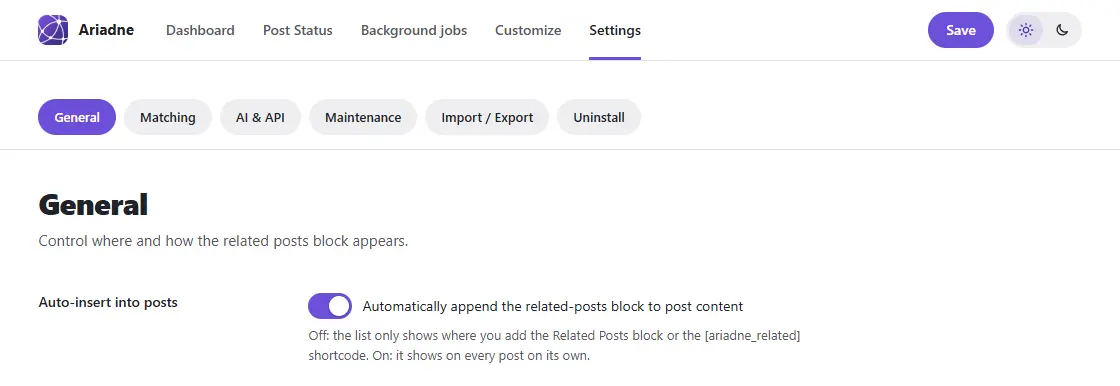
- Go to Ariadne Related Posts → Settings. The General tab opens first.
- Turn on Auto-insert into posts.
- Set Posts to show. Five is a good start.
Step 3: Check which posts can be suggested
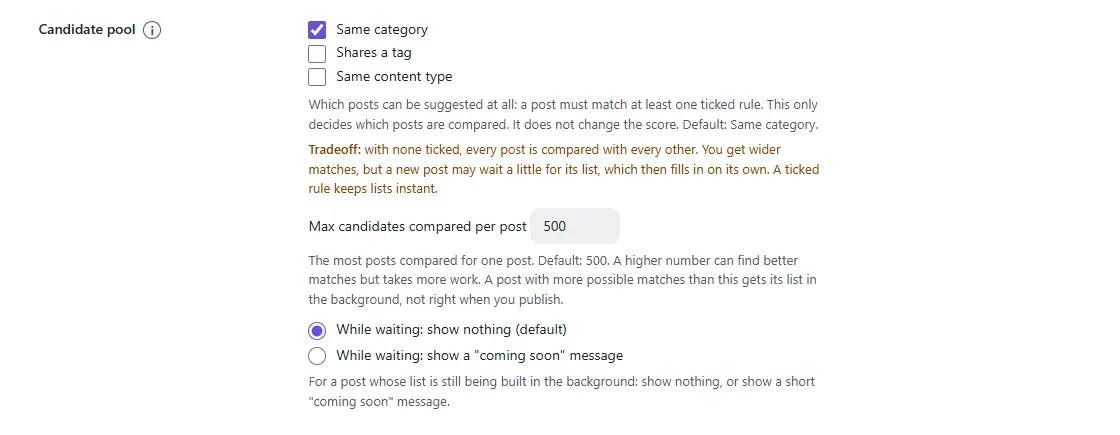
Now open the Matching tab. The Candidate pool decides which posts Ariadne can pick from. Same category is the default, and it suits most sites. A post in your Recipes category will suggest other recipes, not your post about a trip.
Leave it as it is and click Save.
Go back to the Dashboard. Every post now has a fresh list of related articles.
Step 4: See the list on a post
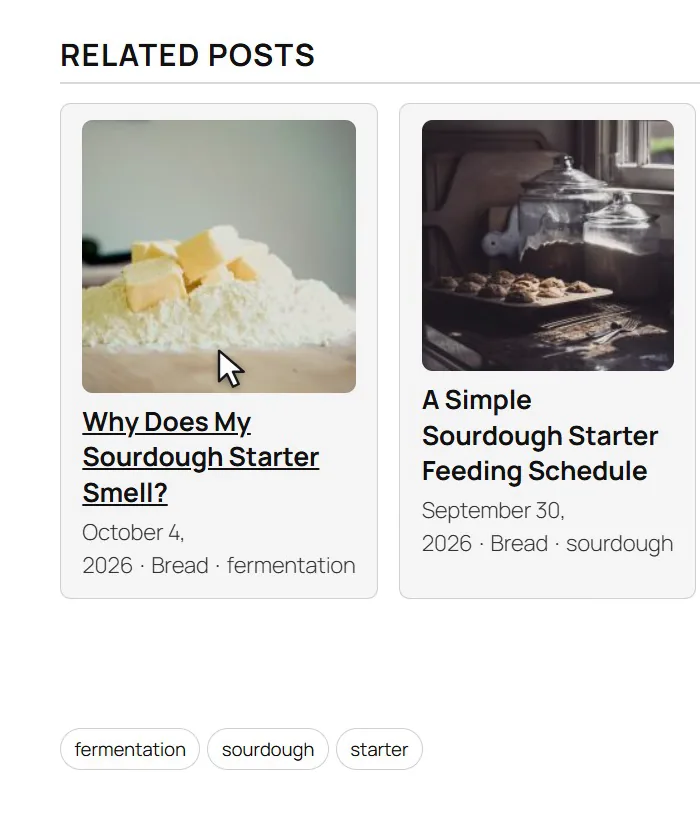
Open any post on your site and scroll to the end. The list is there.
Ariadne picks each one from the post’s tags, category, title and text. Posts that are really about the same thing come first. Clear, specific tags help a lot. To learn why, read why tags matter more than categories.
Step 5: Add Up next (optional)
The related list sits at the end of the article, and not every reader gets that far. Up next reaches them sooner. Part-way through an article, it shows a small link to the best post to read next.
- Open Ariadne Related Posts → Customize and click the Up next tab.
- Turn on Show the Up next bar on phones.
- Turn on Show the Up next card on desktop.
- Click Save.
On a phone, it’s a slim bar at the edge of the screen. On a computer, it’s a small card in the corner. One click takes the reader to the next post.
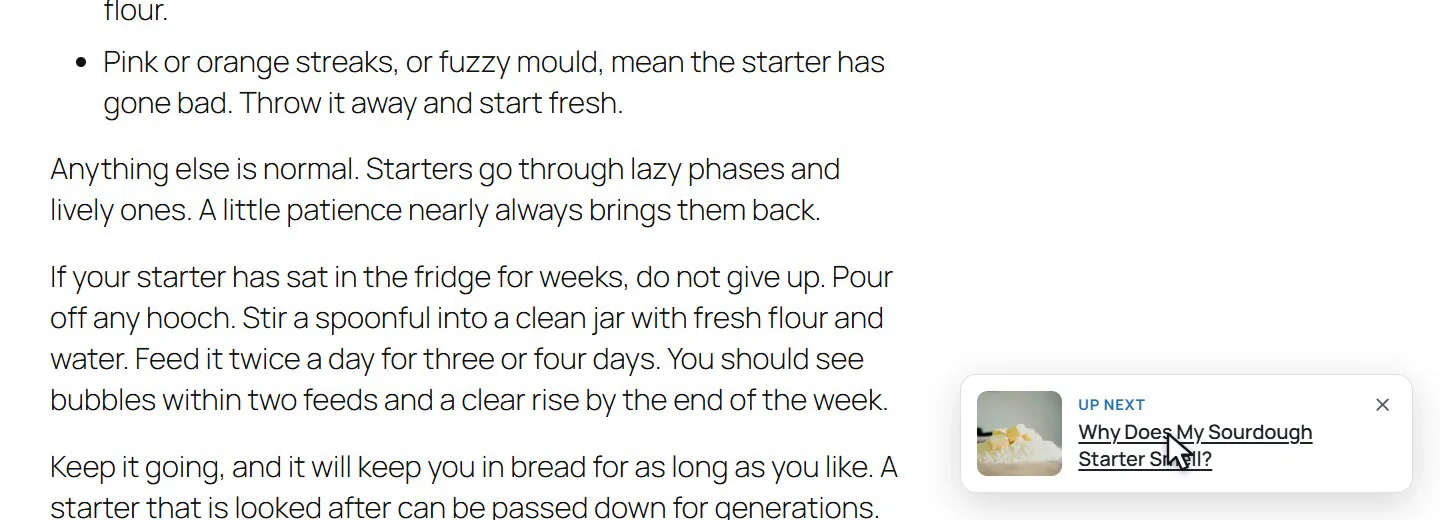
To change how it looks, open Ariadne Related Posts → Customize, go to the Up next tab and click Open in Customizer. Pick the colors and the details to show, such as the image or a short excerpt. The preview updates as you go. Click Publish when you’re happy. There’s more in the Up next docs.
Step 6: Choose where the list goes
By default, the list goes at the end of every post. To put it somewhere else on one post, add the Related Posts block in the editor wherever you like. On the Classic Editor, the [ariadne_related] shortcode does the same job. If you place the list by hand, Ariadne skips the automatic one on that post, so readers never see it twice.
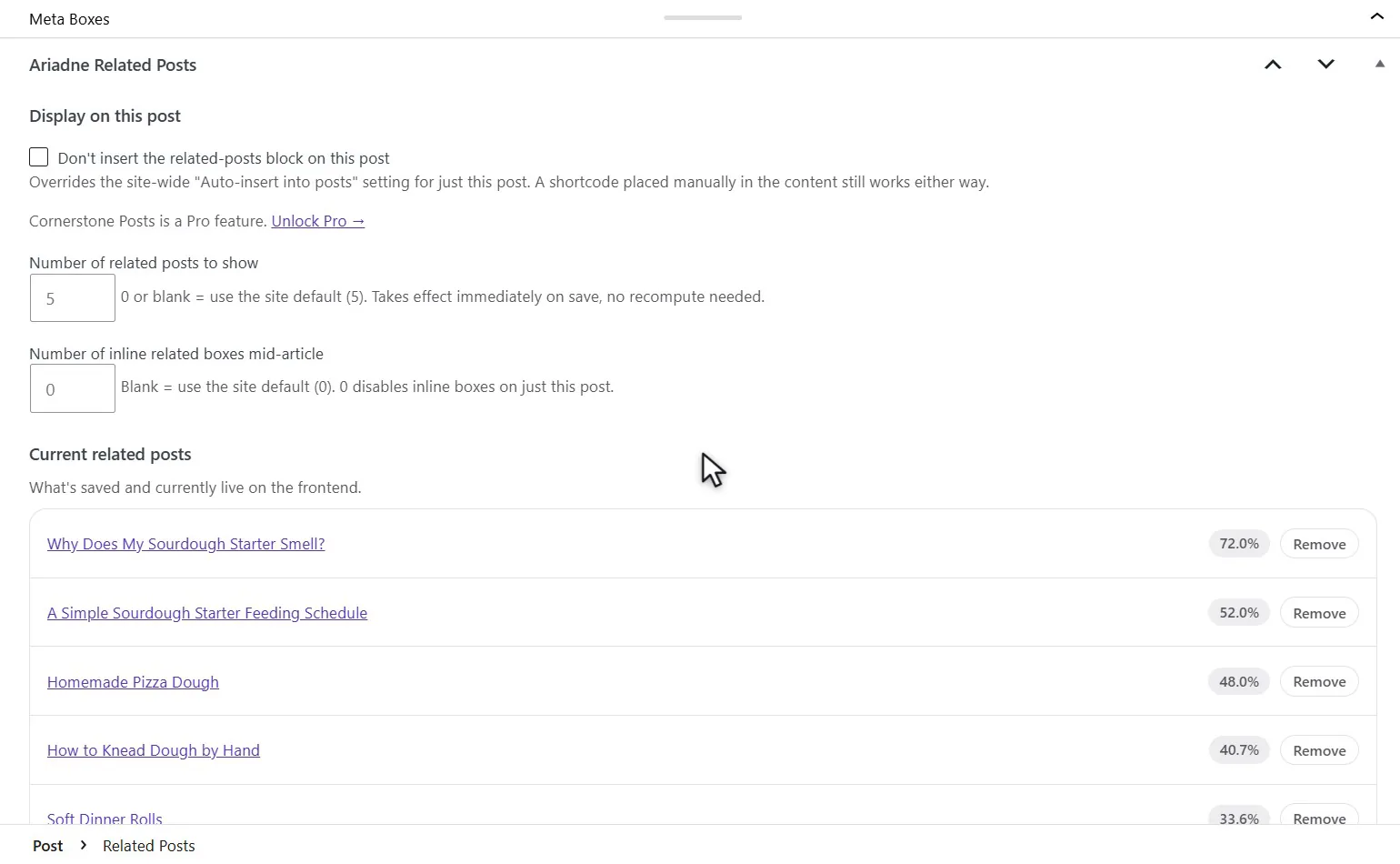
Each post also gets an Ariadne box below the editor. It shows the posts that are being suggested right now. To drop one, click Remove, then save the post. It won’t be suggested on that post again. You can also set how many show on just that post.
For sidebars and other spots, see block, shortcode or widget.
Want closer matches? Add AI matching (Pro)
The free version matches posts by the words they share. Ariadne Pro adds AI matching. It finds posts with the same meaning, even when they use different words.
AI matching uses Voyage AI, with your own Voyage key. To set it up:
- Sign in at dashboard.voyageai.com.
- Open API keys and click Create new secret key. Copy it.
- In Ariadne, go to Settings → AI & API. Paste the key into the API key field and click Save.
- Open Background jobs and click Run now. Each post gets an AI summary. The screen shows how long it has left.
When it’s done, the Dashboard shows AI matching on every list.
What it costs: Ariadne uses Voyage’s voyage-4 model. Each Voyage account gets 200 million free tokens. After that, it’s $0.06 per million tokens (Voyage’s pricing, October 2026). For a fuller picture, read what AI matching really costs.
Plugin or code: which should you pick?
You can add related posts without a plugin, using a little PHP in your theme. That works if you only want “more posts from this category” and you’re happy to look after the code. It won’t rank posts by how close they are, and a theme update can wipe it. Here’s how the no-plugin way works.
If you want lists that fit each post, with no code, use Ariadne. It’s a free WordPress related posts plugin that does the matching for you and adds Up next on top. If you’re moving from another plugin, see how Ariadne compares with YARPP.
Questions people ask
Is Ariadne free?
Yes. The automatic list, the block, the shortcode, the widget and Up next are all in the free version on WordPress.org. Pro adds AI matching, full control over the look, and pinning posts.
Why don’t I see related posts after installing?
The list stays hidden until you turn it on. Go to Settings → General, turn on Auto-insert into posts and click Save. A brand-new post gets its list a moment after you save it.
Do I need an AI key to use it?
No. The free version matches posts by tags, category, title and text, all on your own site. A Voyage key is only for AI matching in Pro.
Will it slow down my site?
Ariadne works out each list ahead of time, when a post is saved, and refreshes it in the background. Nothing is worked out while a visitor loads the page. There’s more in our guide to plugins and page speed.
Can I put the list in a sidebar?
Yes. Add the Ariadne Related Posts widget, or put the block in a block widget area.
That’s it
Your readers now see the right post to read next. Ariadne is free on WordPress.org, and you can see what Pro adds on the Ariadne page. If something doesn’t look right, ask in the support forum. For the bigger picture, read our complete guide.
Related Posts
- Ariadne 1.11.0: See Which Related Posts Get Read, and Show Popular Posts
- Best Internal Linking Plugins for WordPress in 2026: 7 Compared
- Pinning, Excluding, and Cornerstone Posts: Manual Control Over Related Posts
- Related Posts and WooCommerce: Showing Products Related to Blog Content
- Inline vs. End-of-Post: Where Should Related Posts Actually Go?