This walks through the two things people usually ask about after installing Ariadne: turning on AI-powered matching with a Voyage AI key, and customizing how the related-posts block actually looks. Both live in different places than you might expect, so here’s exactly where to click.
What’s free and what needs Pro first
Before touching any settings, it helps to know which part of this guide applies to your plan. AI-powered matching (the Voyage AI part) and full style control in the Customizer are both Pro and Pro+ features. If you’re on Free, the AI & API tab shows a short note that matching by meaning is in Pro, instead of the key fields. The Customizer’s Related Posts section isn’t shown on Free either.
One setting is the exception, and it’s worth knowing up front: how many related posts show by default. That one is free on every plan, just not from the Customizer. More on that at the end.
Getting a Voyage AI API key
Ariadne’s free tier already matches posts by tags, categories, title overlap, and local text similarity, entirely on your own server, with nothing sent anywhere. Voyage AI adds a second layer on top: a semantic-embedding signal that understands what a post actually means, not just which words it uses, so two posts using completely different vocabulary can still score as closely related.
To use it, you need your own Voyage AI account and API key. Ariadne doesn’t provide one, and it never sends anything unless you’ve entered a key yourself.
- Go to voyageai.com and create an account.
- In the dashboard’s API keys section, click to create a new secret key.
- Copy it somewhere safe. Voyage only shows the full key once, and if you lose it, you’ll need to generate a new one.
Keep this key private. Anyone with it can make API calls billed to your Voyage account.
Entering the key in Ariadne
In your WordPress admin, go to Ariadne Related Posts → Settings, then the “AI & API” tab. You’ll see three fields:
- Voyage AI model: a text field, already filled in with a sensible default. Leave it as is unless you have a specific reason to change it.
- Voyage AI API key: paste your key here. The field is password-masked, and saving with it blank keeps whatever key is already stored, so you don’t have to re-enter it every time you save an unrelated setting.
- Daily request limit: the most Voyage AI requests Ariadne makes in one day. When the limit is reached, AI summaries wait until the next day. 0 means no limit.
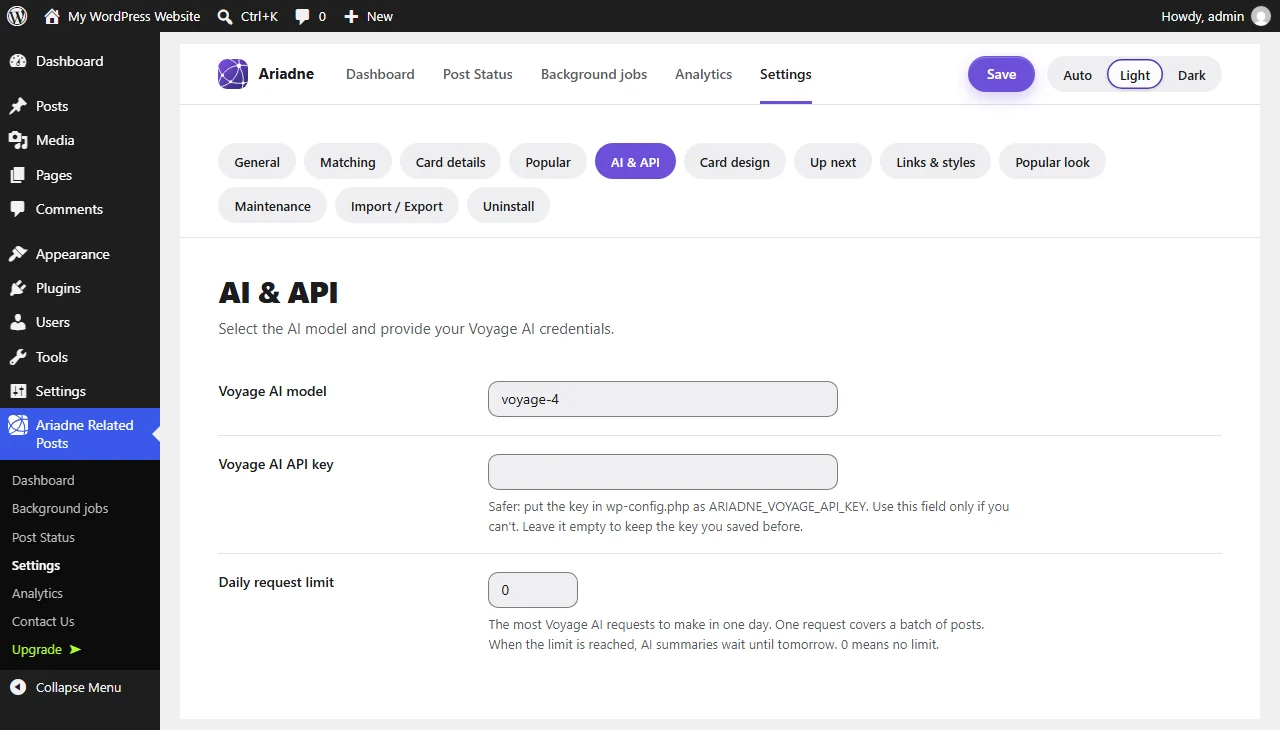
If you’re comfortable editing wp-config.php, there’s a more secure option: define ARIADNE_VOYAGE_API_KEY as a constant there instead. A key set this way always takes priority over the field, and it never touches the database, which matters if you ever export your settings or hand off site access to someone else. The Settings field is really a fallback for hosts where editing wp-config.php isn’t practical.
If you’re on Free, this tab shows a short note instead of the fields, because the AI signal only runs on Pro and Pro+. Tag, title, and local text matching work on every plan.
Confirming it’s actually working
Nothing about AI matching happens while a visitor is on your site, so there’s no front-end sign to check. Two places actually show it:
On the Dashboard, the Status card shows AI summaries as a count, such as “40 of 120”, and whether AI matching is on. Right after saving a key, most of your existing posts won’t have a summary yet, since summaries are made in the background over time, not all at once. Watch that count climb as background jobs work through your archive. The Dashboard’s AI Usage card also counts calls to Voyage AI, so you can see real activity rather than guessing whether anything is actually happening.
On Post Status, open any post’s row to see “Uses AI matching” for that one post.
A single post’s own edit screen also has a meta box showing its current computed related list with scores, useful for spot-checking one post instead of watching the whole site catch up.
Customizing how the block looks
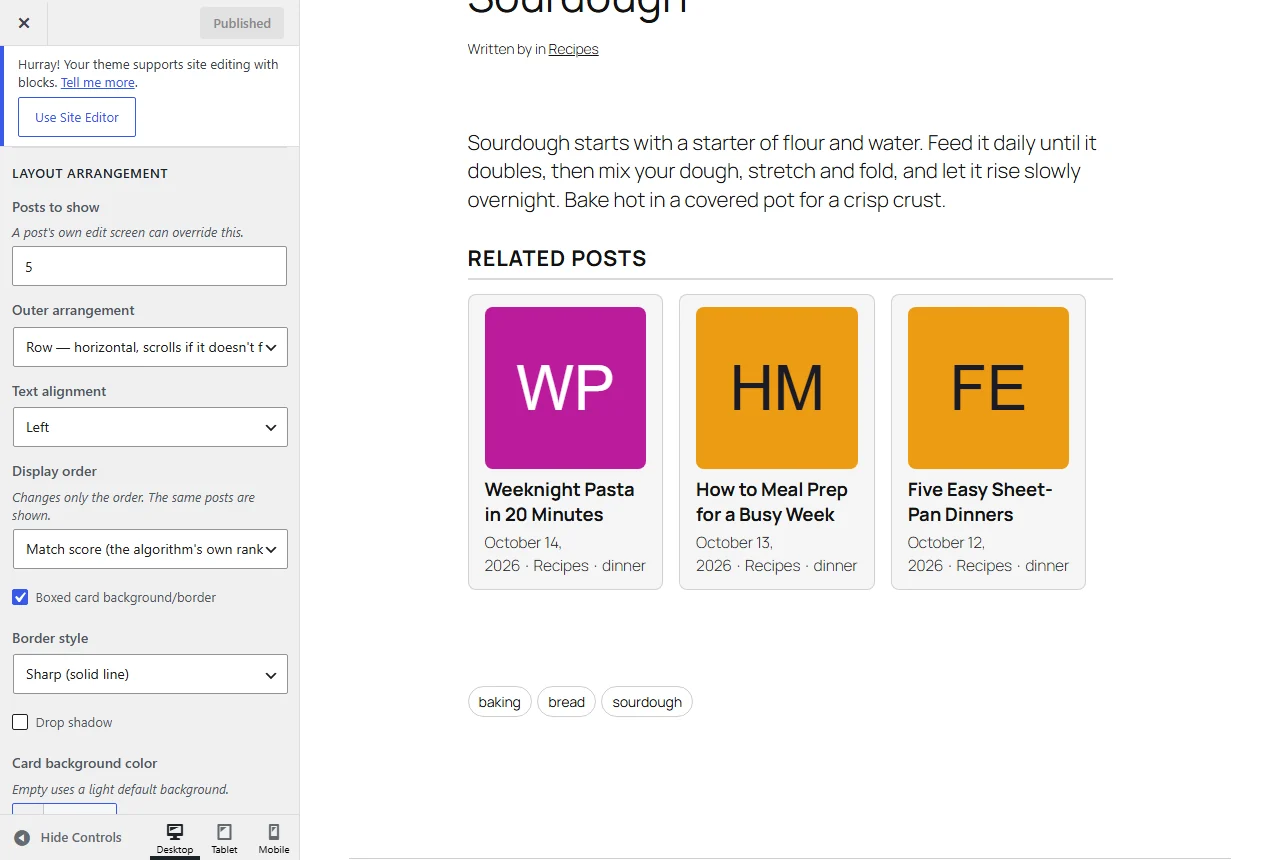
This part lives in Appearance → Customize → Ariadne Related Posts → Related Posts. On Pro, the Card design tab in Ariadne’s Settings has the same options. Both have a live preview and save to the same place. Every plan gets a clean default design out of the box. Full style control, the ability to change any of it, is Pro and Pro+.
Once you’re in the Customizer, the controls come in seven groups:
| Cluster | What it controls |
|---|---|
| Layout arrangement | Row (horizontal scroll), Grid, List, or Masonry, plus row-style treatments like boxed cards or a numbered list, grid columns for desktop and mobile separately, border style, drop shadow, background color. |
| Elements to show or hide | Date, author, category, and tag meta, the excerpt, a category eyebrow label, a numbered ranking badge, and an optional call-to-action button. |
| Text | Heading style, font choices from a curated set of Google Fonts, title and meta text styling, hover effects, excerpt length. |
| Image | Position (top, left, below the text, or behind the text, where the picture fills the card and the title sits on a dark fade), shape, corner roundness, edge-to-edge bleed, size. |
| Icon | An optional icon next to the block’s heading, a smart-default or custom color, and whether it repeats as a small badge on each card. |
| Divider | Show or hide divider lines between cards, and their accent color. |
| Link tracking | Optional UTM tags on related-post links, so your analytics tool can tell those clicks apart. |
If you’re also using inline related posts, it has its own completely independent set of these same groups. To make them match, set the same options in both.
At the top of the Related Posts section, the Card style picker applies one of seven ready-made looks in one click: classic cards, text on image, glass cards, wide banners, a scrolling row, a compact list, or a numbered list. Every setting stays editable afterwards. Below it, the Look menu adds nine more designs from the style library.
For anything the controls don’t cover, WordPress’s own Additional CSS panel in the Customizer applies after every other setting, so it reliably overrides the plugin’s own styles without needing !important. And if you’d rather start from a blank slate entirely, the “Turn off this plugin’s default styles entirely” checkbox in the Customizer’s Advanced section removes the plugin’s stylesheet, useful if you’re styling the block from your theme or Additional CSS instead.
The one setting free users can actually change
Here’s the nuance worth knowing. How many related posts the block shows by default is controlled by the same underlying setting in two different places, and only one of them is free.
In the Customizer’s Related Posts section, under Layout arrangement, there’s a “Posts to show” control. That’s part of the same Pro/Pro+ gated section as everything else above, so if you’re on Free, you won’t see it there at all.
But the identical setting also lives on the plugin’s own Settings page: Ariadne Related Posts → Settings → General tab, also labeled “Posts to show.” That copy is free on every plan, no upgrade required. Set it anywhere from 1 to 10, and it becomes your sitewide default. A single post’s own edit screen can still override that number individually, which is also free, for the rare case where one page needs a different count than the rest of your site.
So if you’re on Free and want more or fewer related posts showing, the Customizer isn’t a dead end, it’s just not where this particular control lives for your plan. Ariadne Related Posts → Settings → General is where to look.
Putting it together
For a Pro or Pro+ site: get a Voyage AI key, paste it into the AI & API tab (or define it in wp-config.php), give background jobs some time to generate embeddings, then head to the Customizer to make the block match your site’s design. For a Free site: skip the AI section entirely, since the key won’t do anything without a license, and use Settings → General to set how many related posts show, which is the one piece of this whole picture that was never behind a paywall to begin with.
Related Posts
- What Happens to Your Related Posts Data If You Downgrade from Pro or Pro+?
- Why Tags Matter More Than Categories for Related Posts
- Pinning, Excluding, and Cornerstone Posts: Manual Control Over Related Posts
- How to Add Related Posts to WordPress Without a Plugin
- Related Posts and WooCommerce: Showing Products Related to Blog Content