Give your related and popular lists a new look, with one pick for each place. Available in Ariadne Pro.
Where to pick a style
Go to Appearance → Customize → Ariadne Related Posts. You make one pick for each place, in its own section:
- Related Posts: the block at the end of the post. Choose under Look.
- Inline Related Post: the boxes inside the article. Choose under Style and Posts per box.
- Popular posts: Article and Popular posts: Sidebar: your Popular lists.
The preview on the right changes as you pick. Nothing changes on your site until you click Publish.
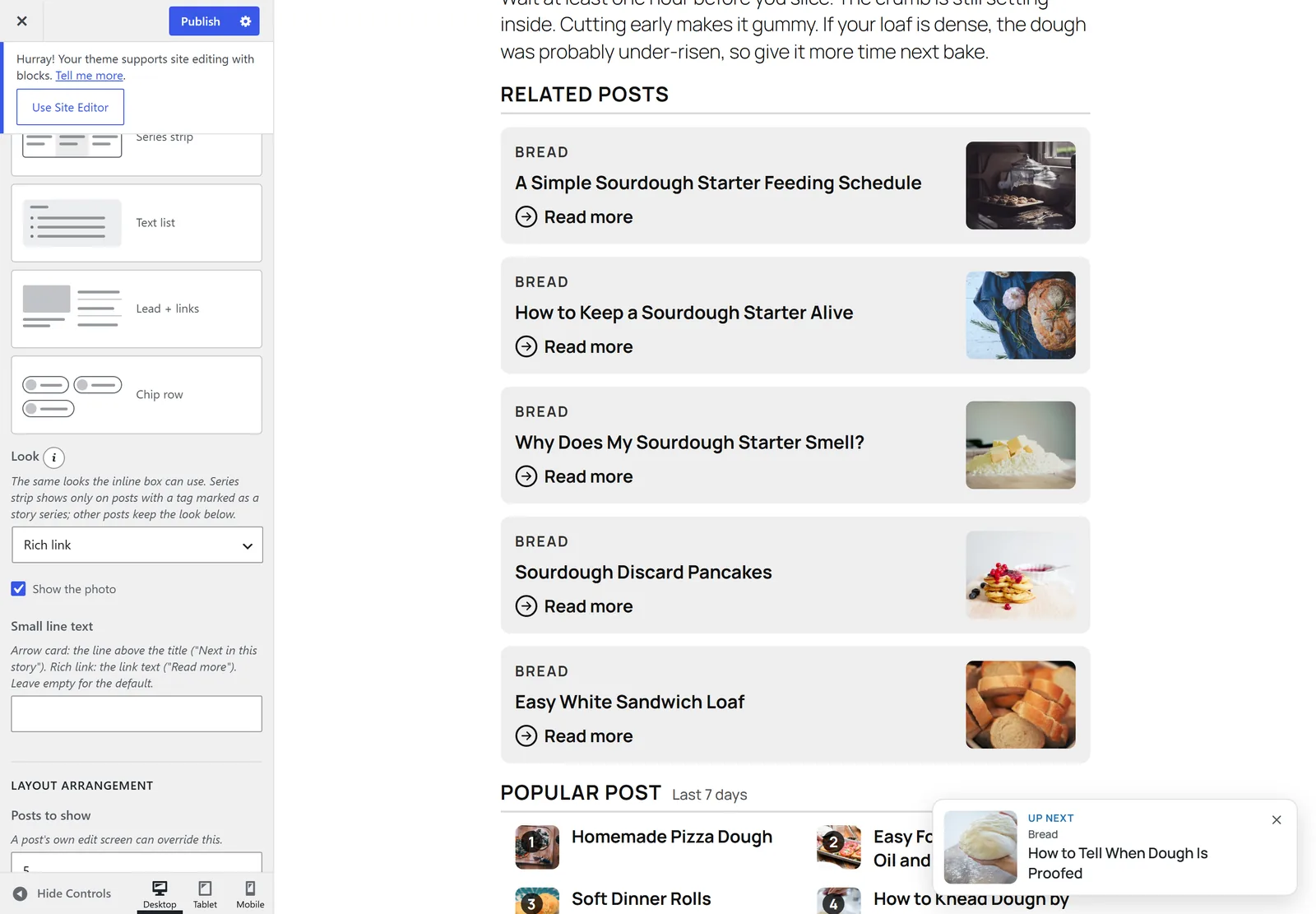
Looks for each post
| Look | What it shows |
|---|---|
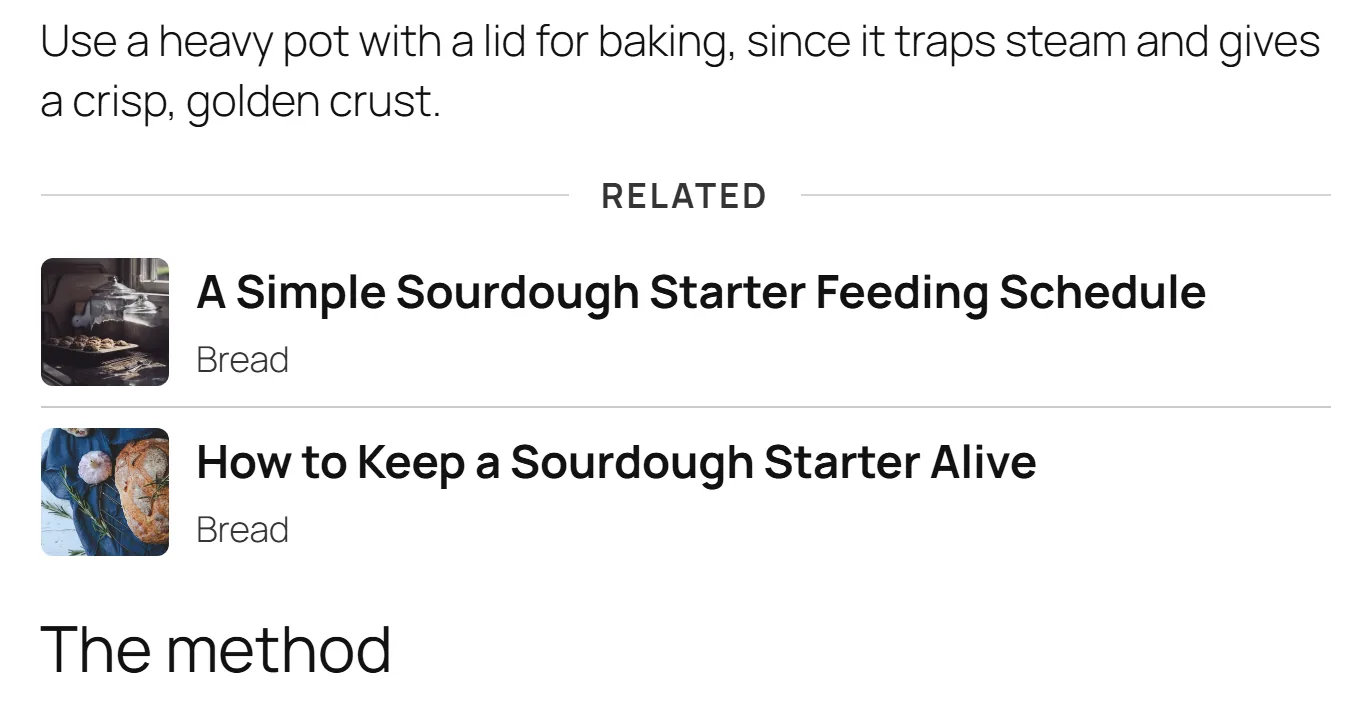
| Read also, open | A photo and the title, with no box around it. |
| Text line | The title as one line of text. |
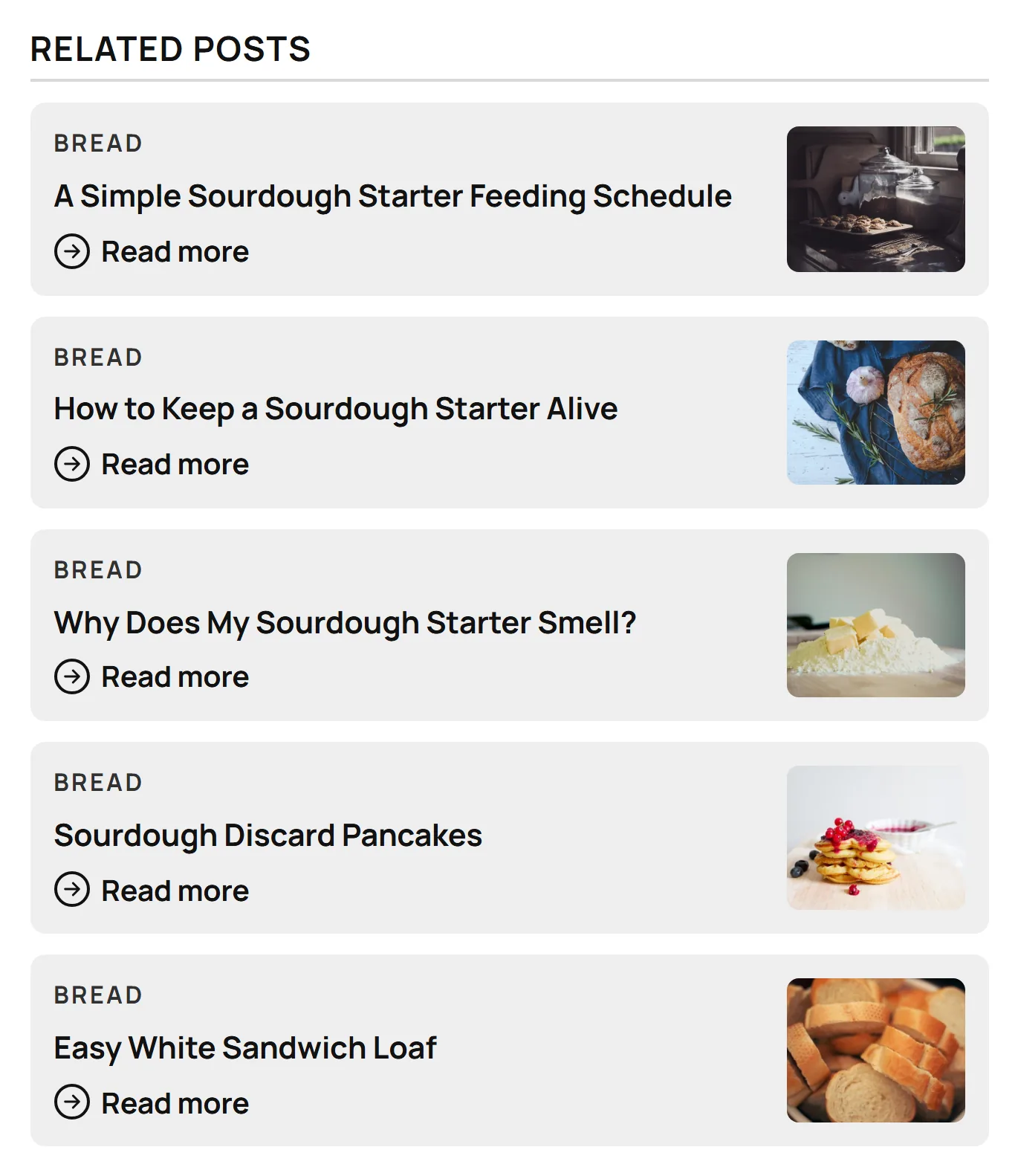
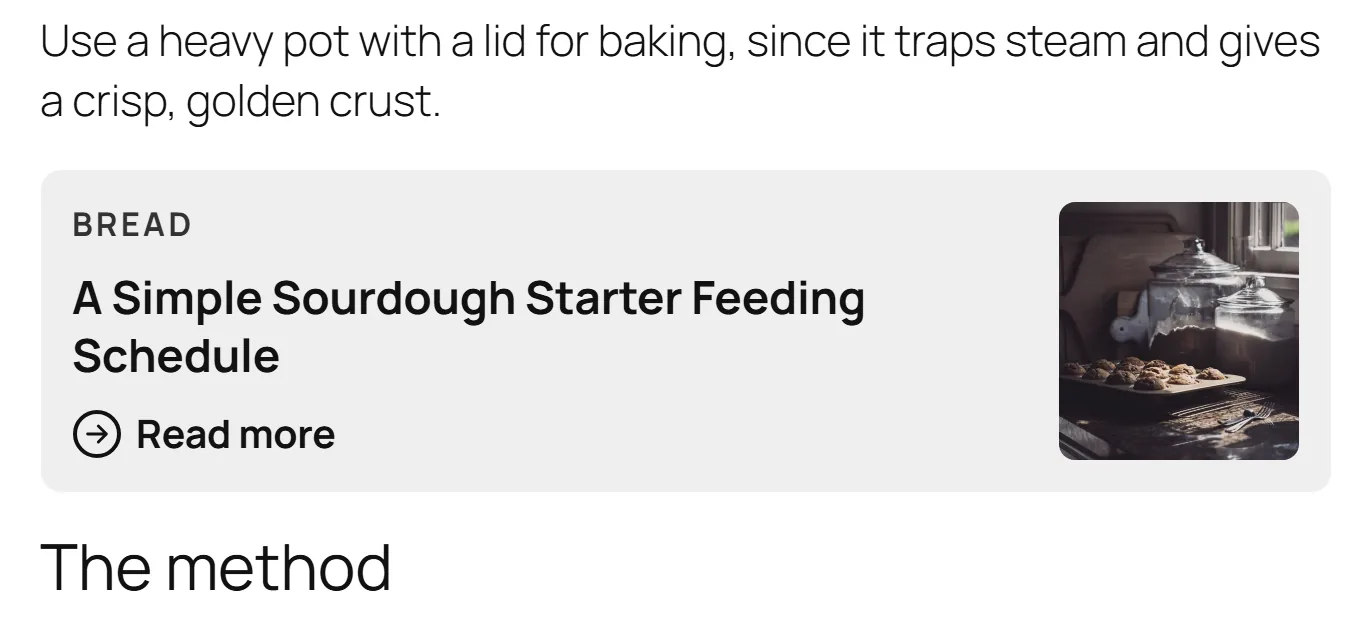
| Rich link | The category, the title and a “Read more” link, with a photo on the side. |
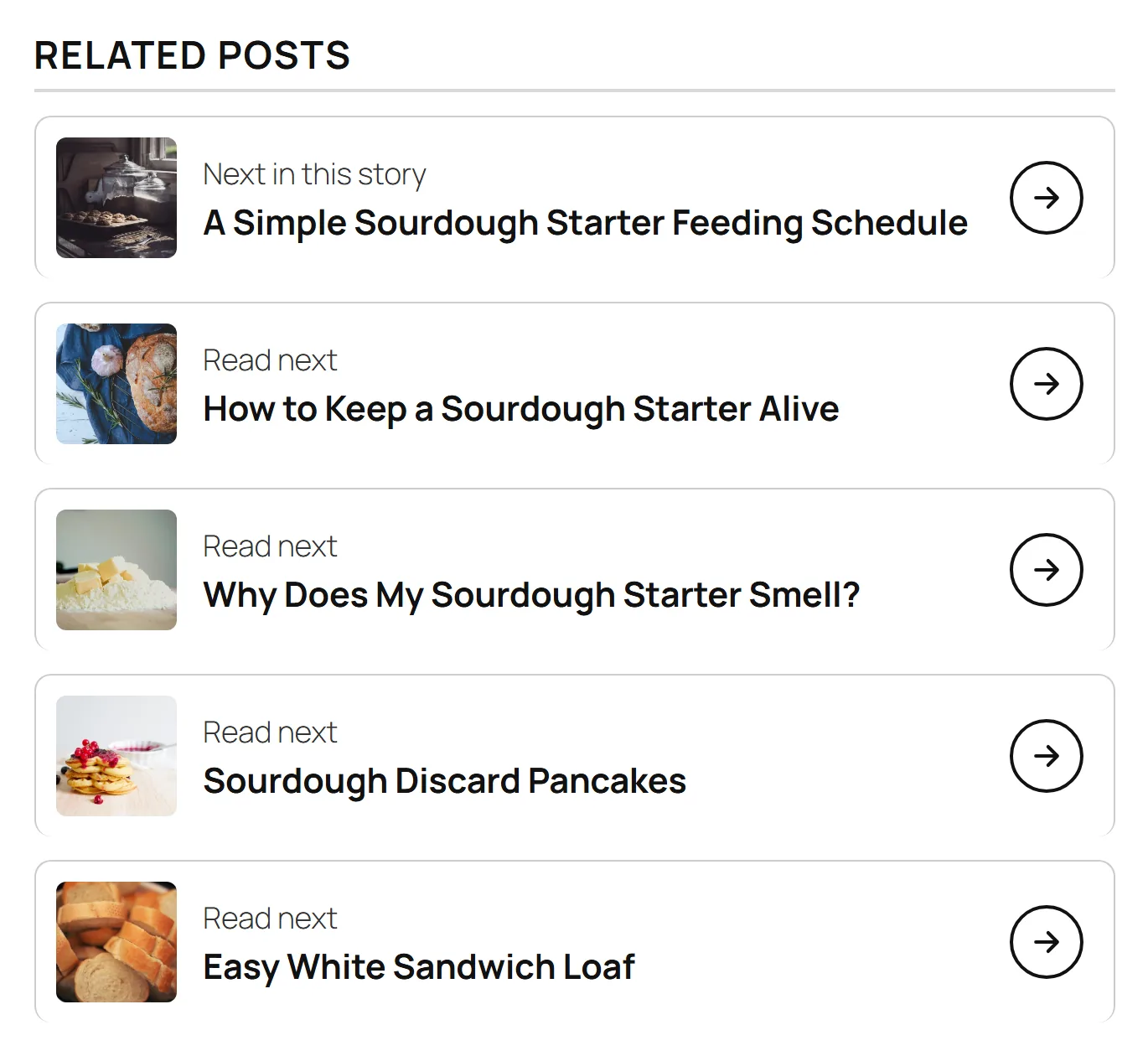
| Arrow card | A small photo, a short line above the title, and an arrow. |
| Profile chip | A round photo, the post title and its category. Developers can swap in a name and a short fact with the ariadne_profile_chip_name and ariadne_profile_chip_fact filters. |
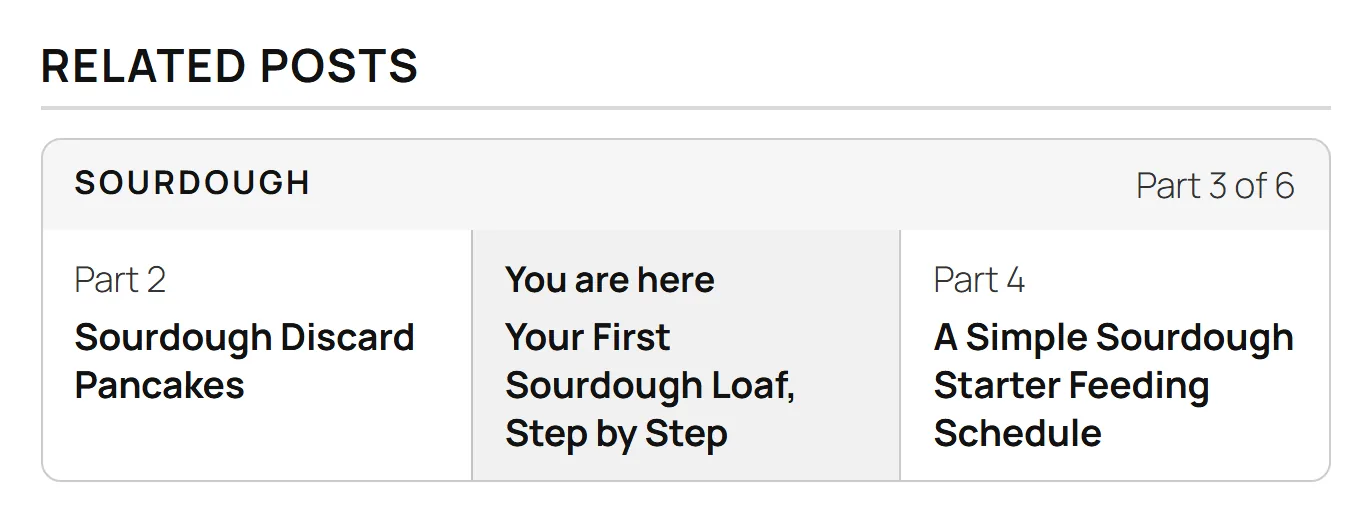
| Series strip | The parts of a story, in order. See Story series below. |
| Float beside | Sits next to your text on wide screens. Inside the article only. |
Rich link and Arrow card have a Small line text setting. Leave it empty to use “Read more” (Rich link) or “Read next” (Arrow card), or type your own words. You can also hide the photo.
With the text left empty, on a post in a story series, the Arrow card for the next part says “Next in this story”. The other cards keep “Read next”.
Layouts for several posts
| Layout | What it shows |
|---|---|
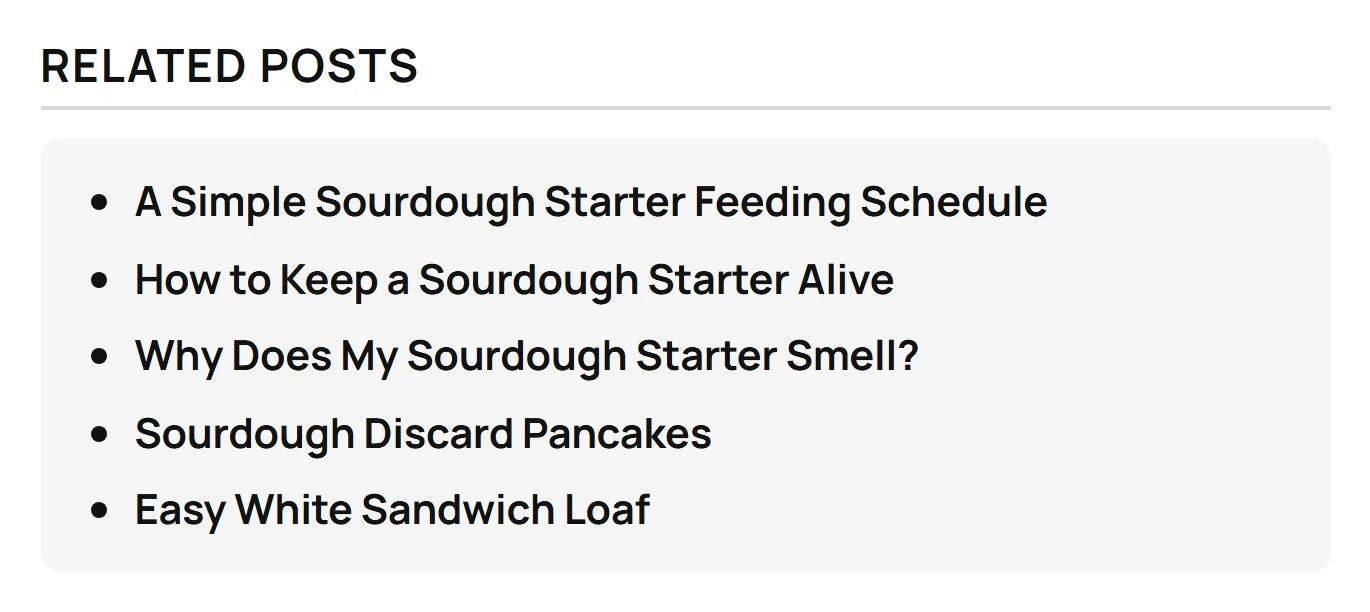
| Text list | A simple list of titles. |
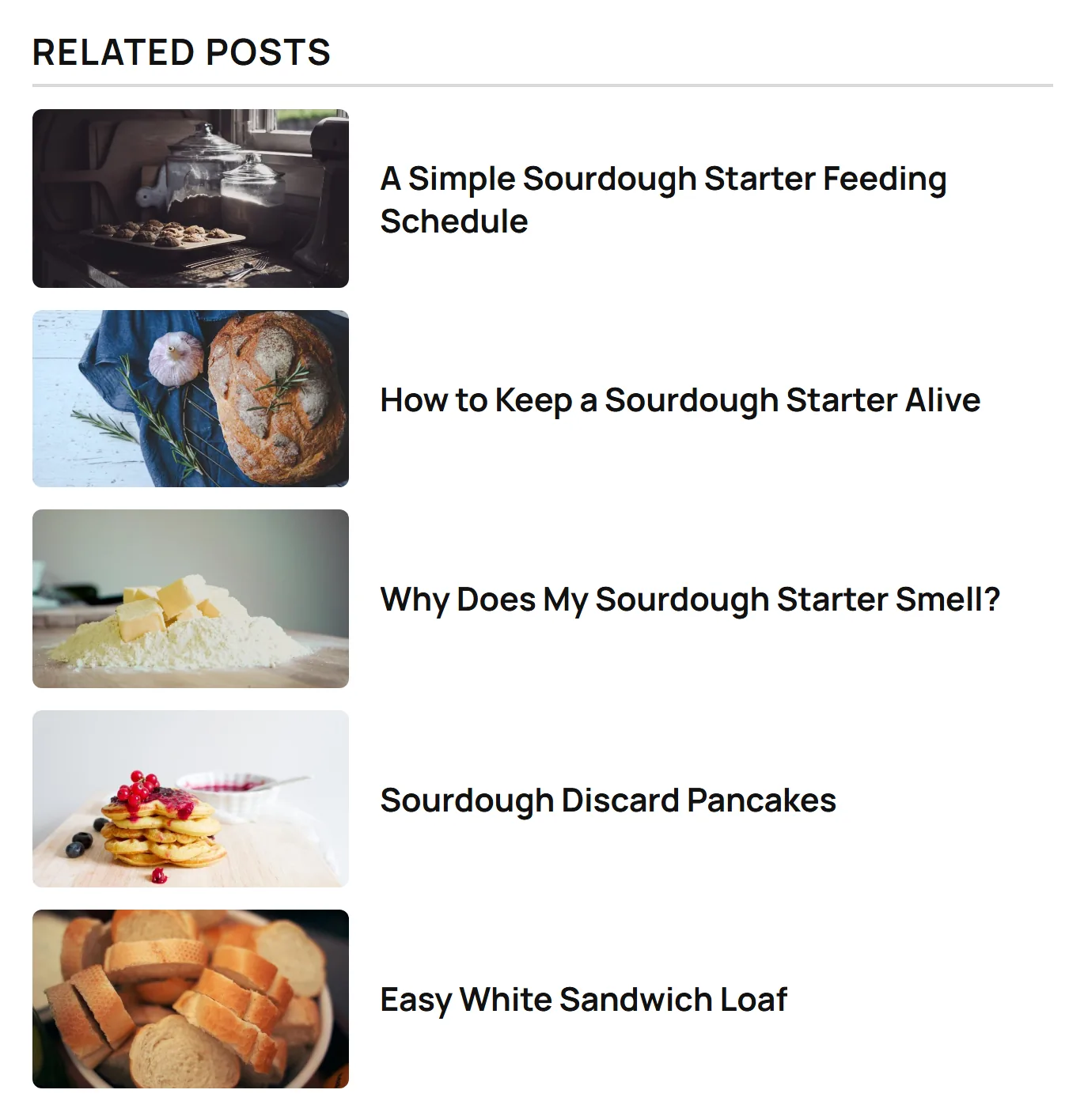
| Thumb list | Titles with small photos. |
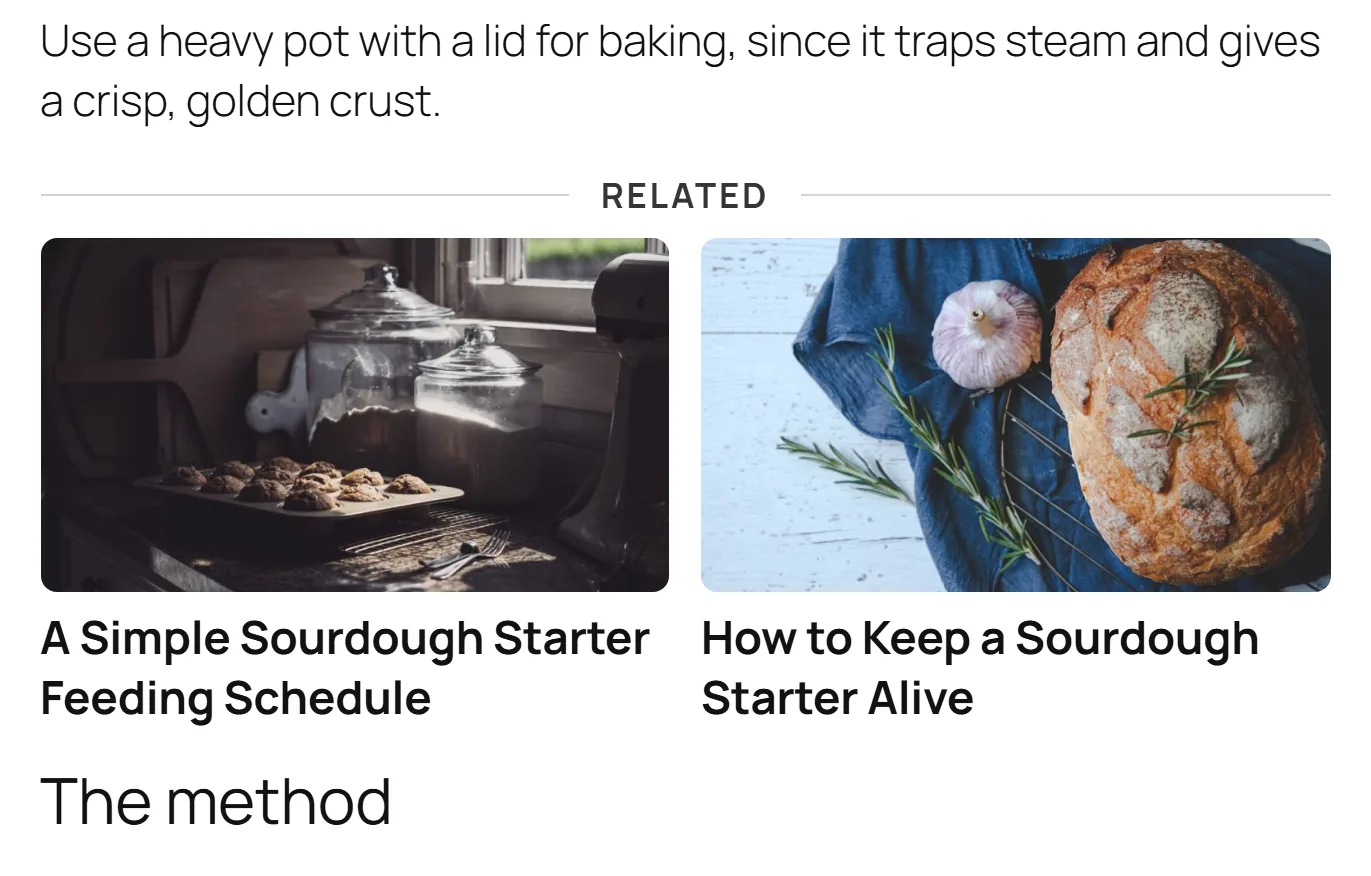
| 2-up grid | Two posts side by side, with big photos. |
| 3-up mini grid | Three small posts in a row. |
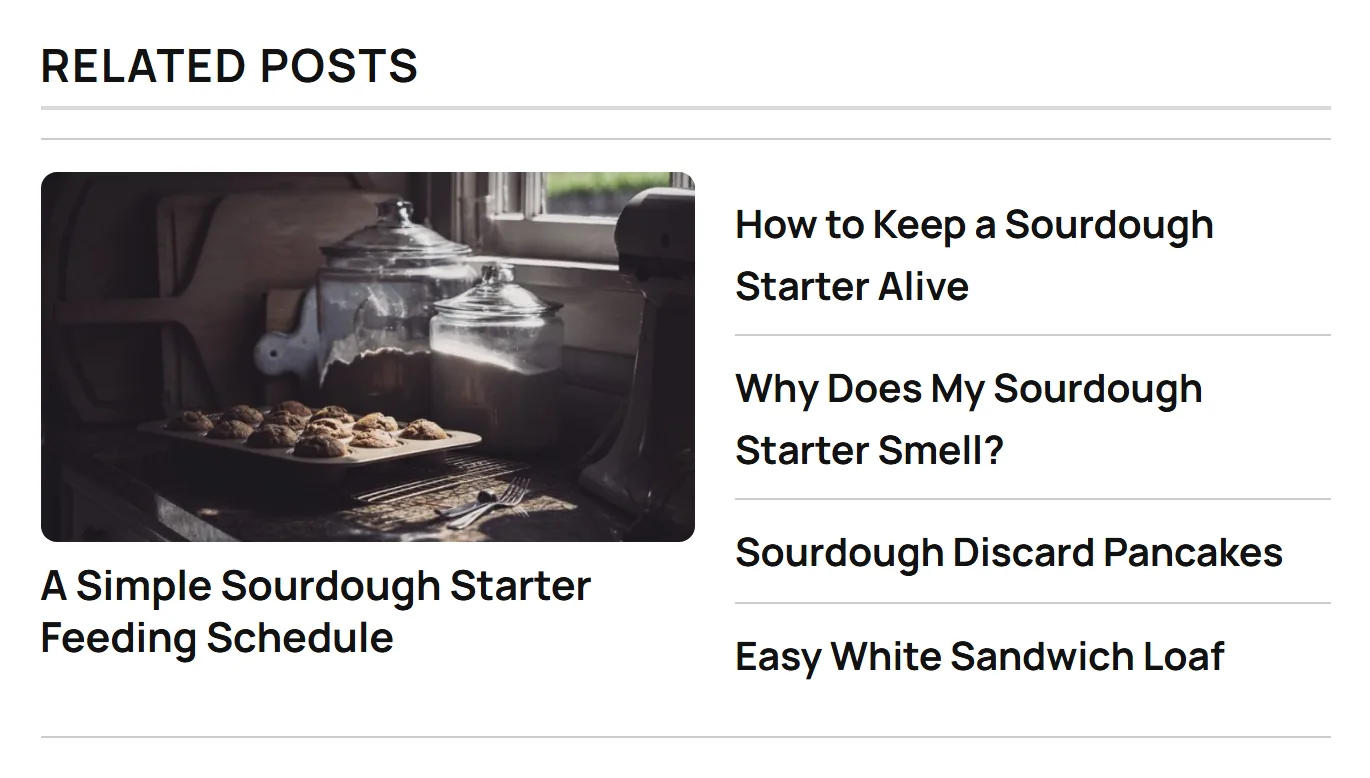
| Lead + links | One big post with a photo, and a list of titles beside it. |
| Numbered list | A list with numbers. |
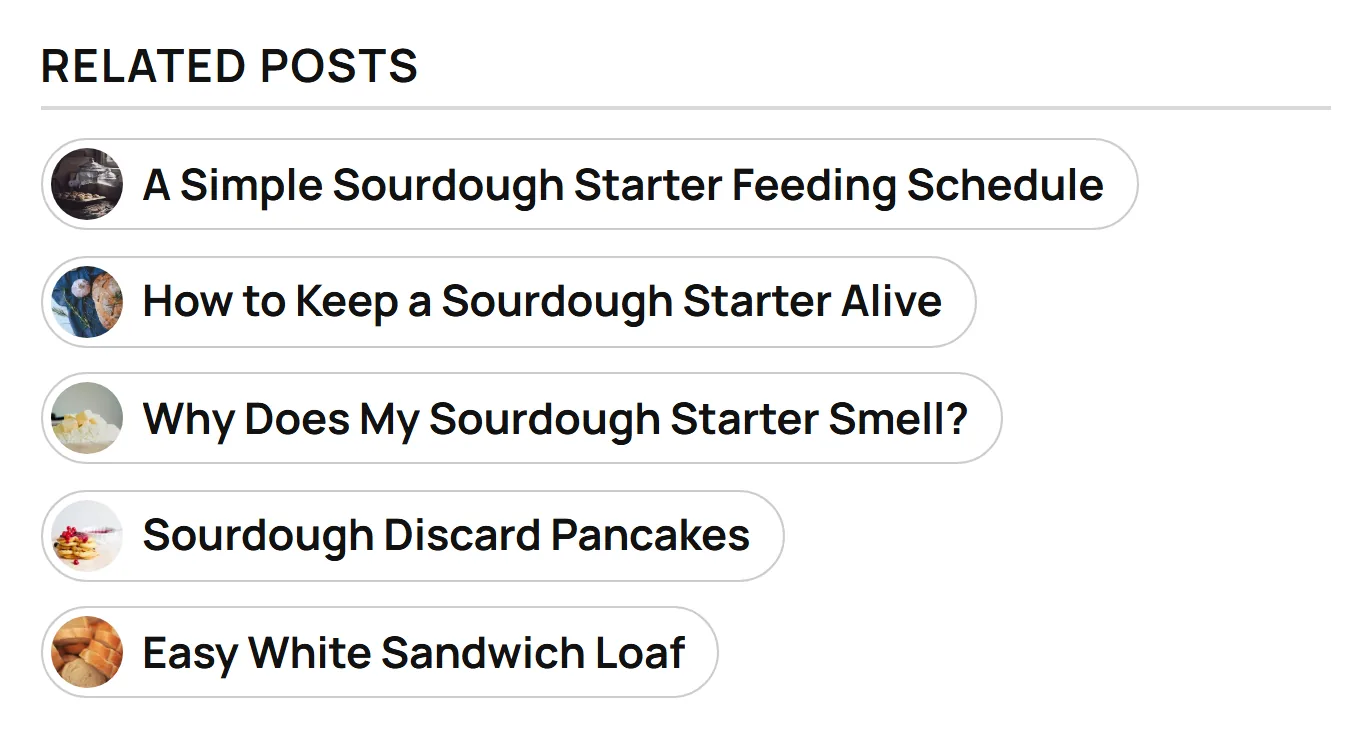
| Chip row | Small rounded links, each with a round photo. |
Grids turn into lists on phones.
Which styles work where
| Place | Styles you can pick |
|---|---|
| Related block | Read also, Text line, Rich link, Arrow card, Profile chip, Series strip, Text list, Lead + links, Chip row. Or keep the card style and its options. |
| Inside the article | Every look for each post, including Float beside, plus Card, Divided, Bordered box, Numbered, Image above, Text on image and Glass on image. Every layout for several posts. |
| Popular | Read also, Text line, Rich link, Arrow card, Profile chip, Text list, Lead + links, Chip row. |
Inside the article
In the Inline Related Post section:
- Style is the look of one post.
- Posts per box is “One post” or a layout for several posts.
- Most posts in a list or grid is 2 to 4. The default is 3.
- How closely related sets which posts may join a list or grid: Very closely, Closely (the default) or Somewhat.
A list or grid inside the article only shows posts that are closely related to the one being read. If too few posts are close enough, the box shows one post in your Style instead.
Float beside needs enough text around it. When a spot is too short, the box shows open instead, and it always shows open on phones.
Story series
A story series is a tag whose posts are parts of one story, like a recipe series or a trial told day by day.
- Go to Posts → Tags and edit the tag.
- Tick This tag is a story series, then save.
The parts are put in date order, oldest first. On those posts, the Series strip shows the series name, “Part 3 of 6”, and links to the parts before and after. On posts without a story series tag, the Related block keeps your other look.
Up next can use the series too. See Up next.
What wins for Popular
A Popular posts block or shortcode can pick its own look. That look wins over the category’s style, and the category’s style wins over the pick in the Customizer. See Popular posts.
Which plan you need
- The style library is part of Pro.
- Boxes inside the article need Pro+.
- If your licence ends, the style you saved keeps showing. You need Pro again only to pick a new one.