Mawu 0.11.0 is the biggest Mawu update so far. Mawu started as dark mode for the WordPress admin. Now it covers your whole site.
That means your admin, both editors, your login page, and the website your visitors see. One plugin. One set of themes. One settings page.
Here is why this version matters:
- Your visitors can get dark mode for the first time.
- There are 23 themes now, up from 13.
- All the settings are on one page.
- There is a Pro plan and an Agency plan for people who want more.
- Everything that was free before is still free.
Below is each change, and a few things we learned while building it.
Dark mode for your visitors
This is the change people asked about most. Mawu can now add dark mode to your website. It uses the same themes as your admin.
It is off at first. You turn it on in the Frontend panel.
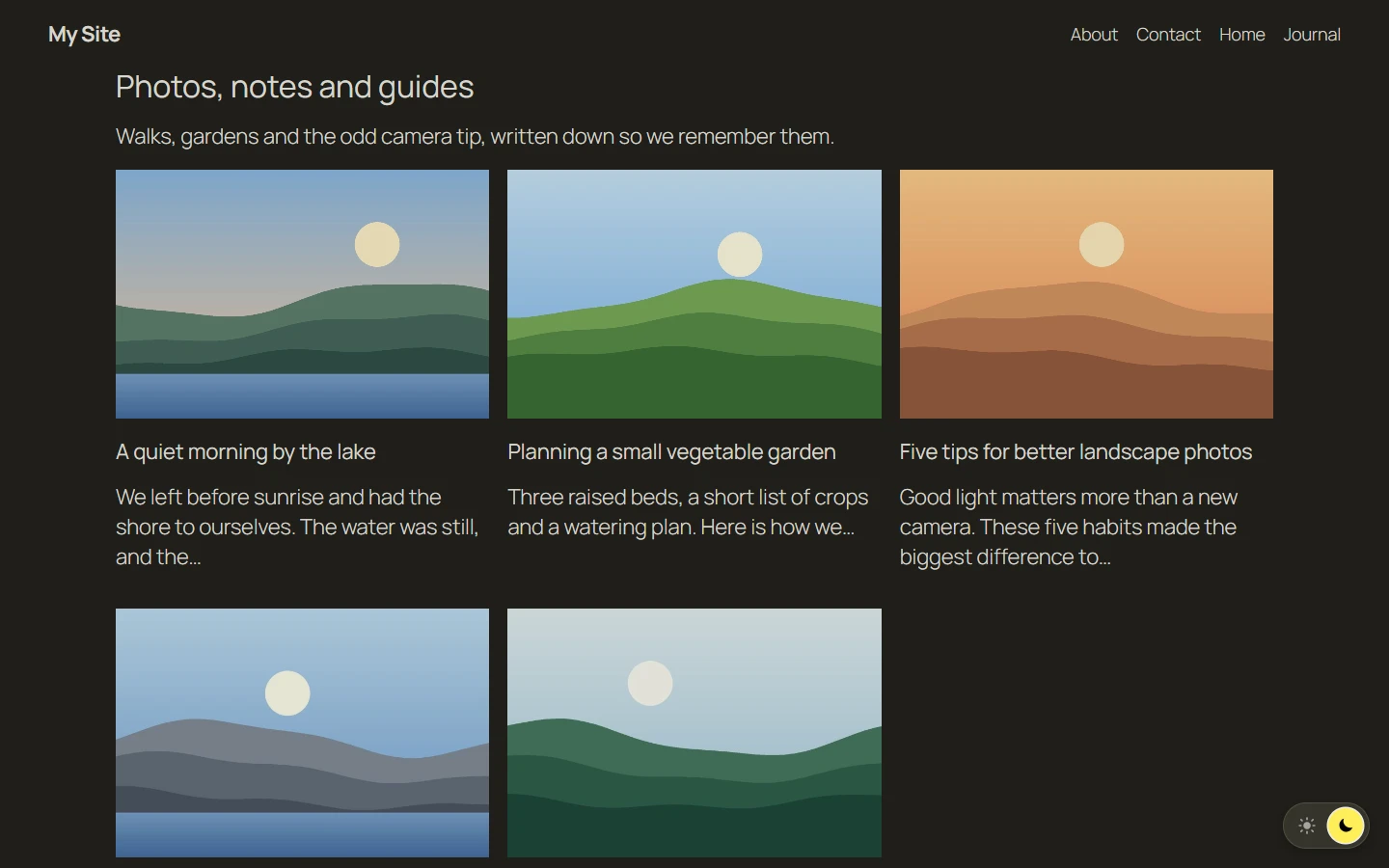
Here is what your visitors get:
- A switch to turn dark mode on and off.
- Dark mode on their first visit, if their phone or computer is set to dark.
- Their choice remembered on every page.
- Photos that are dimmed, not turned into negatives.
- Logos and icons that keep their own look.
You choose how dim photos get, from 50% to 100%.
You can see your site before you save. The Frontend panel shows a live preview next to the settings. Look at any page in light or dark. Look at it on a desktop or a phone. Visitors see nothing new until you click Save changes.
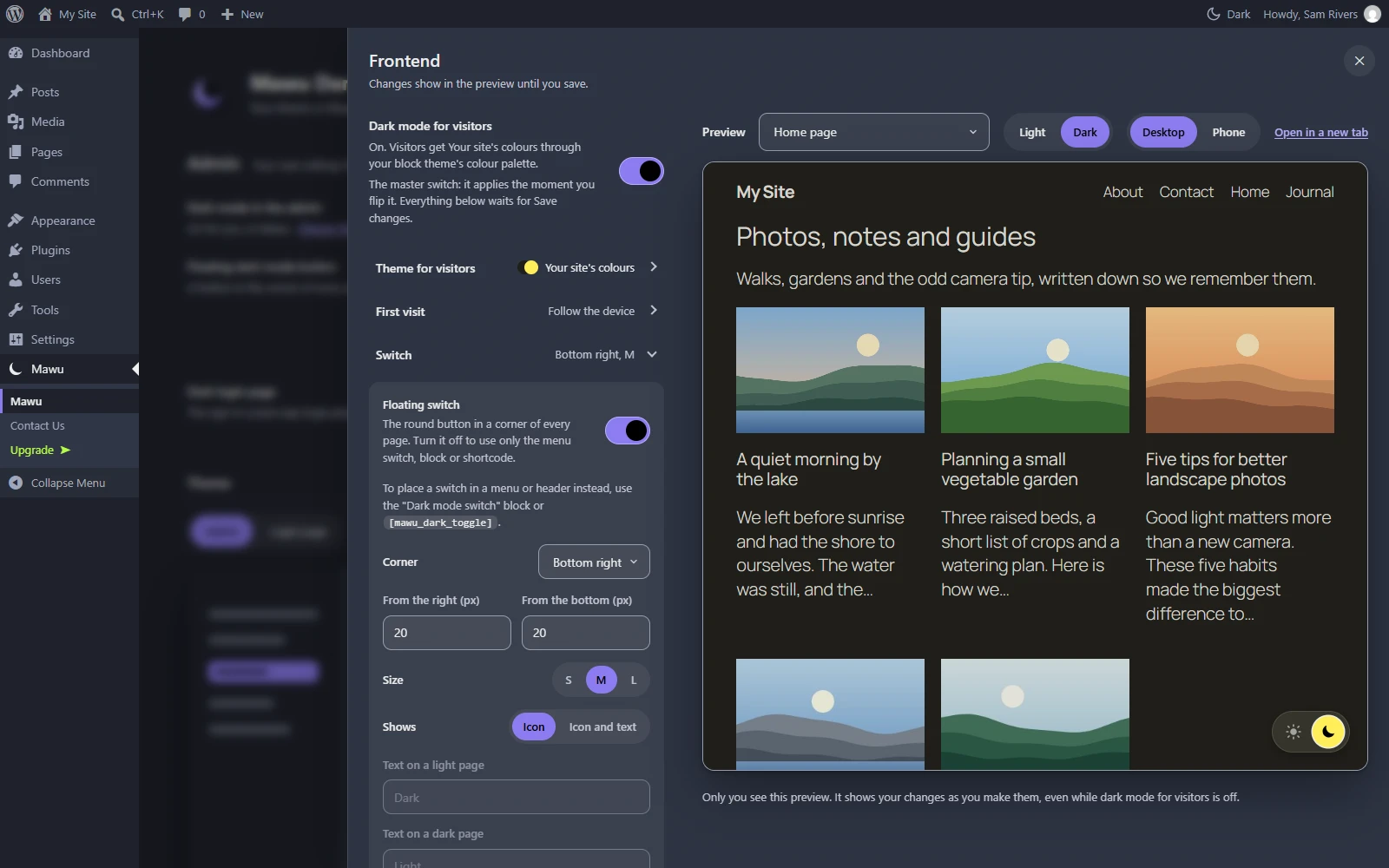
Want dark mode to look like your brand? Pick “Your site’s colours” at the top of the theme list. Mawu makes a dark theme from your own theme’s colours.
Want one part of a page left alone? Add it to “Never darken these parts”. Or tick “Never darken this page” when you edit a post or page.
You can also send people straight to dark mode. Add ?mawu=dark to any link to your site. This works well in a newsletter. Use ?mawu=light for light.
The visitor dark mode guide covers every setting. The compatibility page lists the themes and plugins we tested.
A switch that fits your site
The switch can go almost anywhere. You can:
- Put it in any corner, as close to the edge as you like.
- Make it small, medium or large.
- Show an icon, or an icon with text.
- Show it on phones only, on bigger screens only, or both.
- Add it to a menu instead.
- Add it with a block, a shortcode or an Elementor widget.
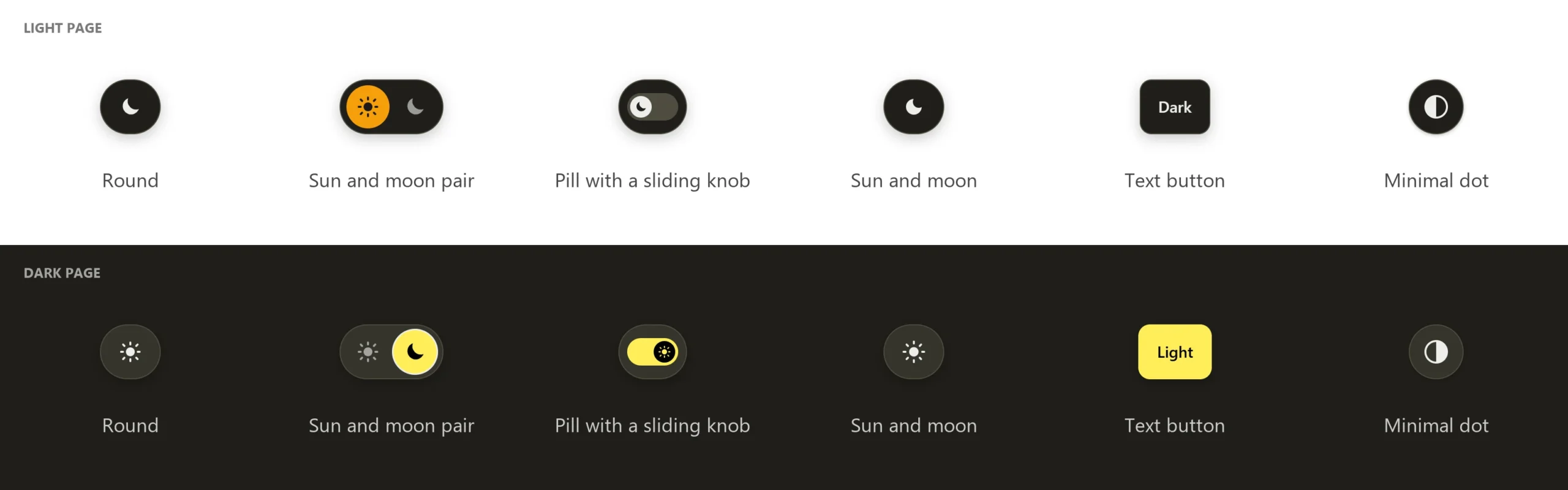
Free has two designs. Round is the default. Sun and moon pair is new. The sun and the moon sit side by side, and the one in use lights up.
Pro adds four more designs. It also lets you pick the switch colours. Mawu checks that they are easy to see before it saves them. And you can drag the switch into place in the preview.
Graphite, from a user review
The first review of Mawu on WordPress.org was kind. It said Mawu was more complete than a bigger plugin. It also asked for one thing: a plain charcoal theme with WordPress blue.
That theme is Graphite. It is plain grey with no colour tint. Buttons and the current menu item use WordPress’s own blue. Links use a lighter blue, because the standard blue is too dark to read on grey.
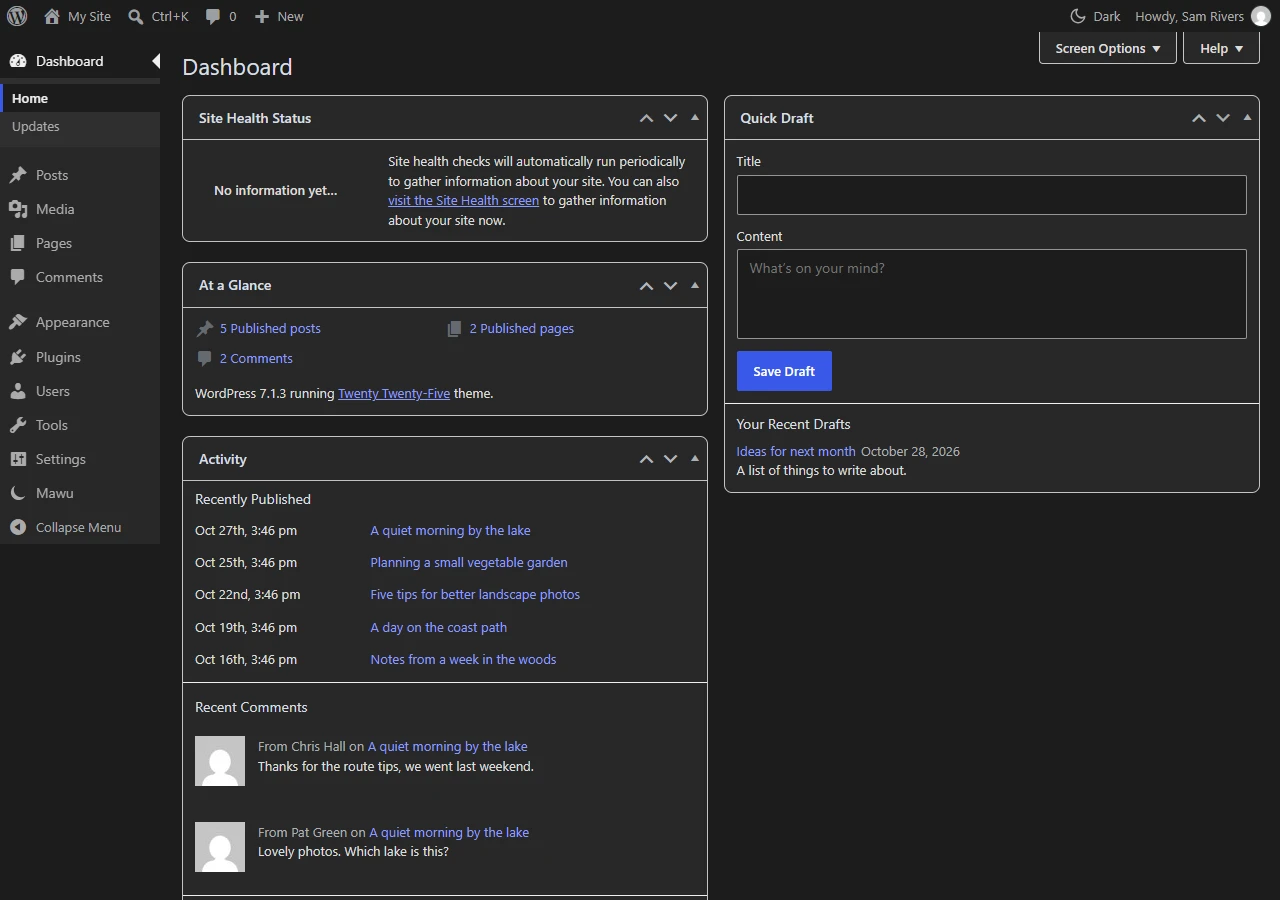
Graphite starts a new Neutral collection. Three more quiet themes joined it:
- Carbon: dark grey with no colour at all.
- Slate: a cool blue-grey.
- Stone: a warm grey.
In these three, links are bold and underlined. You can spot a link without relying on colour.
Thank you to the reviewer. If you want a theme, ask. That is how Graphite happened.
23 themes in six collections
Halloween and Christmas collections are new too. Here are all 23 themes:
- The original: Mawu
- Neutral: Graphite, Carbon, Slate, Stone
- Nature: Canopy, Tide, Dune, Ember, Fern
- Hero: Emerald, Gargoyle, Skyline, Forge, Onyx, Velocity, Abyss
- Halloween: Pumpkin, Haunt, Candle
- Christmas: Pine, Frost, Cranberry
Every theme is free. Every theme passes the same contrast checks for text, links and buttons. See all 23 themes with their colours.
All your settings on one page
Mawu now has its own item in the admin menu. It opens one page.
Your own settings are at the top. Turn dark mode on or off. Choose when it turns on. Pick your theme. Set up the editors, the login page and the quick switch.
Everything else is under More settings. That is where you find Frontend, Schedule and Tools. Pro and Agency settings live there too.
You can try a theme before you use it. Move down the list and the preview changes. A line under the preview tells you when dark mode will turn on.
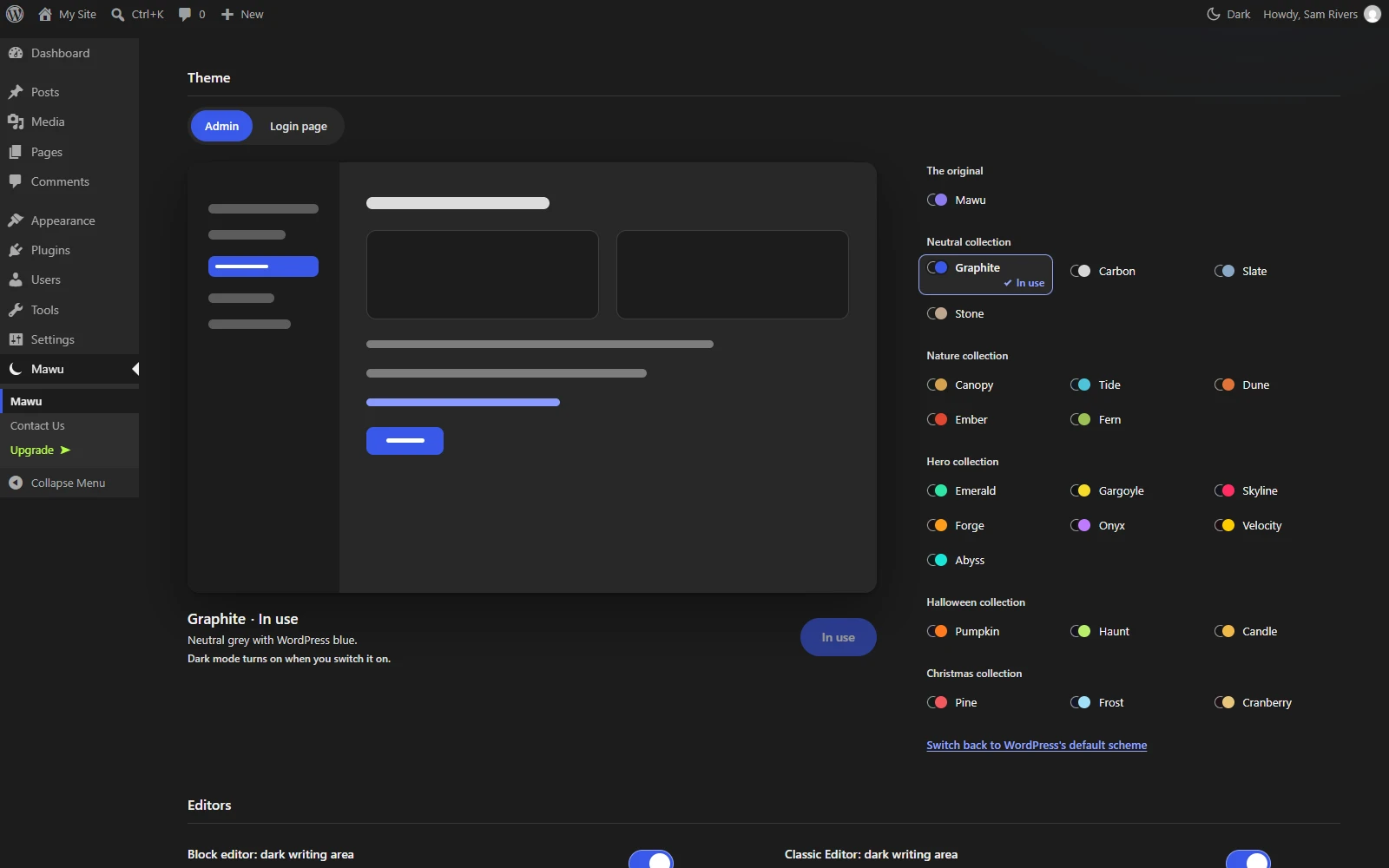
Old links to Settings → Mawu Dark Mode still work. The settings guide walks through the whole page.
Match my device
You now have three ways to decide when dark mode is on: My choice, Schedule and Device.
Device is new. Your admin follows your phone or computer. When your device goes dark, so does your admin. You don’t need to reload.
You can still click the dark mode button to change it. It is free, and each person sets their own.
Schedules
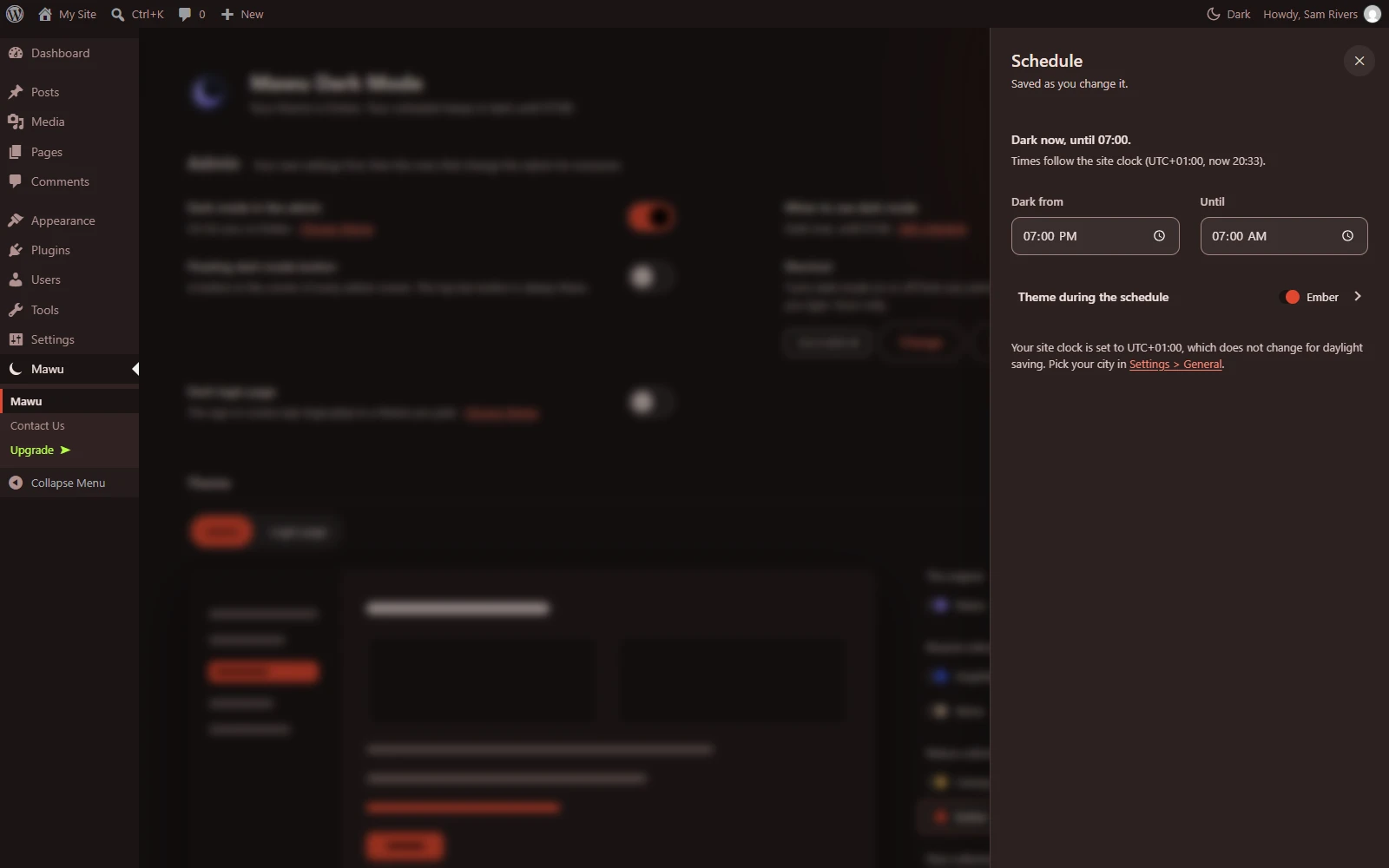
The schedule has its own panel now. Set your hours, like 19:00 to 07:00. Pick the theme to use during those hours. Editors and authors can set their own schedule on their profile.
Pro adds two more kinds of schedule:
- Sunset to sunrise: pick your city, or enter your location. Mawu works out the times on your own site.
- Weekly: give each day its own hours, or make a day dark all day.
The schedule guide has the details.
Seasonal effects (Pro)
Pick a Christmas theme and snow falls behind your dashboard. Pick a Halloween theme and you get ghosts and bats.
The effect starts when you take a break. It fades as soon as you type. It never runs if your device asks for less motion.
You choose which screens show effects. You can turn them on by season, with any theme. Press Play to try them now. Your visitors can see them too, if you want.
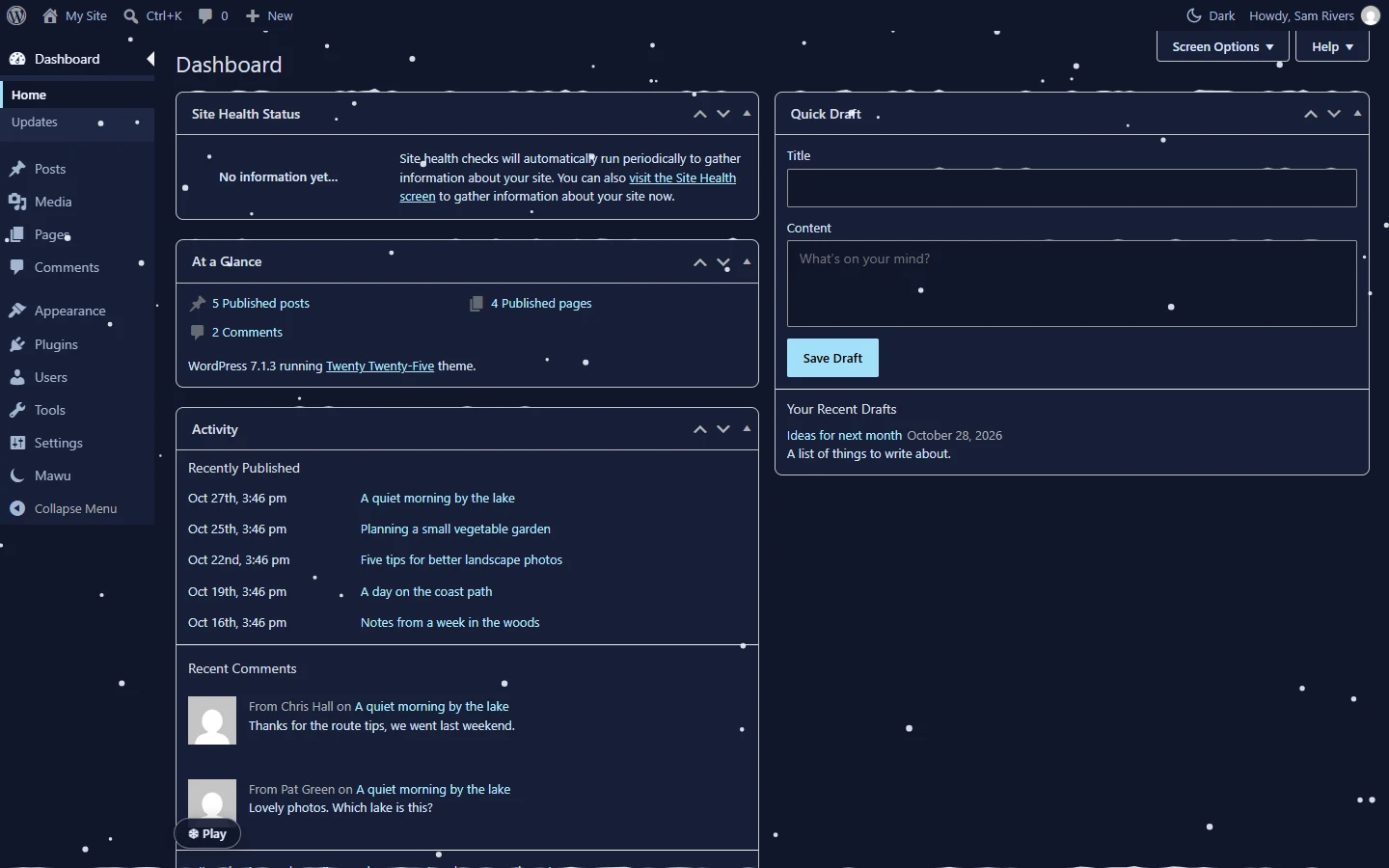
The seasonal effects guide covers each setting.
Theme builder (Pro)
The theme builder makes a dark theme in your brand colours. Pick a background, a text colour and an accent. Add a card colour if you like. Mawu fills in the rest.
Before you save, Mawu checks that everything is easy to read. If a check fails, click “Fix the colours for me”. Mawu finds colours that pass.
You can save up to 20 themes. They show up in the theme lists under Custom themes.
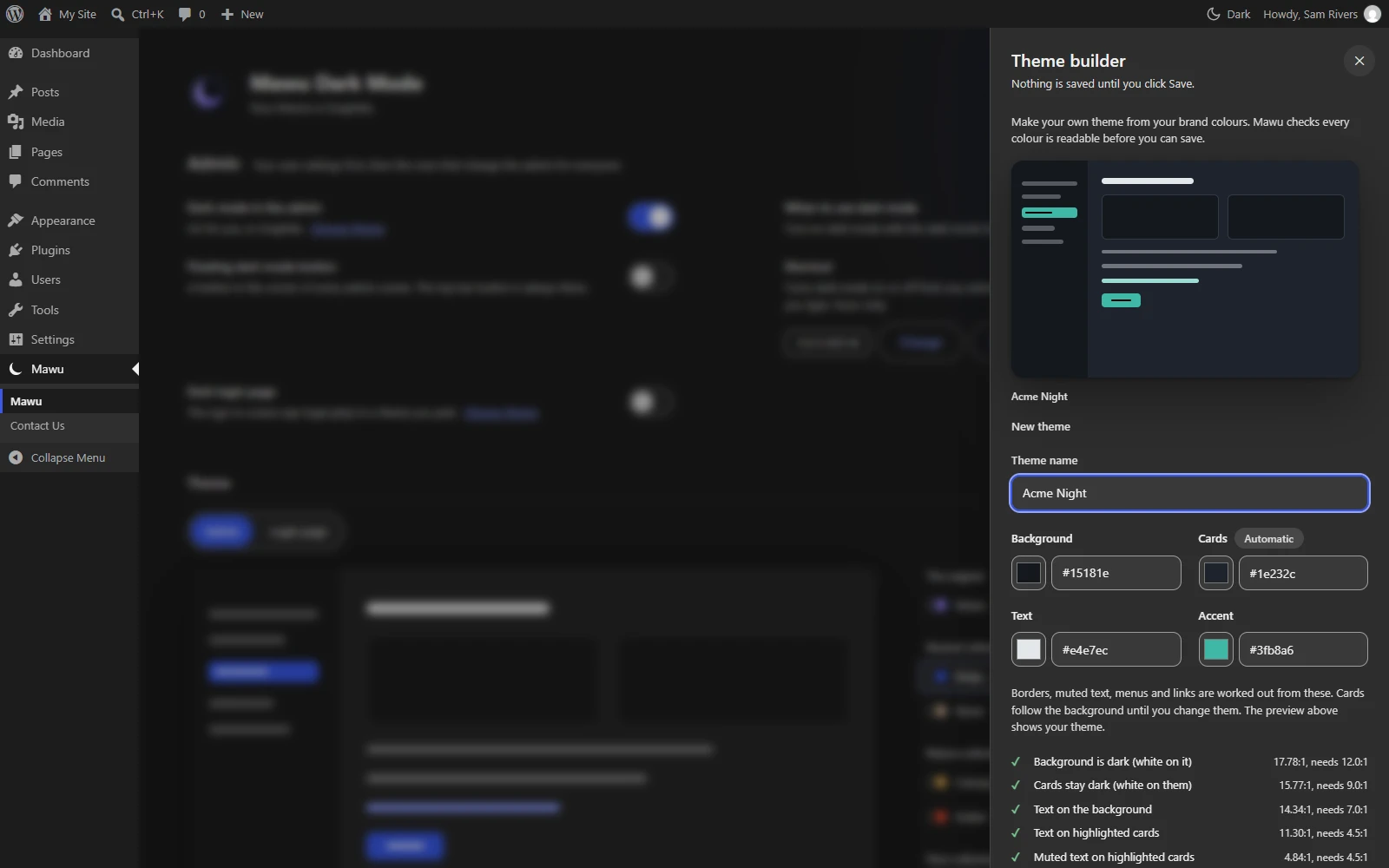
The theme builder guide explains the checks.
Agency: for client sites
The Agency plan is for people who look after sites for clients. It adds three things:
- White-label: put your own name on the plugin.
- Client lock: choose who can change the settings.
- Settings sync: copy your settings from one site to your client sites. You see every change before it is saved.
On multisite, you also get network controls. Choose which themes are allowed. Set a default theme. Turn Mawu on for the whole network.
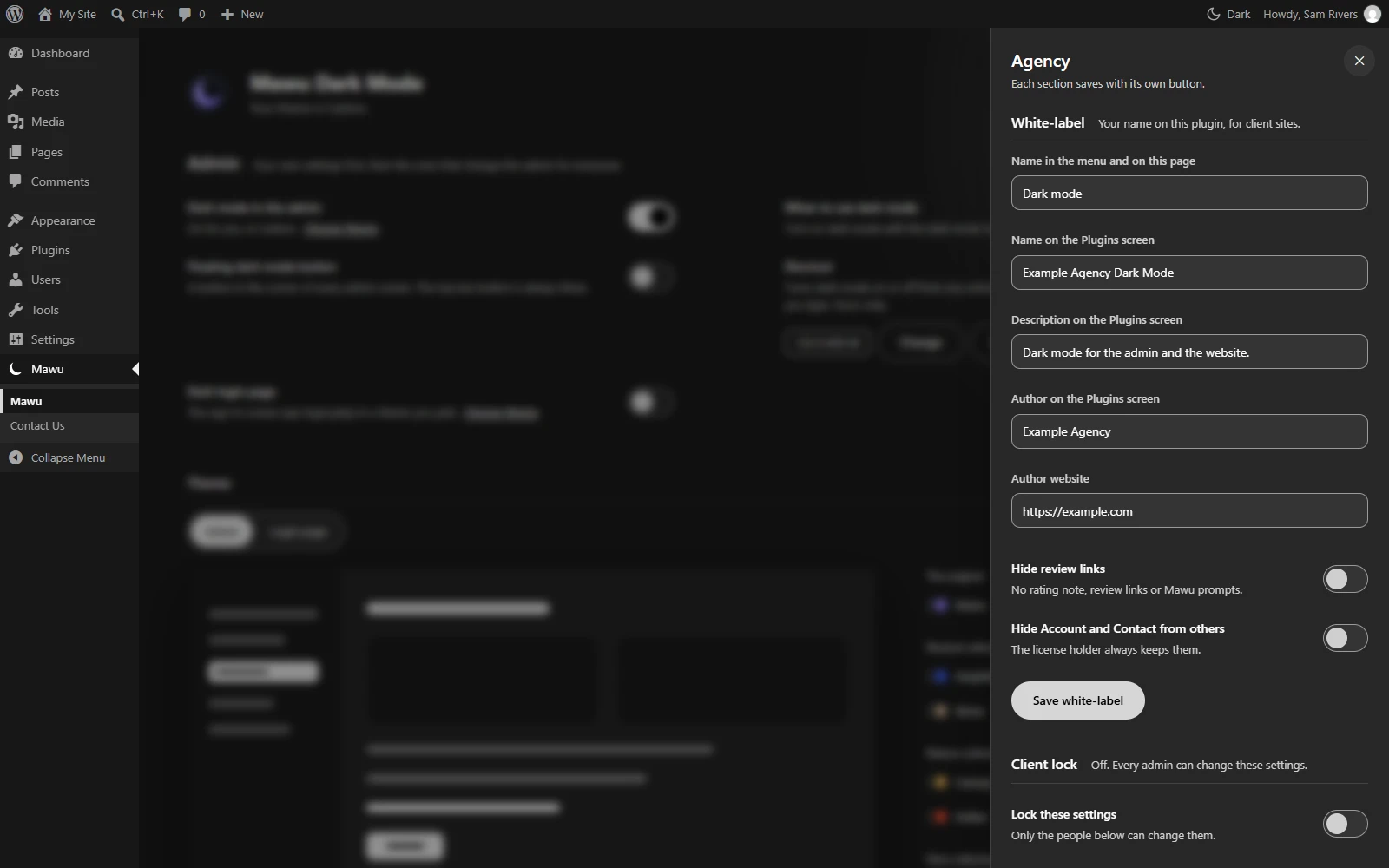
The Agency guide has the setup steps. Pro and Agency both have a 30-day free trial, and you don’t need a card to start it. See the plans.
What we learned while building it
We tried this version on many themes and plugins, on phones and on desktops. Some things surprised us. They also show what Mawu cares about.
Dark mode should still look like your site. A plain dark grey made some sites look like someone else’s. So we added “Your site’s colours”. Your brand stays your brand, just darker.
Photos should stay photos. Some dark mode tools flip the colours of images. Faces end up looking like film negatives. Mawu dims photos instead. It never inverts them.
A white flash spoils it. If a page loads white and then turns dark, it hurts your eyes at night. So Mawu sets dark mode as early as it can, before the page shows.
Every theme has to be readable everywhere. In one quiet theme, an editor sidebar stayed light with faint text. We fixed it. Now we check every theme in the editors too, not just on the dashboard.
Some parts should never change. Maps, charts and some embeds look wrong when darkened. That is why you can tell Mawu to leave a part, or a whole page, alone.
Clocks can drift. Some sites set their clock to a fixed offset, like UTC+1, instead of a city. A fixed offset never changes for daylight saving. So a 19:00 schedule moves by an hour twice a year. The Schedule panel now warns you and links to the fix.
Your data stays on your site. Sunset times are worked out on your own site. Mawu sends nothing anywhere unless you choose to share it.
Free should feel complete. The most common complaint in dark mode plugin reviews is basic features behind a paywall. We didn’t want that. So the free plugin has all 23 themes, visitor dark mode, schedules and Match my device. Pro is for extras, not the basics.
How to update
Go to Plugins → Installed Plugins and update Mawu. Or wait for automatic updates. Then open Mawu in the admin menu.
Your theme, schedule and settings stay the same. Visitor dark mode stays off until you turn it on.
Something looks wrong on your site? Please open a topic in the support forum. The changelog has the full list of changes.