A bright admin screen is hard on the eyes late at night. But you don’t always want dark mode either, for example when you check colours on a design in daylight. With Mawu Dark Mode, you can turn WordPress admin dark mode on or off from any screen, in one click, without leaving the page you’re on.
Click the button in the top admin bar
Once Mawu is active, a small button sits in the top admin bar, next to “Howdy” and your name. It shows a sun with the word Light, or a moon with the word Dark.
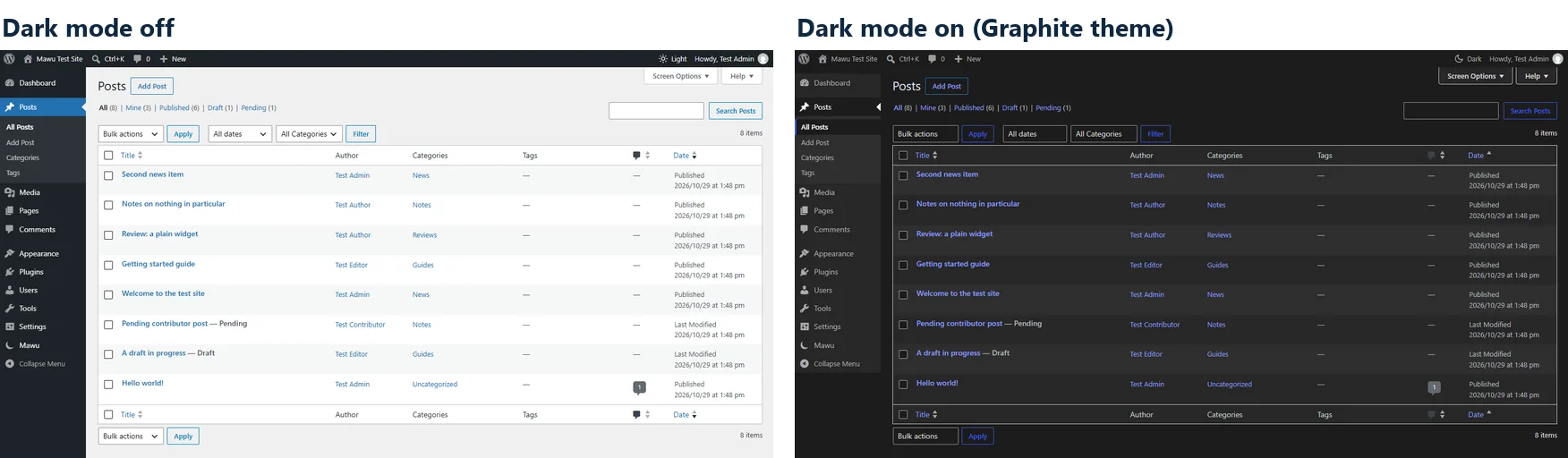
- Click it once. The whole admin turns dark: the menu, the page, the tables and the boxes.
- Click it again to go back to your light colours.
The page doesn’t reload, so nothing you’re typing gets lost. Mawu also remembers your choice the next time you sign in.
Pick a different dark theme
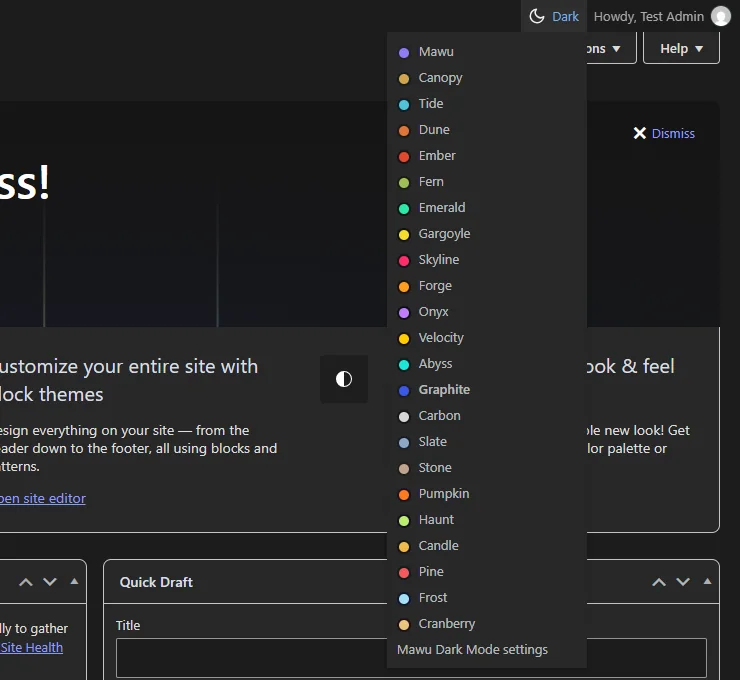
Move your pointer over the button and a list of themes opens. Click one and the admin changes to it straight away. The theme you use now is in bold.
There are 26 themes. Some are plain greys, like Graphite and Carbon. Others have a little colour, like Tide or Ember. Try a few and keep the one that feels easiest to read.
Use the keyboard shortcut
If you prefer the keyboard, press Ctrl+Alt+D on any admin screen. It does the same as clicking the button.
You can choose your own keys:
- Go to Mawu in the admin menu.
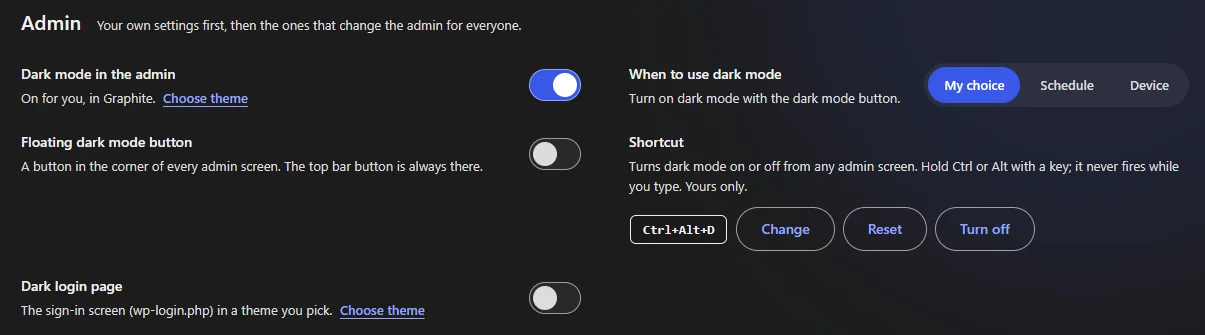
- Find Shortcut in the Admin section.
- Click Change and press the keys you want. Use Ctrl or Alt (or both) with one letter, number or F key.
Reset brings back Ctrl+Alt+D, and Turn off removes the shortcut. You can set it on your profile page too.
The shortcut never fires while you type in a field. Mawu also won’t let you pick keys that your browser or WordPress already use.
Add a floating button (optional)
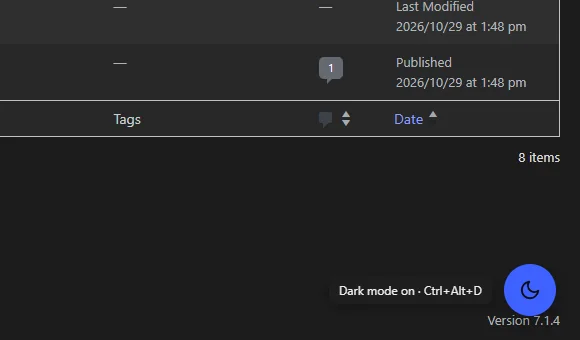
If you want a bigger button that is always in view, turn on Floating dark mode button in the same Admin section. A round button then sits in the bottom corner of every admin screen. Hover it to see whether dark mode is on, and your shortcut.
The button in the top bar stays either way. Only site administrators can turn the floating button on or off, and it shows for everyone who can switch.
Or let it switch by itself
Under When to use dark mode, you have three choices:
- My choice is the default. Dark mode changes only when you switch it.
- Device follows your computer or phone. When your device switches to dark, so does your admin, with no reload.
- Schedule turns dark mode on during the hours you set, for example 7pm to 7am. See scheduled dark mode.
You can still click the button while one of these is on. Your click wins for now.
Everyone on your site gets their own
Dark mode in Mawu is set per person. If you turn it on, your editors and authors still see the admin the way they like it. Each of them gets the same button in their own admin bar, and they can also pick a theme under Users → Profile, next to WordPress’s own colour schemes.
For every setting in the Admin section, see the Admin section docs and choosing your theme. All of this is in the free version of Mawu Dark Mode.
How to darken your admin with other plugins
Other plugins can darken your admin too. Here is how it works in three free ones, so you can compare.
WP Dark Mode
- Install and activate WP Dark Mode from Plugins → Add Plugin.
- Go to WP Dark Mode → Settings → Admin Panel Dark Mode.
- Turn on Enable Admin Dashboard Dark Mode and click Save Changes.
- A Light and Dark switch now sits in the top admin bar. Click it to turn the admin dark, and click again to go back.
The same screen has switches that add dark mode to the block editor and the Classic Editor.
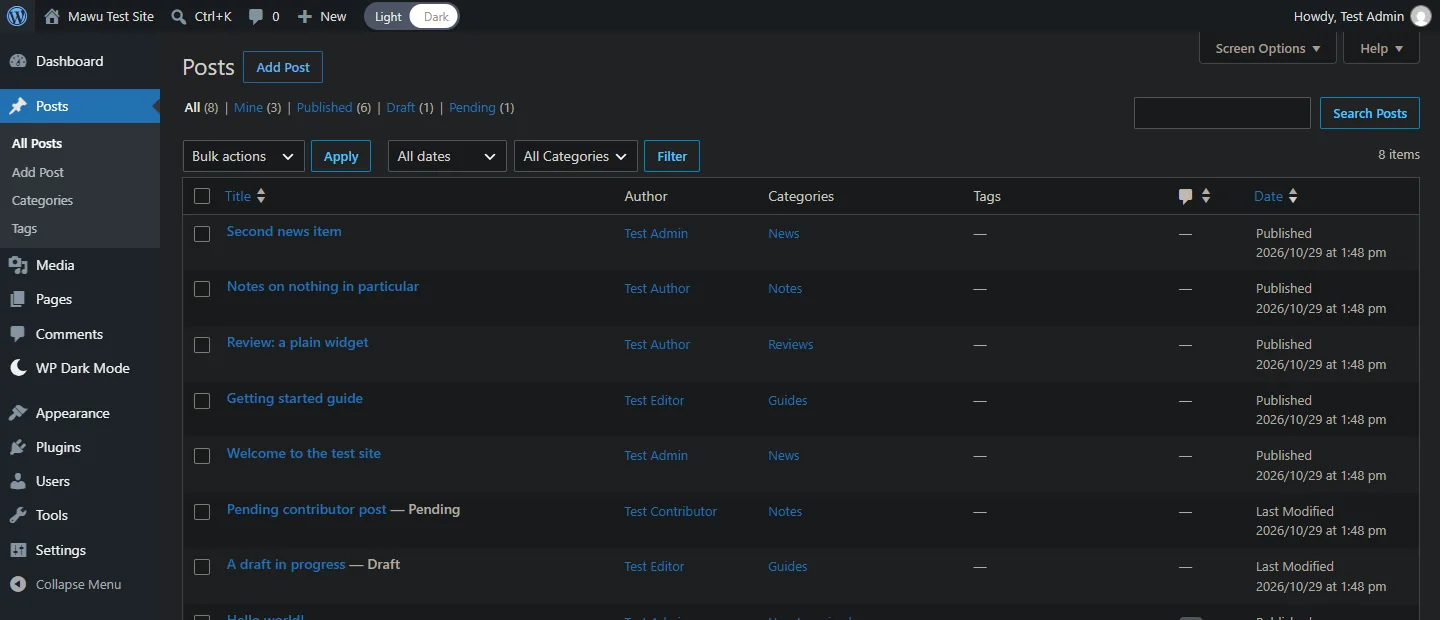
Darklup
- Install and activate Darklup.
- Go to Darklup → Settings → Advance Settings.
- Turn on Enable Dashboard Dark mode and click Save Settings.
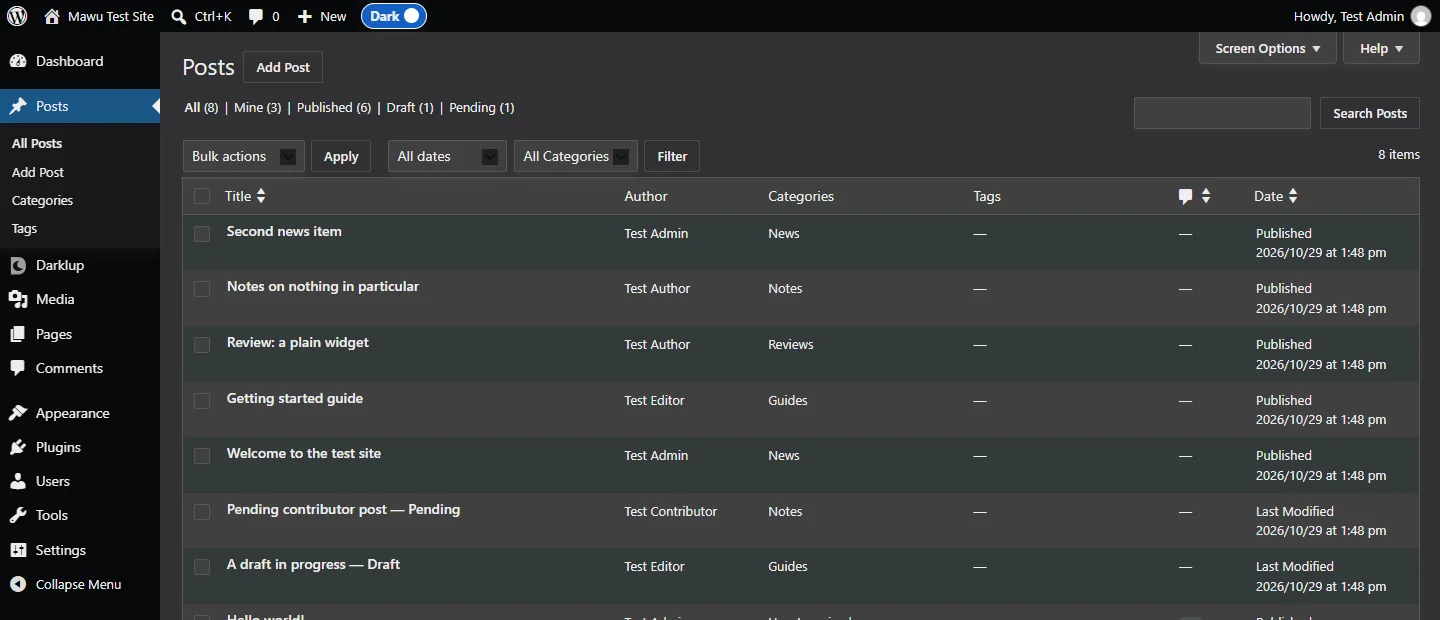
- A switch appears in the top admin bar. Click it to turn the admin dark.
Darklup saves your choice in your browser. On another computer or browser, the admin starts light again.
Dark Mode for WP Dashboard
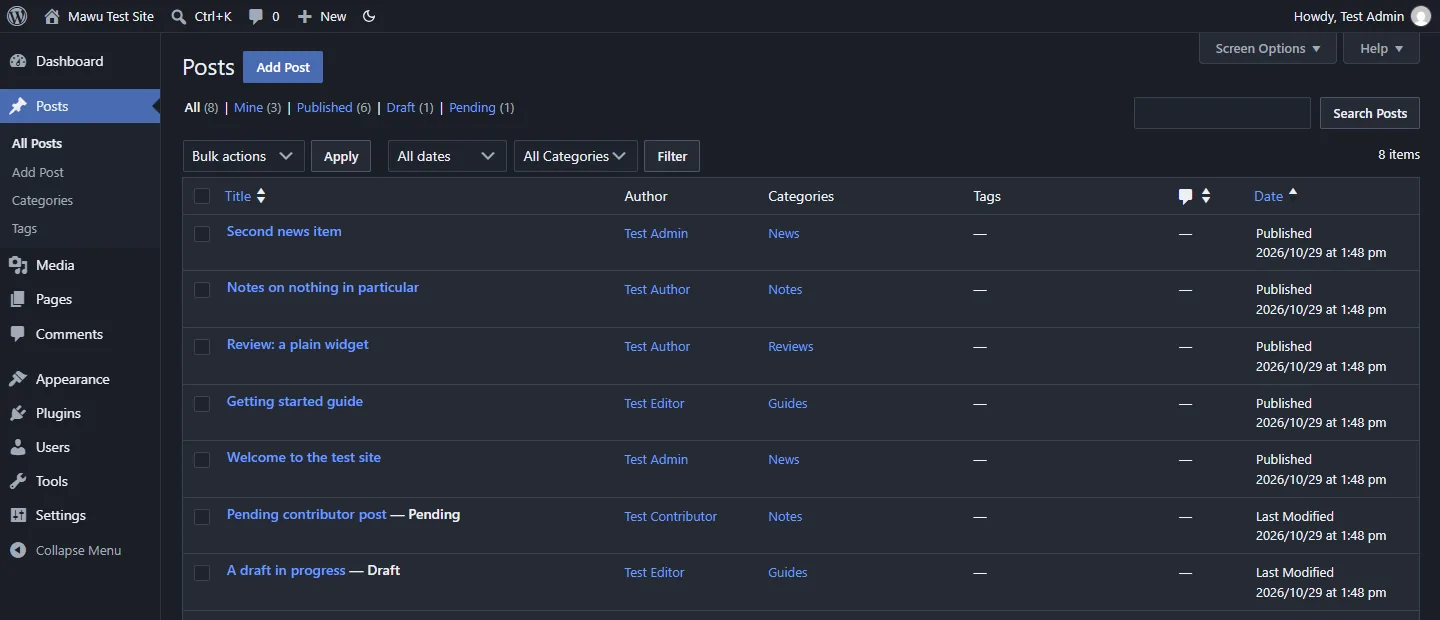
- Install and activate Dark Mode for WP Dashboard. The admin turns dark straight away. There is no settings page.
- Click the moon in the top admin bar to switch between dark and light.
- To follow your device instead, go to Users → Profile and pick Auto (system) under Dashboard appearance.
It only darkens the admin. It doesn’t add a dark mode for your visitors.
Why we recommend Mawu
All three plugins give you a dark admin. We recommend Mawu for these reasons:
- You pick the look. Mawu has 26 dark themes, from plain greys to soft colours. Each one is checked for readable text.
- More ways to switch, all free. Use the top bar button, a keyboard shortcut you can change, or a floating button. Or let it switch on a schedule or with your device.
- Your choice follows your account. It’s the same on every computer you sign in on, and each person on your site gets their own.
- One plugin for both. Unlike Dark Mode for WP Dashboard, Mawu also gives your visitors a dark mode switch, for free.
Mawu is our plugin, and it’s newer than the others, with fewer installs. If you spot a screen that stays light, please tell us in the support forum. For a wider look at every option, see every way to get dark mode in WordPress.