Many people read in dark mode at night, and some read that way all day. A WordPress dark mode toggle lets each visitor choose how your site looks. Mawu Dark Mode adds one in a few clicks, and it remembers each visitor’s choice on every page.
Step 1: Turn on dark mode for visitors
- Go to Mawu in the admin menu, then More settings → Frontend.
- Flip the Dark mode for visitors switch at the top.
This switch works the moment you flip it. Everything else in the panel waits until you click Save changes, and the preview on the right shows your changes first.
By default, Mawu makes the dark version from your own theme’s colours, so it still looks like your brand. You can pick one of Mawu’s themes under Theme for visitors instead.
Step 2: Set up the floating switch
Once dark mode for visitors is on, a round switch appears in the bottom right corner of every page. Open the Switch group to change it:
- Corner and the distance from the edges, in pixels.
- Size: S, M or L.
- Shows: just the icon, or the icon with text. The text is “Dark” on a light page and “Light” on a dark page, and you can change both.
- Show on: every screen size, phones only, or tablets and desktops only.
- Design: Round, or a sun and moon pair.
- Hide it on these pages: page or post IDs, separated by commas. Dark mode still works there.
Watch the preview as you go, then click Save changes.
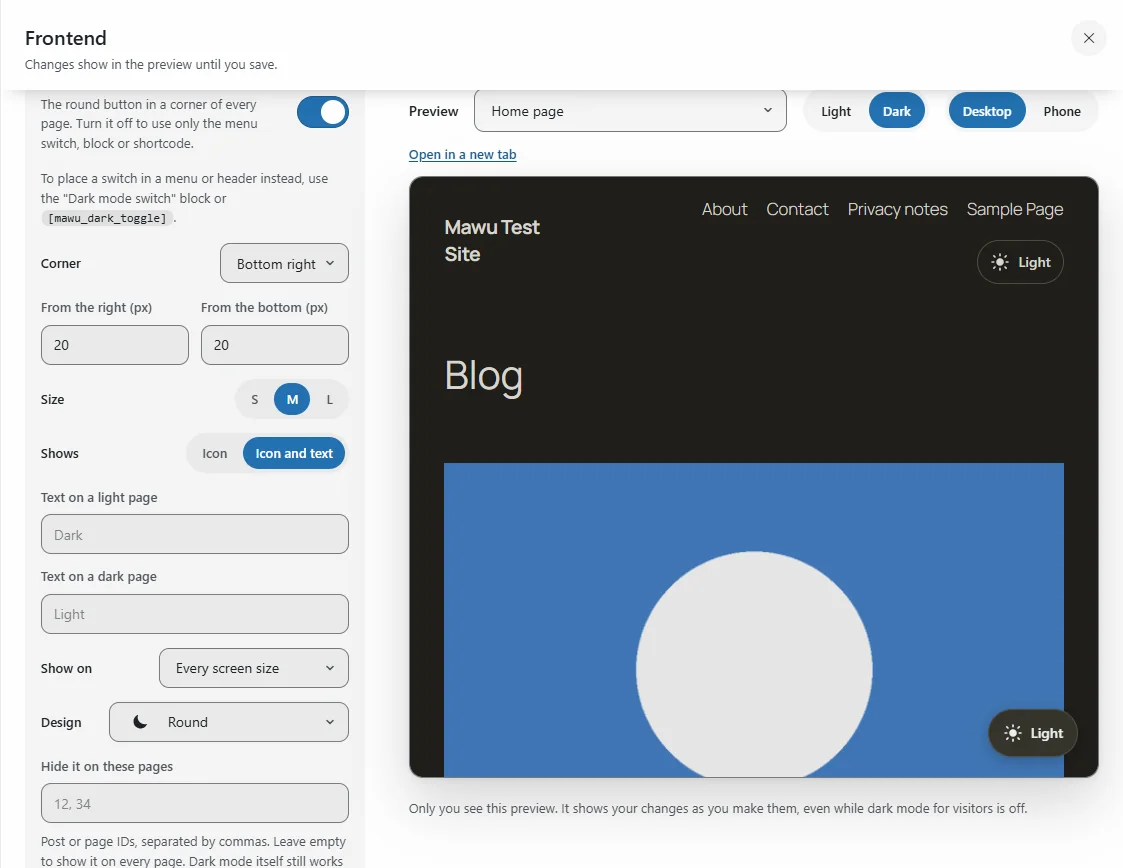
Mawu Pro adds more switch designs, lets you drag the switch to any spot in the preview, and lets you pick its colours.
Put the switch in your menu
Some sites look tidier with the switch in the header. Open the Menu switch group and pick where it goes:
- On a block theme, the first Navigation block on each page.
- On other themes, one of your theme’s menu locations.
You can also add it by hand. Go to Appearance → Menus, open the Dark mode switch box, tick it and click Add to Menu. The switch takes your menu’s own colours.
If you only want the menu switch, set Show on in the Switch group to nowhere, so the corner switch goes away.
Or place it anywhere on a page
- Block: in the editor, add the Dark mode switch block. It’s in the Widgets group. You can add short text next to the icon.
- Shortcode:
[mawu_dark_toggle], or[mawu_dark_toggle label="Dark mode"]with text. - Elementor: use the Dark mode switch widget. It has text, size and alignment options.
These switches only show while dark mode for visitors is on.
What your visitors see
A visitor clicks the switch and the page turns dark straight away. Their choice then holds on every page and on later visits, until they click again.
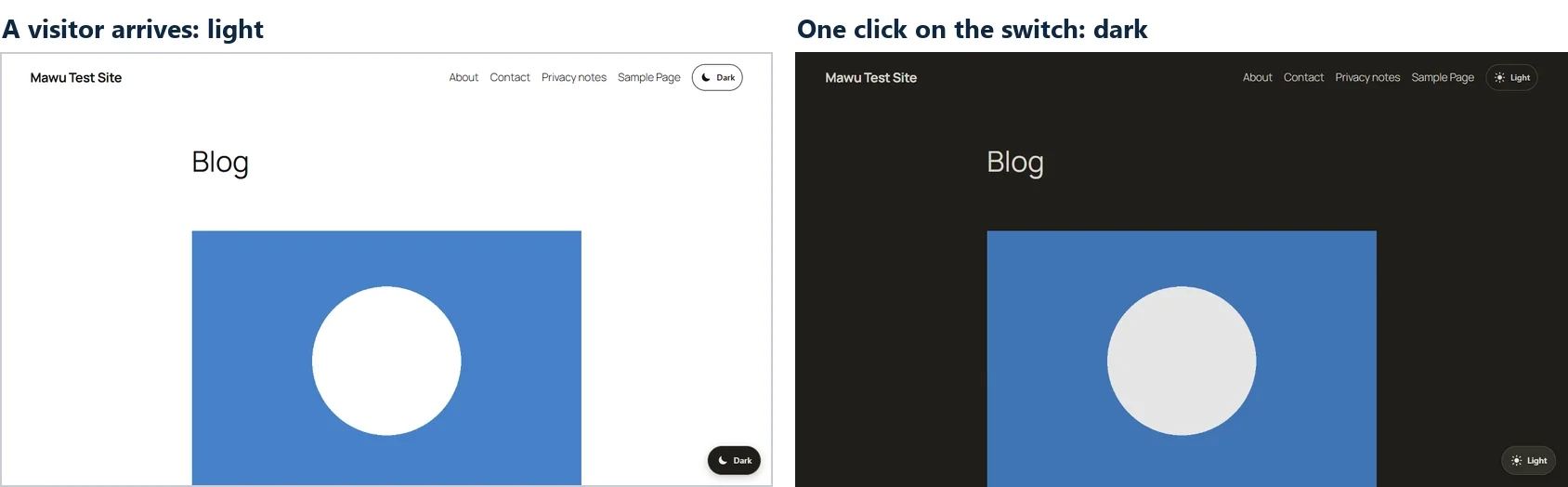
Before a visitor clicks, the First visit setting decides. By default, the site follows their device: dark if their phone or computer is set to dark. You can also make every first visit start light, or start dark.
Share a link that opens in dark mode
Add ?mawu=dark to any link to your site, for example https://example.com/?mawu=dark. The page opens dark, and the choice is remembered like a click on the switch. Use ?mawu=light for light, or ?mawu=auto to follow the visitor’s device again. Links like these only work while dark mode for visitors is on.
This is handy for checking your pages in dark mode before you tell anyone, or for sending a client a preview.
Does it work with page caching?
Yes. Your server sends the same page to everyone. A tiny script in the page applies each visitor’s choice in their own browser, so caching plugins and your host’s cache keep working as before.
On most themes, a visitor who chose dark sees it from the first moment, with no white flash. On a few themes and plugins, part of the page can show light for a moment on the first load. The known gaps page lists where we’ve seen it.
How to add a switch with other plugins
Mawu isn’t the only plugin that does this. Here is how to add a switch with three other free plugins, so you can compare.
WP Dark Mode
WP Dark Mode is the most widely used dark mode plugin on WordPress.org.
- Install and activate WP Dark Mode from Plugins → Add Plugin.
- Go to WP Dark Mode → Settings. Dark mode for visitors is already on, and it follows each visitor’s device at first.
- Open Customization → Switch Settings. The floating switch is already on. Pick a design, a size, and the left or right corner.
- For a switch in your header, open the Menu Switch tab and turn on Display Switch in Menu.
- Click Save Changes.
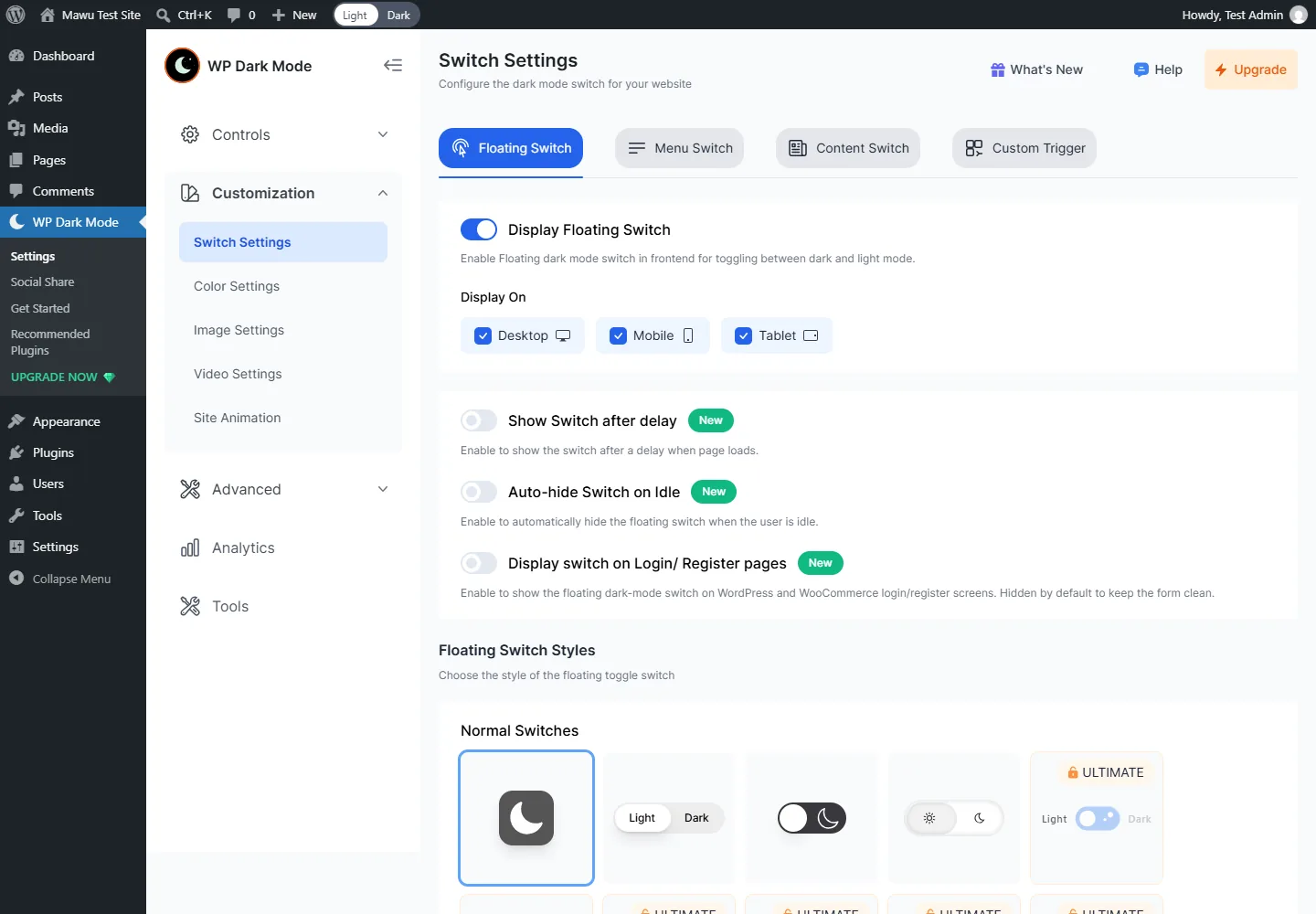
Five of the switch designs are free. The other designs, dark mode by time of day, and keeping parts of a page light are in the paid Ultimate plan.
Darklup
- Install and activate Darklup.
- Go to Darklup → Settings → Advance Settings. Enable Frontend Dark mode is already on.
- Turn on Enable OS Aware Dark Mode if you want the site to follow each visitor’s device.
- Open Switch Styles. Pick a design and a corner for the floating switch. The Menu Switch tab adds one to your menu.
- Click Save Settings.
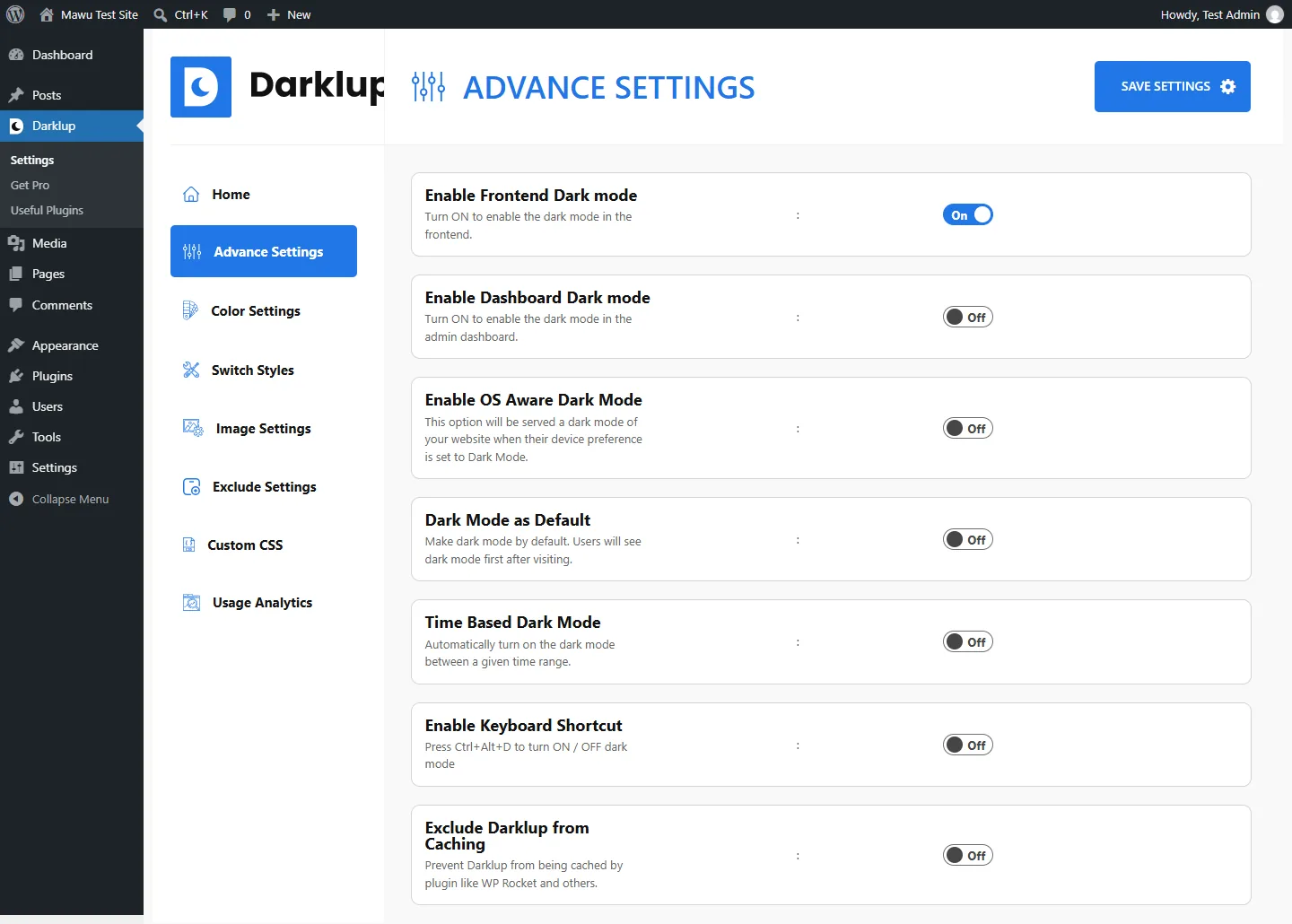
Four switch designs are free. Turning dark mode off on chosen pages and posts, and changing the switch colours, need Darklup Pro.
DarkMySite
- Install and activate DarkMySite.
- Go to DarkMySite in the admin menu. Under Control, the floating switch and following the visitor’s device are already ticked.
- Tick Show Switch in Menu to add a switch to your menu.
- Open Switch Style to pick a design and a corner.
- Click Save Changes.
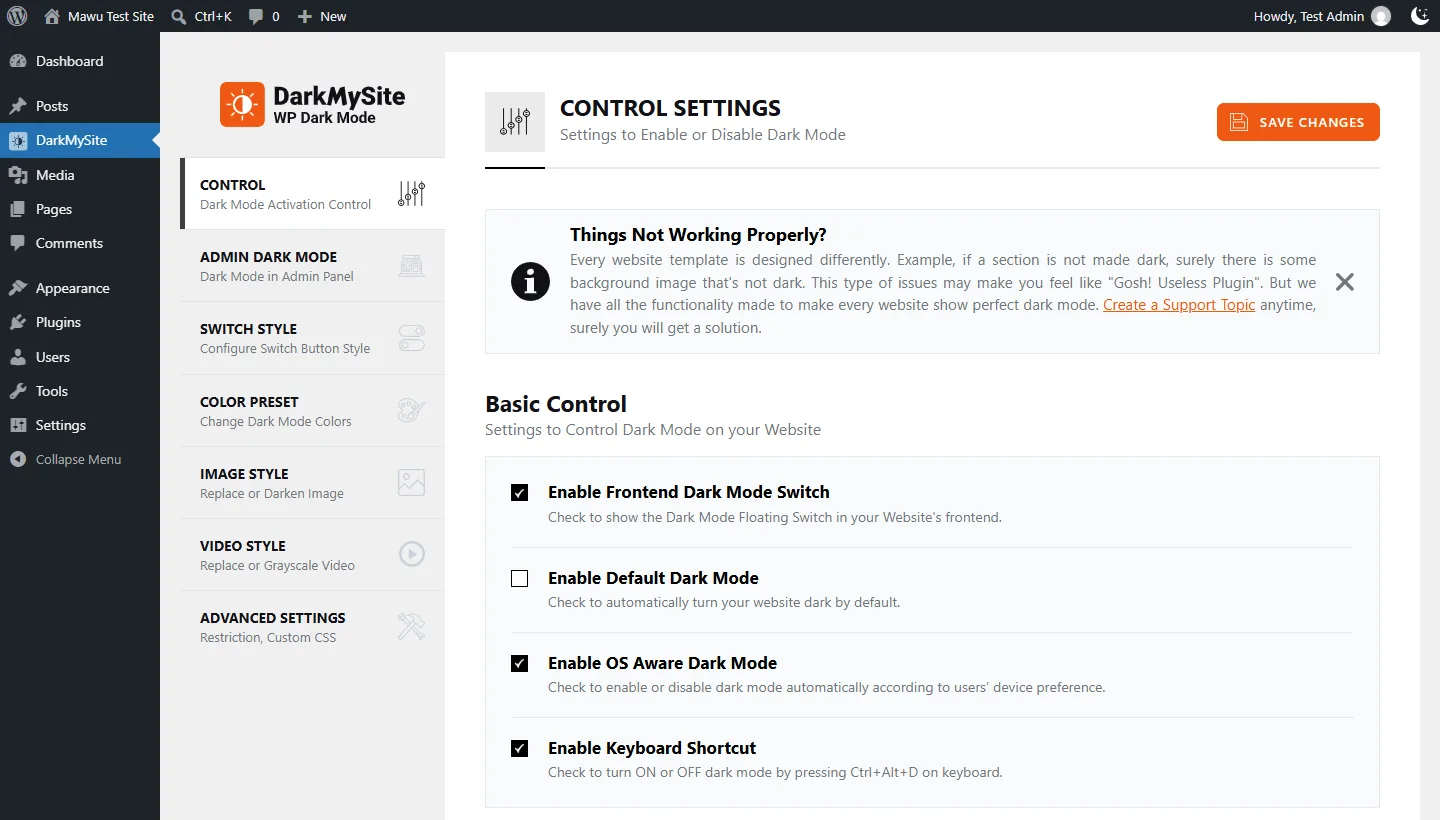
These settings are free. DarkMySite’s last update was in October 2025, though, and it is only tested up to WordPress 6.8.
Why we recommend Mawu
All four plugins give your visitors a working switch. We recommend Mawu for these reasons:
- More is free. The corner switch, the menu switch, the block, the shortcode and keeping parts of a page light are all in Mawu’s free version. WP Dark Mode charges for keeping parts of a page light, and Darklup charges for turning dark mode off on chosen pages.
- It keeps your brand. Mawu makes the dark version from your own theme’s colours, so your site still looks like yours at night.
- Dark mode for you too. The same free plugin gives you a dark admin, with 26 themes to pick from.
- It’s kept up to date. Mawu is tested with the latest WordPress.
Mawu is our plugin, and it’s newer than the others, with fewer installs. If something looks wrong on your site, please tell us in the support forum. For a wider look at every option, see every way to get dark mode in WordPress.
More help
Every switch setting is listed in dark mode for your website’s visitors. To check your theme, see the themes and plugins we tested. If a part of your site should stay light, read how to keep parts of a page light.
The switch, the menu switch, the block, the shortcode and the links are all in the free version of Mawu Dark Mode.