A schedule switches your admin to a dark theme during the hours you set, for example 19:00 to 07:00, and back to your usual scheme the rest of the day. Each person has their own.
Turn it on
- Open Mawu in the admin menu.
- Under When to use dark mode, choose Schedule.
- Click Edit schedule, or open More settings → Schedule, and set your hours and theme.
Changes save as you make them. Editors and authors, who don’t see the Mawu page, set the same schedule on their profile: Users → Profile, in the Mawu Dark Mode Schedule section, then Update Profile.
The Schedule panel
At the top, a line tells you what is happening now, for example “Dark now, until 07:00.” or “Light now. Dark from 19:00.” Under it, Mawu shows the site clock it uses, for example “Times follow the site clock (London, now 14:05).”
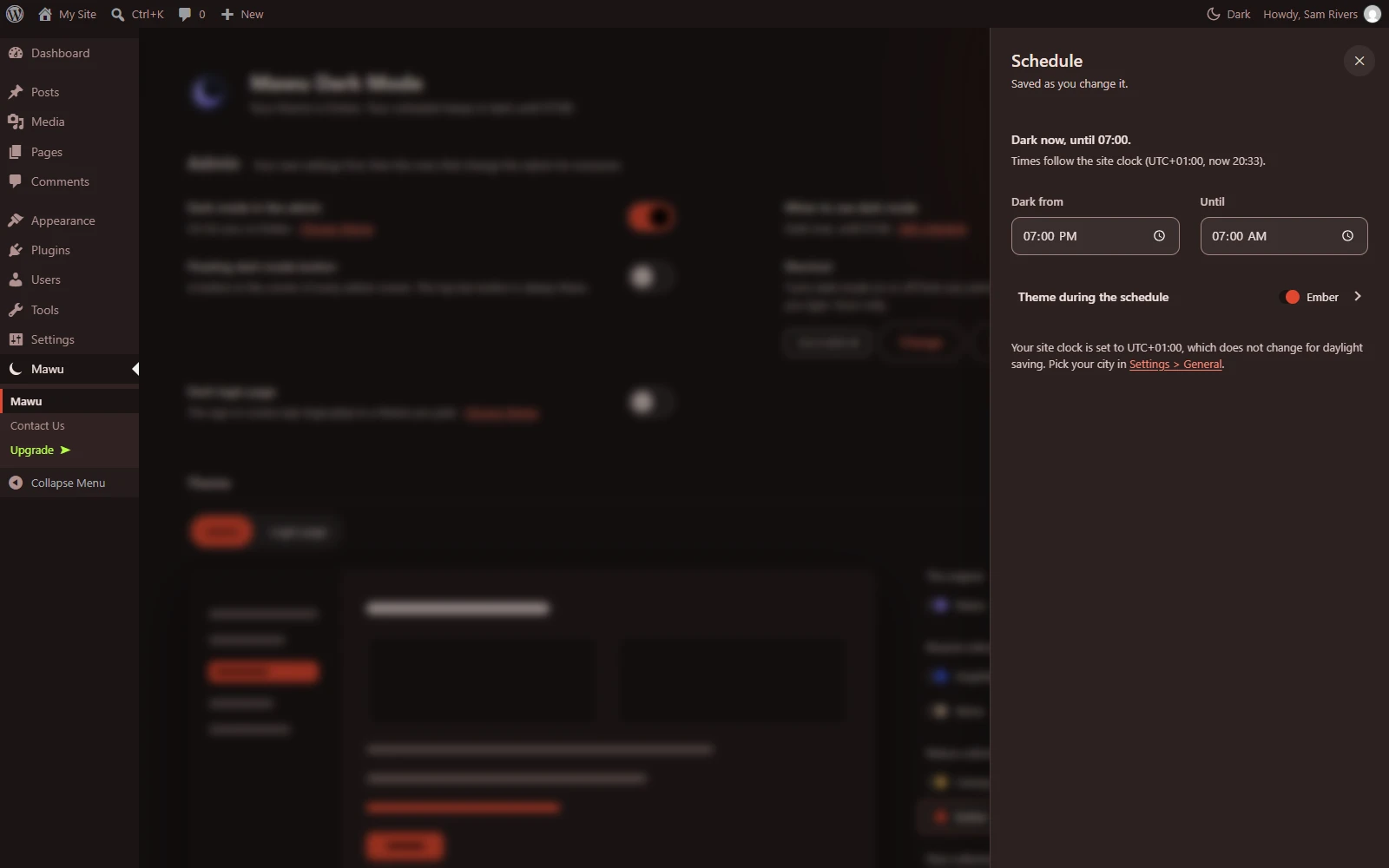
- Dark from and Until. Your hours. The defaults are 19:00 and 07:00. If the end is earlier than the start, the schedule runs past midnight.
- Theme during the schedule. Any of the 26 themes, or a custom theme with Pro. The default is Mawu.
You don’t need a dark theme as your everyday scheme. You can use WordPress’s own light scheme in the day and let the schedule switch you to Ember at night.
If you click the dark mode button during your hours to go light, Mawu keeps it light until those hours end. The schedule then carries on as normal.
Sunset to sunrise (Pro)
Choose Sunset to sunrise under the schedule type. Dark mode turns on at sunset and off at sunrise, where you are.
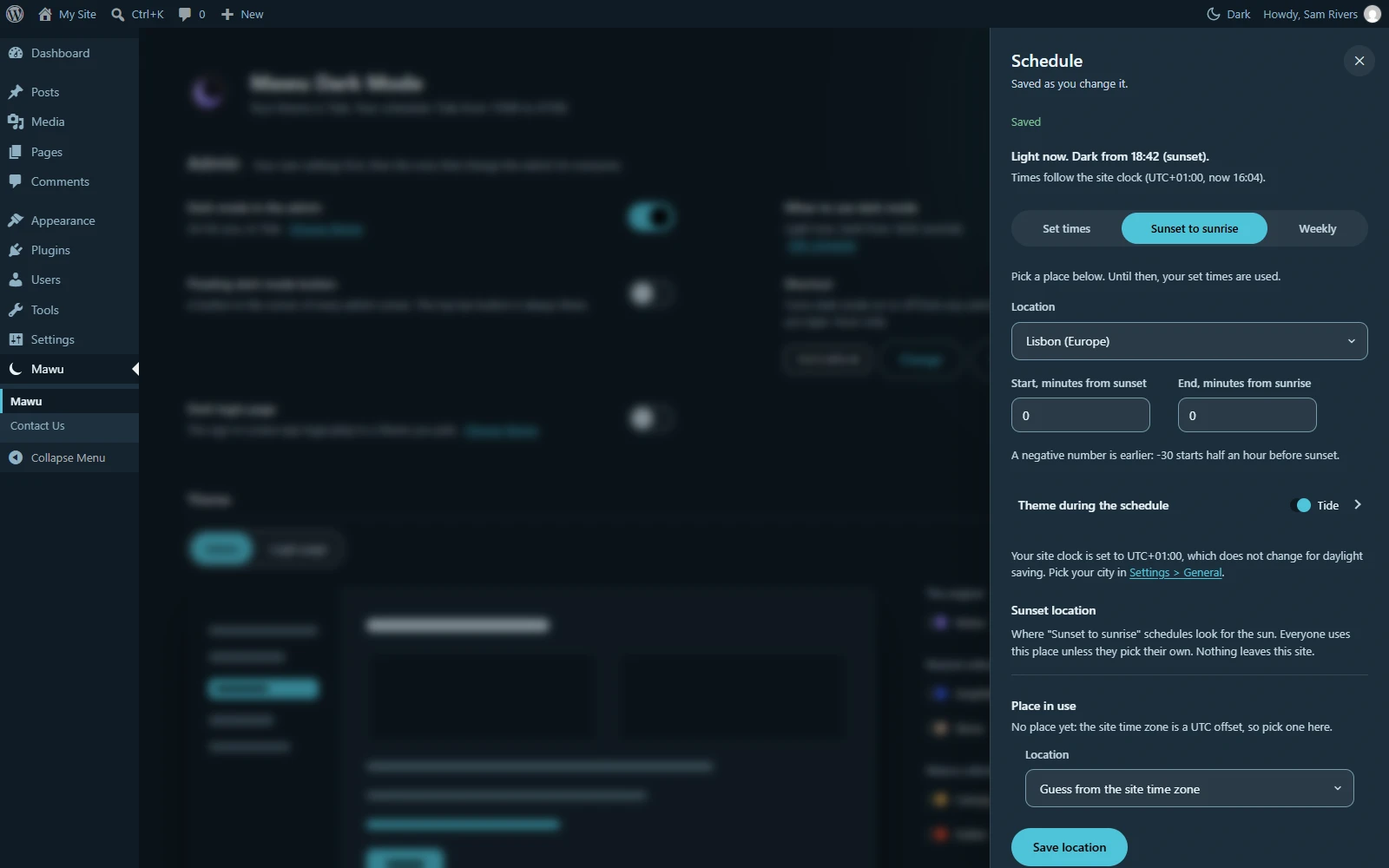
- Location. Use the site’s location, pick a city from the list, or choose My place and enter a latitude and longitude.
- Start, minutes from sunset and End, minutes from sunrise. Move the times earlier or later, from -240 to 240 minutes. Use a minus number to start earlier. -30 starts 30 minutes before sunset.
Mawu works out sunset and sunrise on your own server. Nothing is sent anywhere. Where the sun does not rise or set on a given day, your set times are used.
Admins also see a Sunset location section below the form. It sets the place everyone uses unless they pick their own. By default, Mawu guesses it from the site’s time zone. Click Save location to save it.
Weekly (Pro)
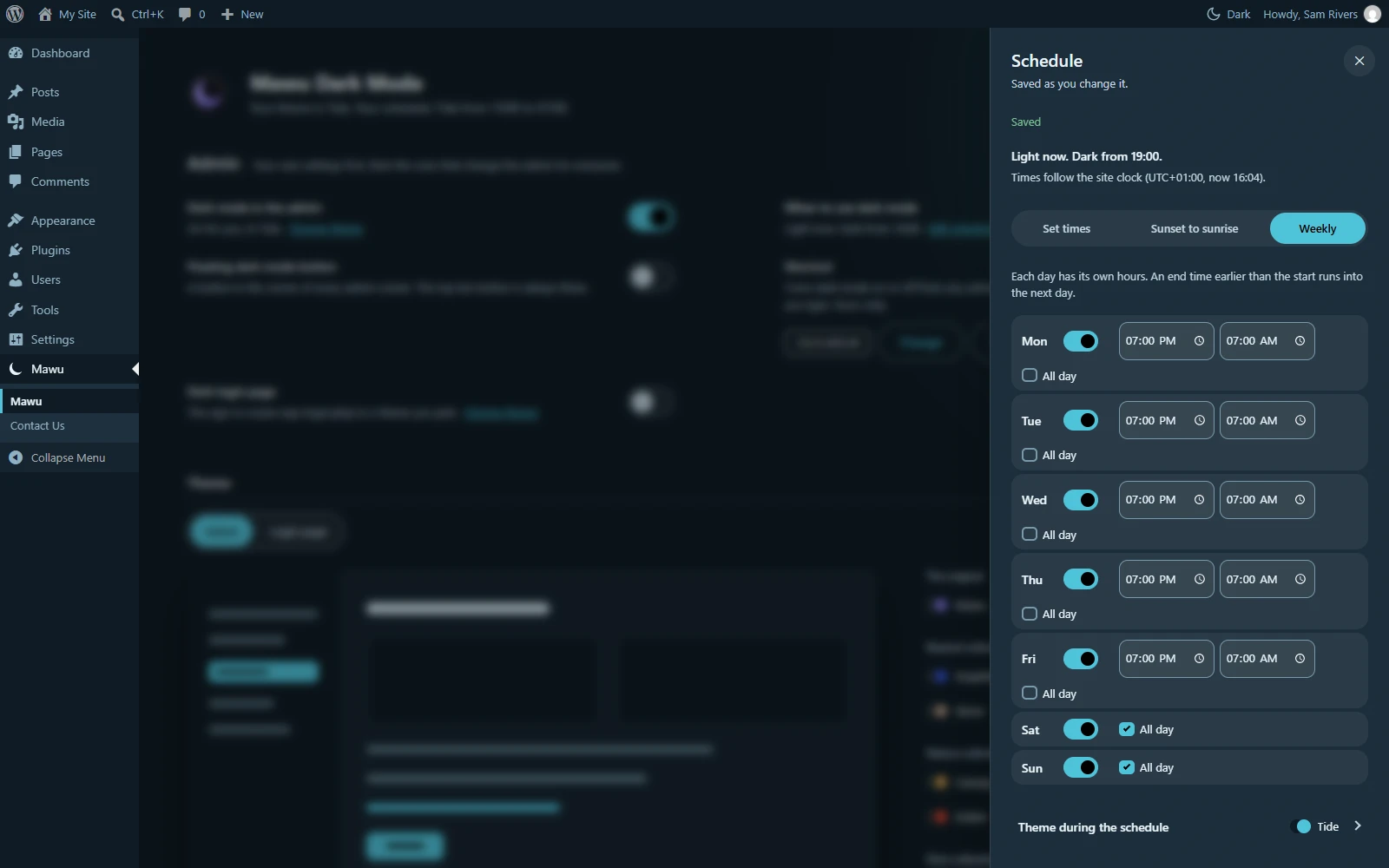
Choose Weekly to give each day its own hours. Each day has a switch, a start and an end time, and an All day box. By default every day runs 19:00 to 07:00, with Saturday and Sunday dark all day. An end time earlier than the start runs into the next day.
Daylight saving
Schedules use your site’s clock, which you set in Settings → General → Timezone.
- If the time zone is a city, such as London or Sydney, the clock moves for daylight saving and your schedule follows.
- If it is a fixed offset, such as UTC+1, the clock never changes. Your 19:00 would drift by an hour when the clocks change.
When your site uses a fixed offset, the Schedule panel and the profile screen show a note: “Your site clock is set to UTC+01:00, which does not change for daylight saving. Pick your city in Settings > General.” Admins get a link straight to that setting.
Other ways dark mode can turn on
When to use dark mode has two more choices. My choice turns dark mode on only when you switch it. Device follows your computer’s or phone’s light or dark setting. See the Admin section.
No cron, no polling
Mawu doesn’t run a background job for schedules. Each admin page checks the time when it loads and uses the right theme, so there is no delay at the edges of your hours.