A bright white screen is tiring late at night, for you and for the people who read your site. You can add dark mode to WordPress for free with Mawu Dark Mode. It darkens your admin and your editors, and it gives your visitors a switch. It takes about five minutes, and the video below shows every step.
The same steps are written out below, with screenshots.
Step 1: Install Mawu Dark Mode
- In your admin, go to Plugins → Add Plugin.
- Search for Mawu Dark Mode.
- Click Install Now, then Activate.
You may see an opt-in screen next. You can skip it, and Mawu works the same either way. You don’t need an account or a licence key.
Step 2: Turn on dark mode and pick a theme
- Click Mawu in the admin menu.
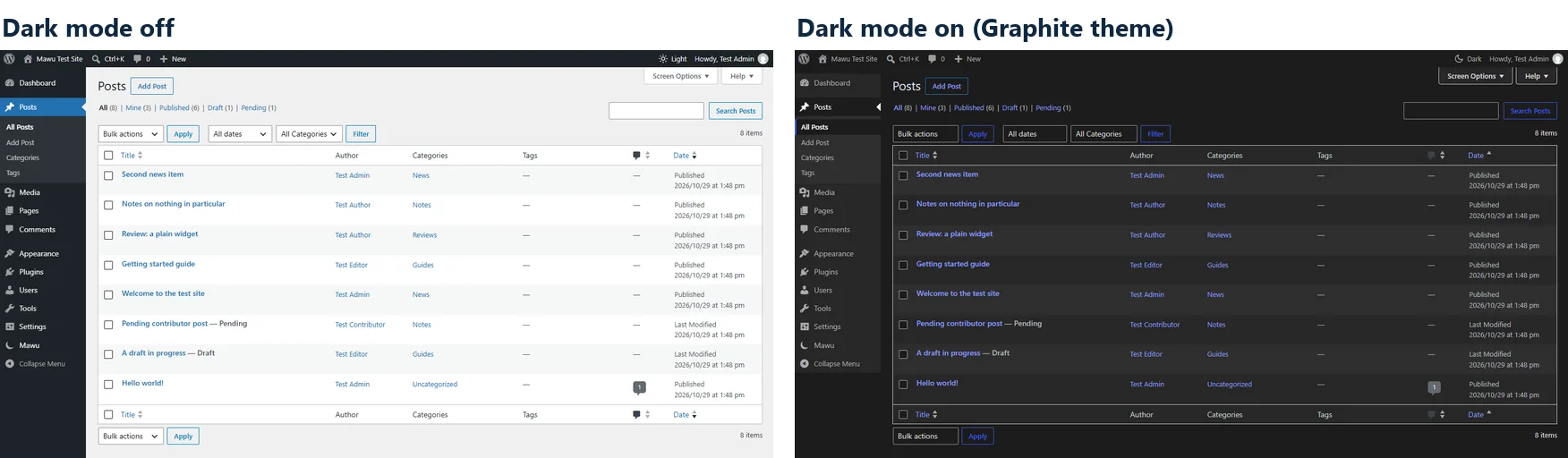
- Turn on Dark mode in the admin.
- Move your pointer over the themes. The preview changes to show each one.
- Click Use on the one you like. The whole admin changes straight away.
There are 26 themes, from plain greys like Graphite to themes with a little colour. Every one passes the WCAG AA contrast check, so text stays easy to read.
Step 3: Switch from the top bar
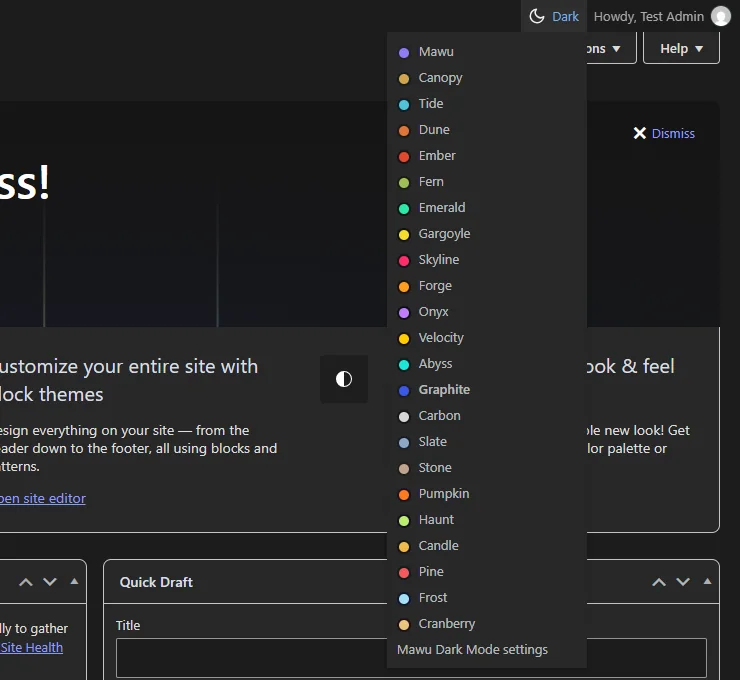
A dark mode button now sits in the top admin bar, on every screen. Click it to turn dark mode on or off. The page doesn’t reload, so you don’t lose what you’re typing.
Move your pointer over the button to see every theme and change it there. You can also press Ctrl+Alt+D on the keyboard.
Dark mode is set per person. Your editors and authors keep their own look, and each of them can switch too. For more on this, see how to turn admin dark mode on and off.
Step 4: Write in a dark editor
Open a post. The block editor’s writing area is dark too, not just its toolbar and sidebars. If your site uses the Classic Editor, its writing box is dark as well.
Both are on by default. You can turn either one off under Editors on the Mawu page.
Step 5: Add dark mode to your website
Your visitors can have dark mode too. It’s off until you turn it on.
- On the Mawu page, open More settings → Frontend.
- Turn on Dark mode for visitors. This one works the moment you flip it.
- Pick a Theme for visitors. By default, Mawu makes the dark version from your own theme’s colours.
- Under First visit, choose whether the site follows each visitor’s device, or starts light or dark.
- Choose where the switch goes: a corner, your menu, or both.
- Check the preview on the right, then click Save changes.
Each visitor now gets a switch, and Mawu remembers their choice on every page.
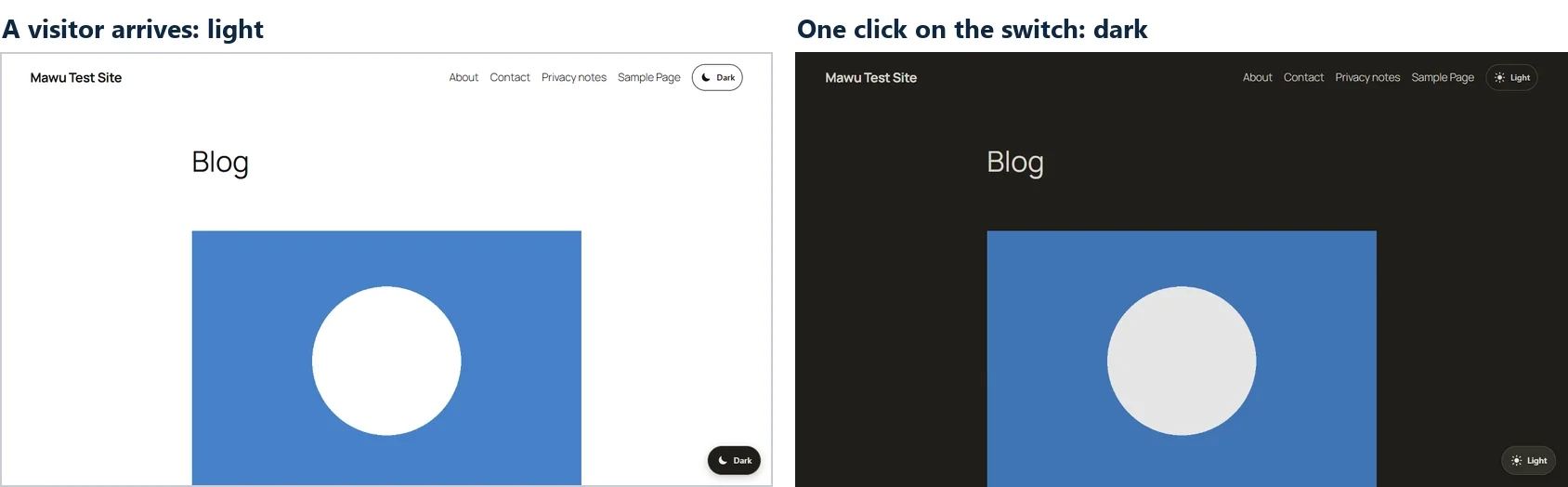
For every switch option, read how to add a dark mode switch to your site. If part of a page should stay light, see how to keep parts of a page light.
Step 6: Put dark mode on a schedule
You don’t have to switch by hand. Under When to use dark mode on the Mawu page, pick one:
- Schedule turns your admin dark during the hours you set, for example 7pm to 7am.
- Device follows your computer or phone. When your device goes dark, so does your admin.
This choice is for your own admin. Each person on your site can set their own. See scheduled dark mode for the details.
One more thing: a dark login page
Mawu can make the sign-in screen dark too. Turn on Dark login page on the Mawu page. It’s off by default, because everyone who signs in to your site sees it.
That’s it
Everything in this guide is in the free version of Mawu Dark Mode. If a screen or part of your theme stays light, please tell us in the support forum. To see how Mawu compares with other ways to get dark mode, read every way to get dark mode in WordPress.