The Admin section is the top of the Mawu settings page. The first settings are your own: they change only what you see. The rest change the admin for everyone on the site.
Dark mode in the admin
A switch that turns dark mode on or off for you. The line next to it says where you are, for example “On for you, in Graphite.” The Choose theme link jumps to the theme list.
It does the same thing as the dark mode button in the top admin bar. On uses your Mawu theme, and off goes back to your light scheme. Mawu remembers both.
When to use dark mode
Three choices, for you only:
- My choice. Dark mode is on or off when you switch it. This is the default.
- Schedule. Dark mode turns on during your hours, for example 19:00 to 07:00. An Edit schedule link opens the Schedule panel. See scheduled dark mode.
- Device. The admin follows your computer’s or phone’s light or dark setting. It changes as soon as your device does, with no reload, and uses your own dark theme and light scheme.
The line under the choice tells you what is happening now, for example “Dark now, until 07:00.” or “Matching your device: dark now.”
If you click the dark mode button while on Schedule or Device, your click wins for now. With Device, Mawu follows your device again the next time its setting changes.
Theme
The theme list has all 26 themes, grouped by collection: the original Mawu, then Neutral, Nature, Hero, Halloween, Christmas and New Year. Themes you make with the theme builder (Pro) appear under Custom themes.
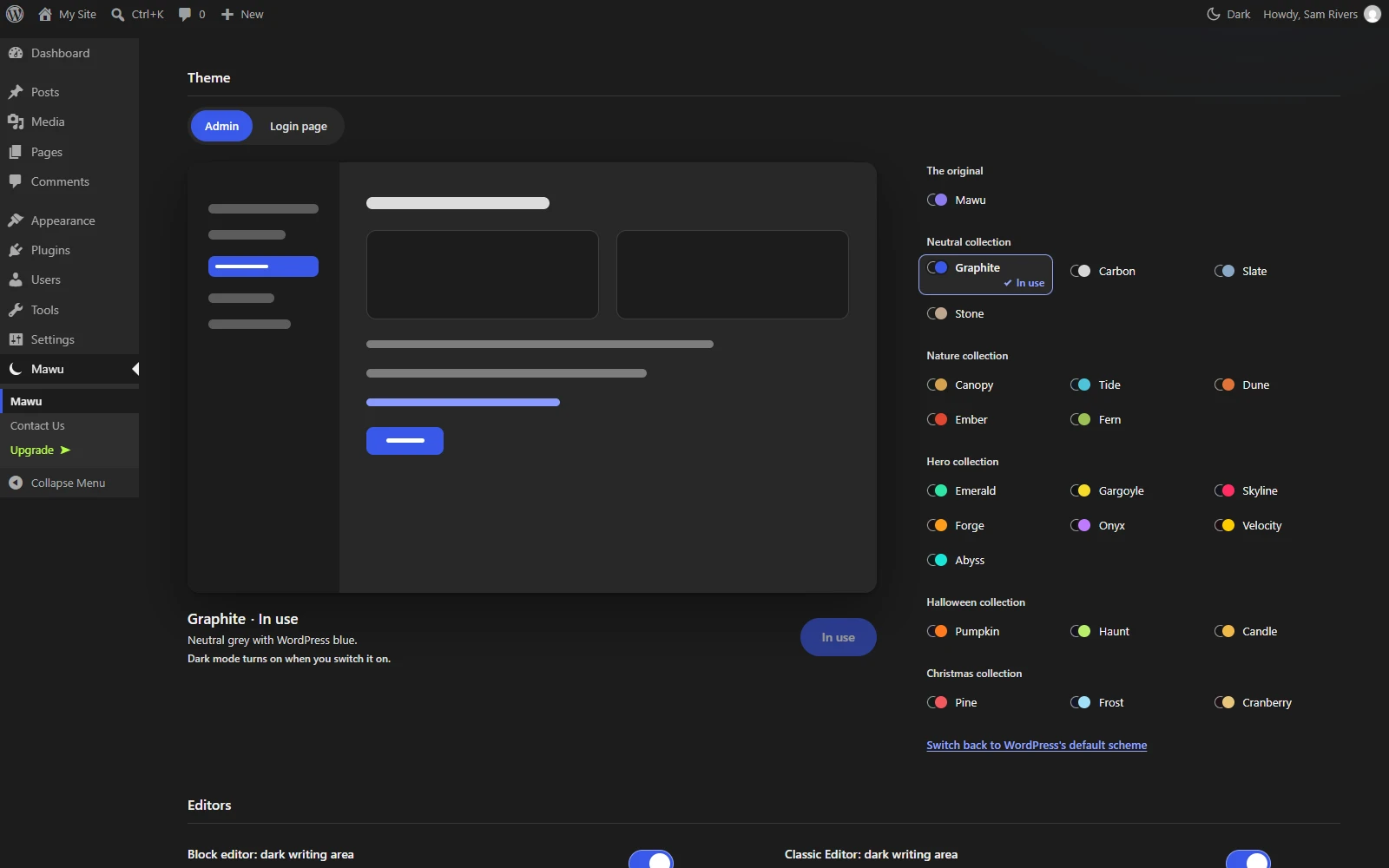
Move your pointer over a theme, or tab to it, and the drawn preview repaints in its colours. A line under the preview shows its name and a one-line description. Clicking a theme only previews it. Nothing changes until you click the button under the preview. It reads Use and the theme’s name, for example “Use Tide”.
When you click it, the whole admin changes straight away and a short message offers Undo. The theme you use has a check and the words “In use” in the list.
The line under the preview also says when dark mode turns on for you: “Dark mode turns on when you switch it on.”, “Dark mode turns on at 19:00, by your schedule.”, or “Dark mode turns on when your device goes dark.”
To leave Mawu, use Switch back to WordPress’s default scheme under the list.
Admin or Login page
Admins see a second choice above the preview: Admin or Login page.
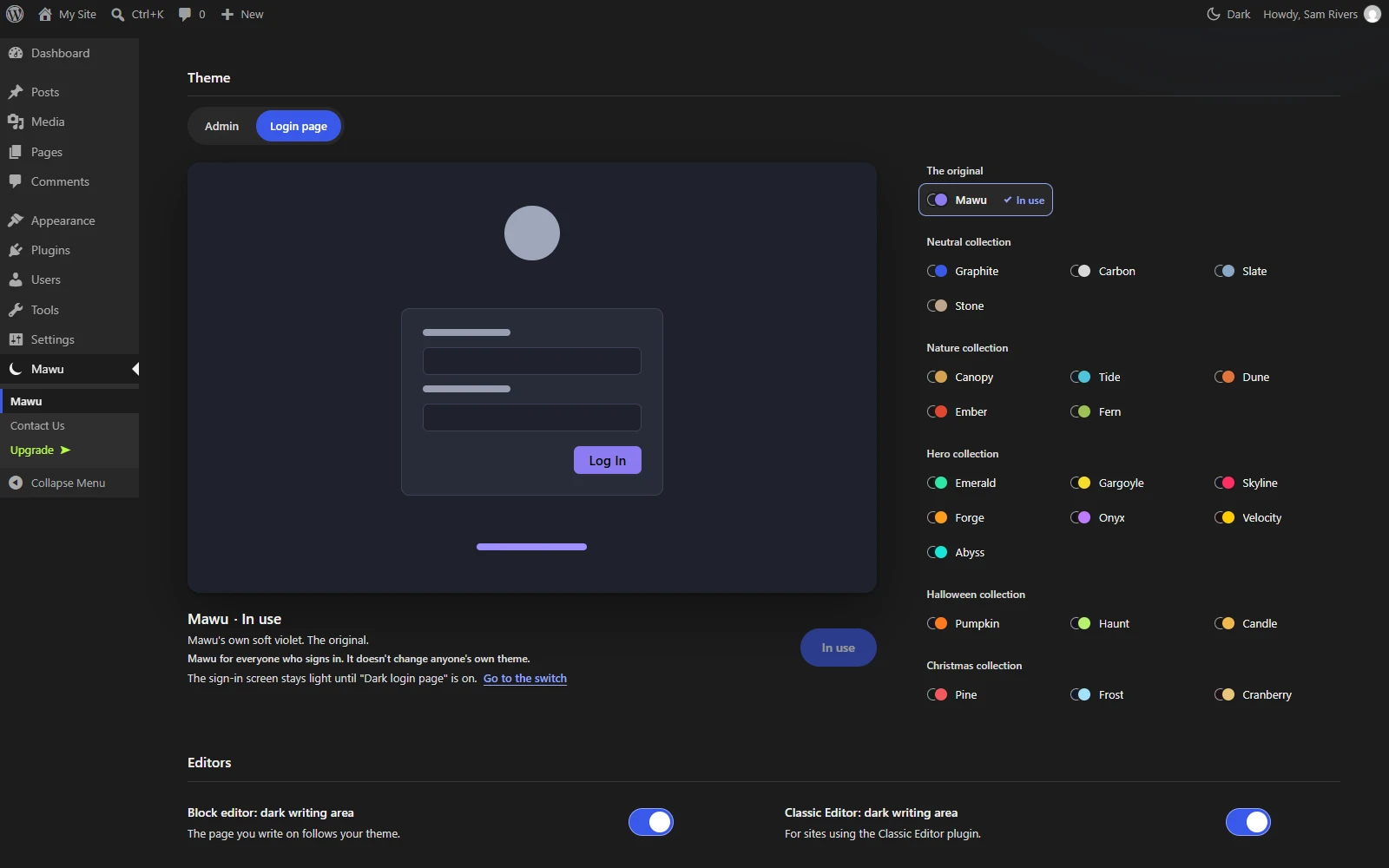
- Admin is your own theme, as above.
- Login page picks the theme for the sign-in screen (wp-login.php). The preview changes to a drawn sign-in box. This theme is for everyone who signs in, and it doesn’t change anyone’s own theme.
The login page stays light until Dark login page is on (see below).
Look (Pro)
- Intensity. A slider from 0 to 100. 50 is the theme as designed. Lower is softer, higher is deeper. The preview follows as you drag.
- OLED black. A true black background with near-black cards. It saves power on OLED screens. The intensity slider rests while it is on.
Both are per person, and you can also set them on your profile.
Editors
These change the editors for everyone on the site. The first two are on by default. The last two are part of Mawu Pro and are off by default.
- Block editor: dark page. The page you write on uses your dark colours. The toolbar and sidebars follow your theme either way.
- Classic Editor: dark writing area. The TinyMCE writing box, for sites that use the Classic Editor plugin.
- Customizer: dark (Pro). Off keeps the Customizer light. On, its panel follows your theme and its preview shows visitor dark mode when that is on.
- Page builders: dark (Pro). Off keeps them light. On, Elementor uses its own dark look while your admin is dark, and builder previews show visitor dark mode when that is on. See known gaps.
Login page
Dark login page turns on your chosen theme for wp-login.php. It is off by default, because everyone who visits the sign-in screen sees it. The Choose theme link opens the Login page choice in the Theme group.
Quick switch
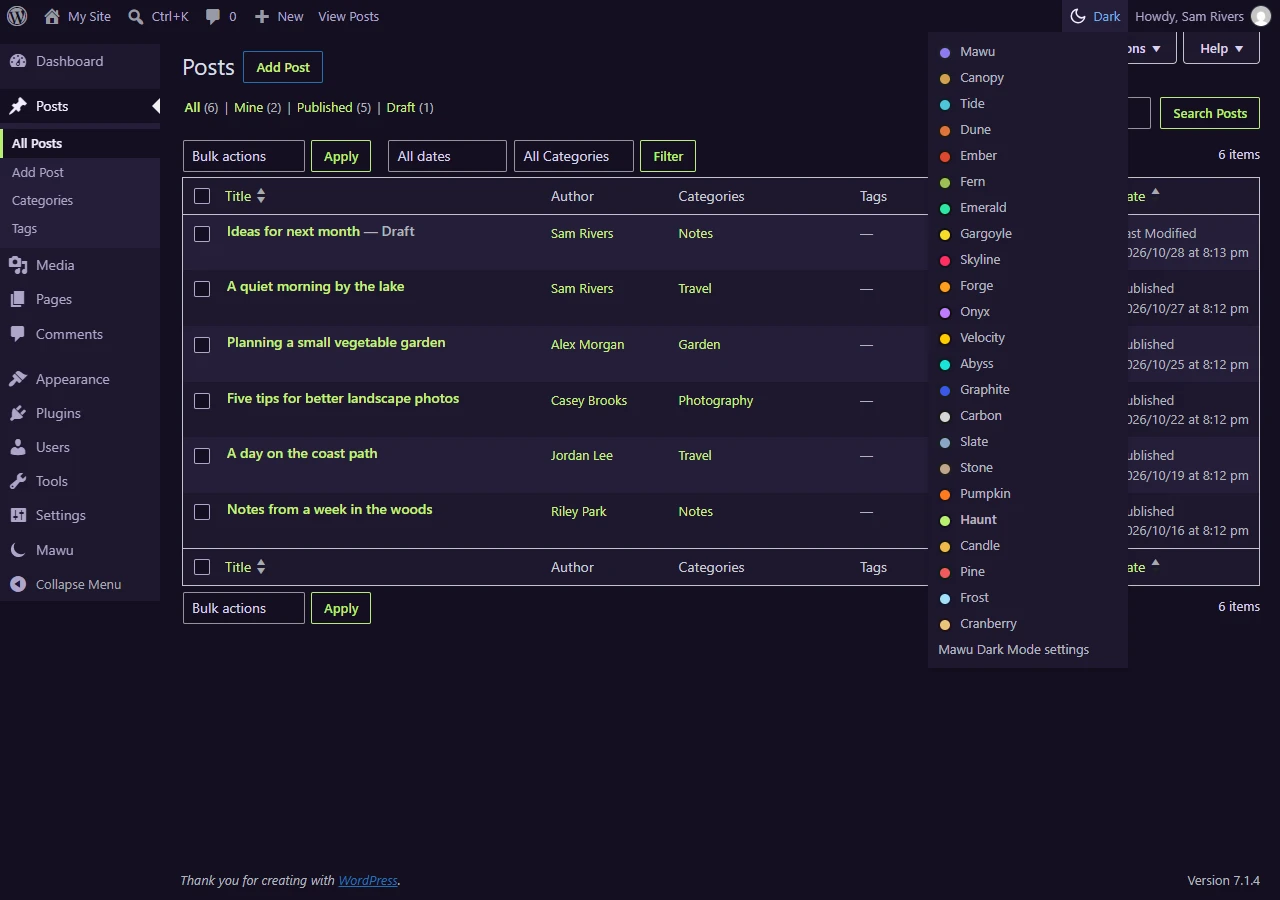
The dark mode button in the top admin bar is always there. It shows a moon or a sun. Click it to switch, or hover it to pick another theme from the list.
- Floating dark mode button. Adds a round button to the corner of every admin screen. The button in the top bar stays either way. Off by default.
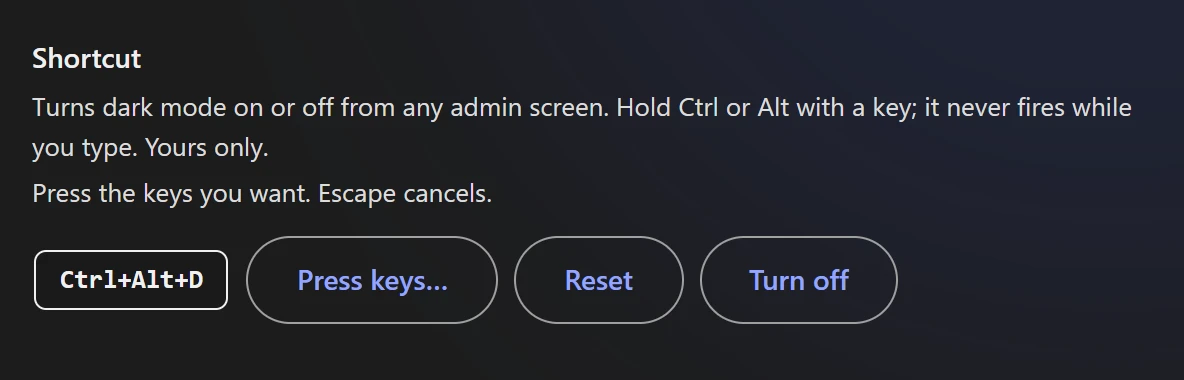
- Shortcut. The keys that switch dark mode on any admin screen. The default is Ctrl+Alt+D. Click Change and press the keys you want, or Reset to go back to Ctrl+Alt+D, or Turn off. Your shortcut is yours only.
A shortcut needs Ctrl or Alt (or both) and one letter, number or F key. It never fires while you type in a field. Mawu refuses combinations that your browser, WordPress or the editor already use, and combinations with the Windows or Command key. You can also set the shortcut on your profile.
Your own CSS for dark mode
Mawu has no CSS box of its own. If you add admin CSS with your own code or an admin CSS plugin, start each rule with body.admin-color- and the Mawu theme’s name in lower case. It then applies only while someone uses that theme, and light schemes never match it:
body.admin-color-graphite #adminmenu { border-right: 1px solid #333; }
For your public site, see your own CSS for visitors.
Who can change what
- Anyone who can sign in can turn dark mode on or off for themselves and pick their own theme.
- Site administrators change the editors, the login page and the floating button.
- With Mawu Pro, site controls can set rules by role, and the Agency client lock can limit who changes these settings.