Export saves your Mawu settings to one small file. Import reads it on another site, shows you what will change, and saves nothing until you click Apply. Coming from WP Dark Mode? Mawu can bring its settings over the same way. It is all free.
Export
- Go to Mawu, then More settings → Tools.
- Next to Export settings, click Download.
The file is called something like mawu-settings-example.com-2026-11-02.json. It holds:
- the site’s Mawu settings: the editors, the login page and its theme, and the floating button,
- the visitor dark mode settings from the Frontend panel,
- your own theme, schedule, shortcut and “When to use dark mode” choice,
- with Mawu Pro, the Pro settings too.
It doesn’t hold other people’s personal settings or your licence.
Import
- On the other site, go to Mawu → More settings → Tools.
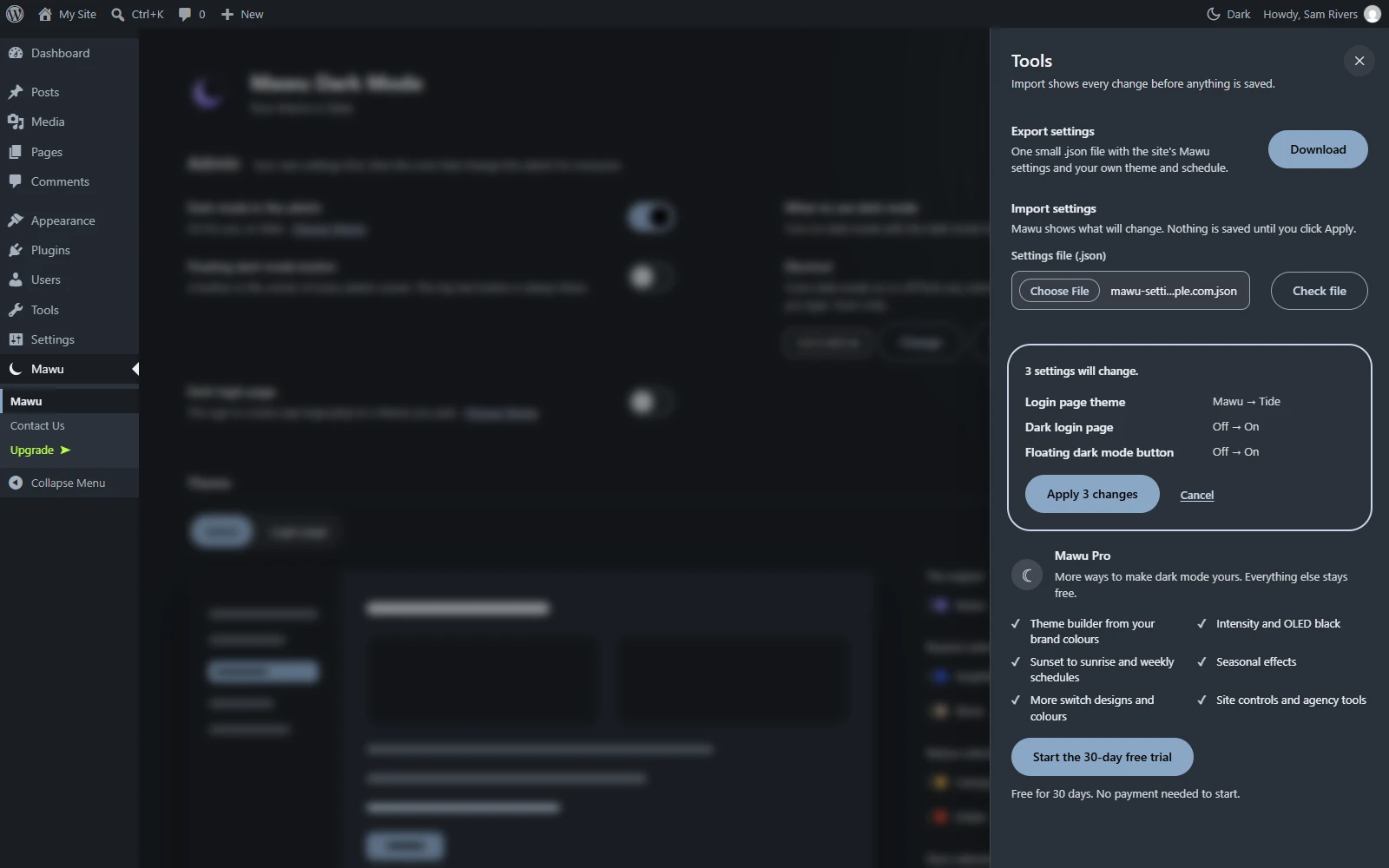
- Under Import settings, choose the .json file and click Check file.
- Mawu lists each setting that will change, from the old value to the new one. It also lists anything it skipped, with the reason.
- Click Apply to save the changes, or Cancel.
The preview is kept for 10 minutes. Some notes:
- Themes the other site doesn’t have are skipped.
- Only settings in the file change. If the file says a setting was never set (your shortcut, or the quick switch’s remembered schemes), Mawu puts it back to the default on this site too.
- Pro settings in the file are only applied when Mawu Pro is active there. The free plugin ignores them.
- The file can be up to 100 KB, and it must be a file exported from Mawu Dark Mode.
Coming from WP Dark Mode?
If WP Dark Mode is installed, Mawu finds its settings. You don’t need a file.
- Go to Mawu. At the top you see Coming from WP Dark Mode? Click Import its settings. You can also go to More settings → Tools and click Check its settings.
- Mawu lists each change, the same way as a normal import.
- Click Apply to save them, or Cancel.
- Deactivate WP Dark Mode, so the two plugins don’t both darken your site.
What comes over:
- whether visitors get dark mode,
- how dark mode starts: light, dark, or following the visitor’s device,
- the floating switch: on or off, which corner, its distance from the edges, its size, and which screens it shows on,
- excluded elements, as lines in Never darken these parts,
- excluded pages, posts and WooCommerce products: each one gets Never darken.
Some settings have no match in Mawu, such as excluded categories and tags or custom CSS. The preview lists them as “Not imported” and says why. Mawu Pro’s rules can keep categories, tags and products light.
Nothing changes in WP Dark Mode. Its settings stay where they are, so you can go back if you want. If you don’t want the message, click No thanks. It only hides it for you.
Keep many sites in step
To copy settings to several client sites and keep them up to date, use settings sync in the Agency plan. It uses the same settings as the export file.