The Agency plan is for people who look after WordPress sites for clients. It adds white-label, a client lock, settings sync between sites, and multisite network controls, on top of everything in Mawu Pro.
Open the Agency panel
Go to Mawu, then More settings → Agency. The row shows what is on, for example “White-label off · client lock off · sync off”. Each section has its own Save button.
On Mawu Pro without the Agency plan, the panel explains what the plan adds, with a link to it.
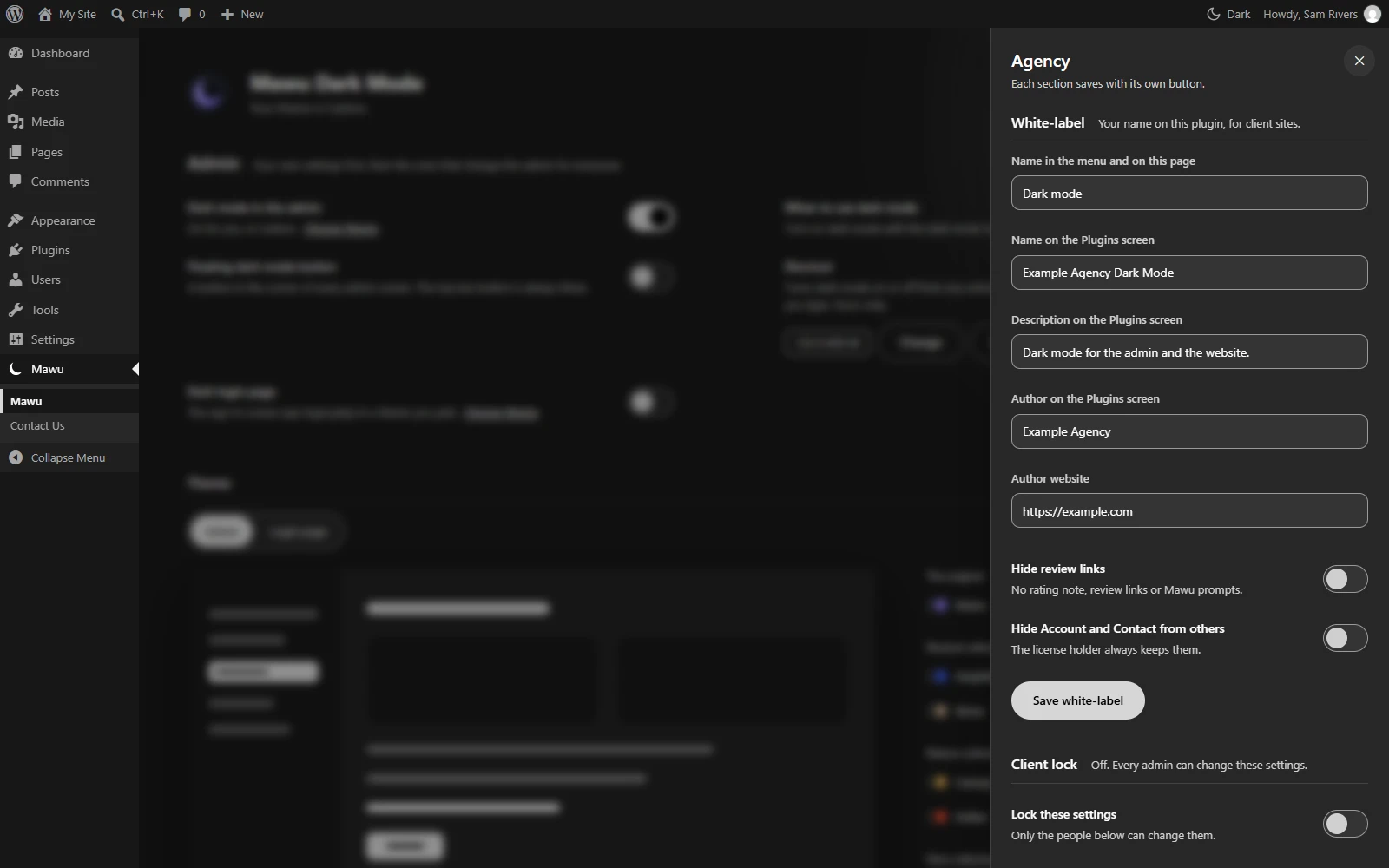
White-label
Put your own name on the plugin for client sites.
- Name in the menu and on this page. For example “Dark Mode” instead of “Mawu”.
- Name on the Plugins screen, Description on the Plugins screen, Author on the Plugins screen and Author website. Leave a field empty to keep Mawu’s own.
- Hide review links. Removes the rating note, the review links and Mawu’s prompts.
- Hide the Account and Contact pages from others. The licence holder always keeps them.
Click Save white-label.
Client lock
Choose who can change Mawu’s settings on a client site.
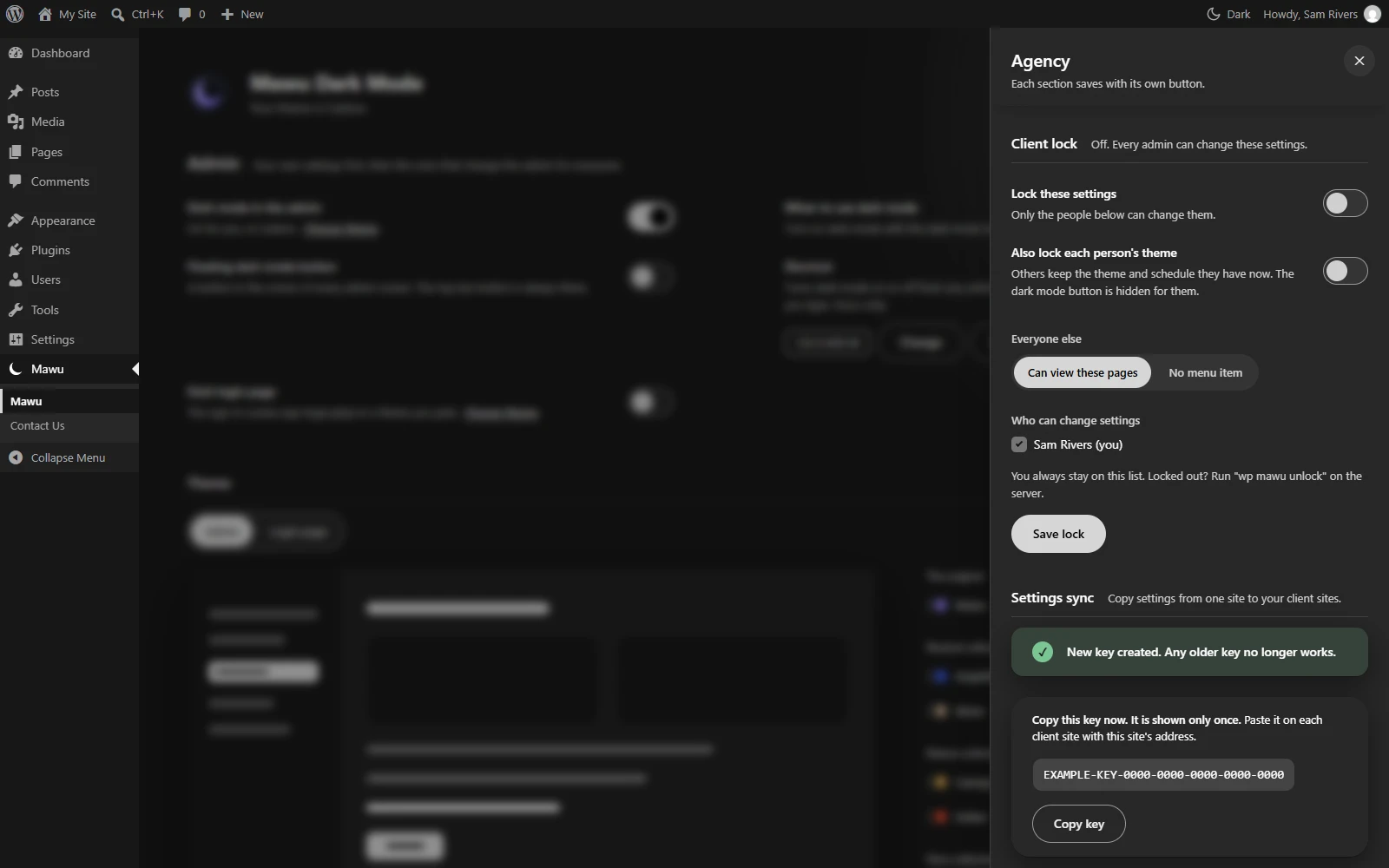
- Lock these settings. Only the people you tick under Who can change settings can change them. You can’t untick yourself, so you never lock yourself out.
- Also lock each person’s theme. Everyone else keeps the theme and schedule they have now, and their dark mode button is hidden.
- Everyone else: View only (the default, read only) or Hidden from the menu.
Click Save lock. People who are locked out see a note that names who can change the settings.
If you ever lock yourself out, a server admin can run wp mawu unlock with WP-CLI.
Settings sync
Copy Mawu’s settings from one site (the source) to your client sites. Sync copies the same settings as an export file: the site settings, visitor dark mode and Pro settings. It doesn’t copy anyone’s personal theme or schedule.
On the source site
- Under Let other sites copy these settings, click Turn on and make a key.
- Copy the key. Mawu shows it only once, and only keeps a scrambled copy.
- Note the site address shown under the key.
You can make a new key at any time. Client sites using the old key stop syncing until you give them the new one. Turn off stops the key working at once.
On each client site
- Under Copy settings from another site, enter the Address of the site to copy from (it must use HTTPS) and paste the key into Sync key (from the site to copy from).
- Choose Pull automatically: Only when I ask (default) or Once a day.
- Click Save sync settings.
- Click Pull now. Mawu lists every setting that will change. Click Apply these changes, or Discard.
A preview lasts 10 minutes. The Recent syncs table shows the last 10 pulls and how each went.
If a pull fails, the message says why, for example that the source refused the key, sync is off on the source, or the source is limiting requests (try again in ten minutes).
Multisite network controls
On a multisite network, the Agency plan adds a page at Network Admin → Settings → Mawu Dark Mode. Network admins are never held back by these rules.
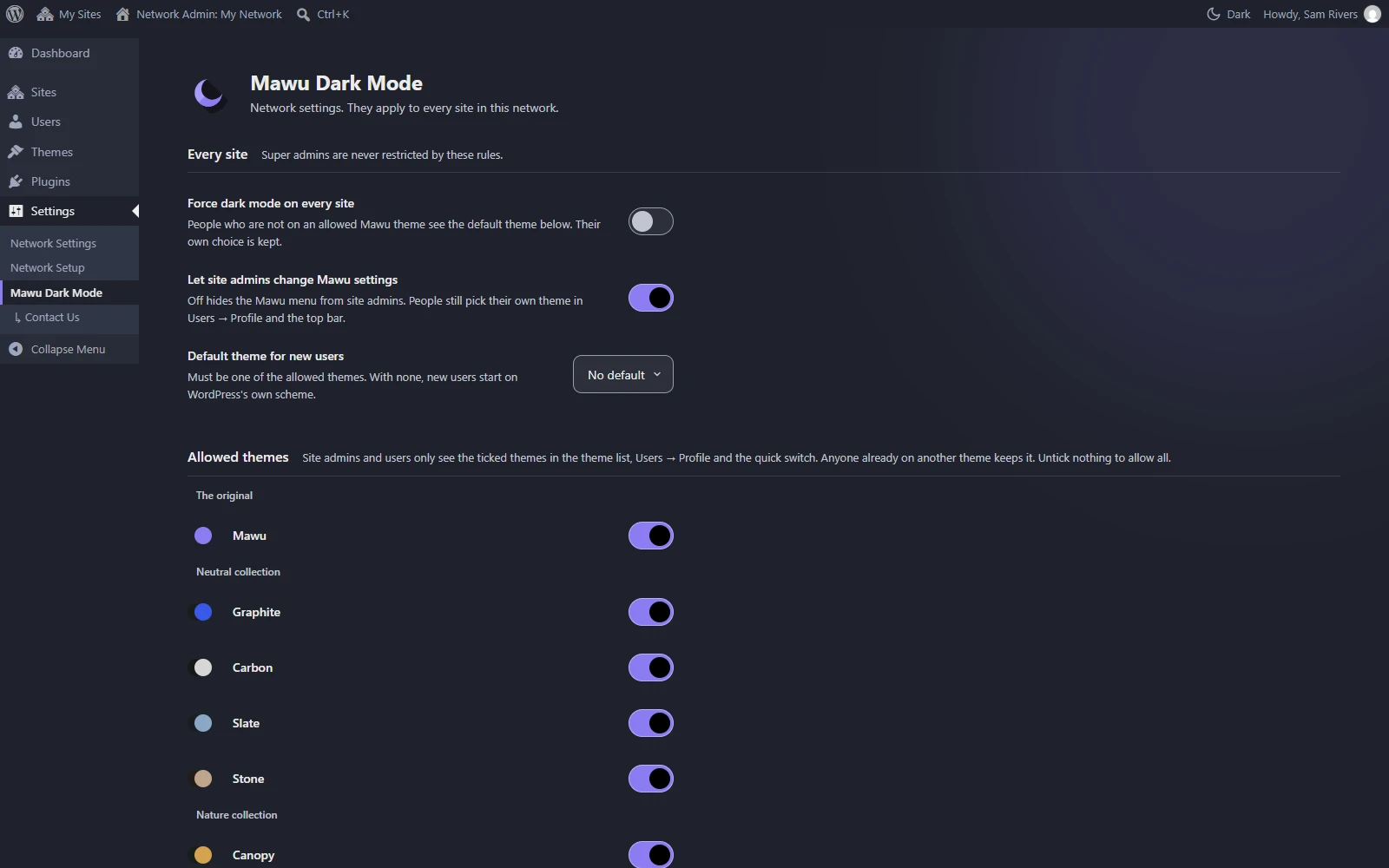
- Use the default theme on every site. People not on an allowed Mawu theme see the default theme. Their own choice is kept.
- Let site admins change Mawu settings. On by default. Off hides the Mawu menu from site admins. People still pick their own theme on their profile and in the top bar.
- Default theme for new users. It must be one of the allowed themes.
- Allowed themes. Tick the themes people can choose on every site. Leave all unticked to allow all of them. Anyone already on another theme keeps it.
Click Save network settings.
One Mawu Pro or Agency licence activation covers a whole multisite network.