Mawu can offer dark mode to the people who read your website, with the same themes as your admin. It is off until you turn it on. Everything is set in the Frontend panel, with a live preview of your site beside the settings.
Open the Frontend panel
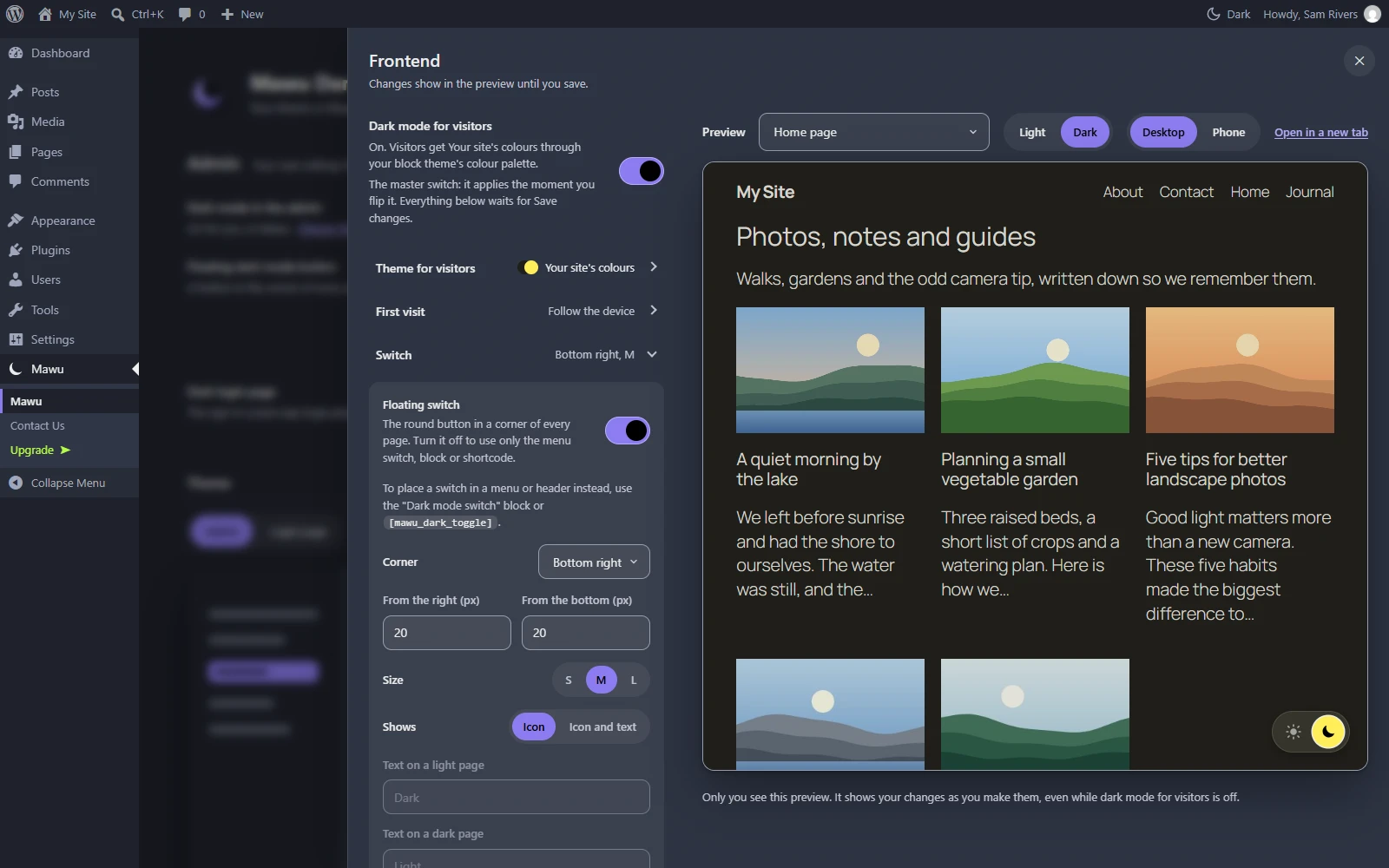
Go to Mawu in the admin menu, then More settings → Frontend. The panel is wide: the settings are on the left and a preview of your site is on the right. Only site administrators can open it.
How saving works here
Unlike the rest of the settings page, the Frontend panel does not save as you go. Your changes show in the preview first, and visitors see nothing until you save.
- When something differs from what is saved, a bar at the bottom of the panel says Unsaved changes, with Discard and Save changes.
- After a save, the bar shows “Saved”.
- If you close the panel with unsaved changes, Mawu asks whether to leave without saving. Pick Discard or Keep editing.
The one exception is the switch at the top.
Dark mode for visitors
The master switch. It applies the moment you flip it, so you can turn visitor dark mode off quickly if you need to. Everything else waits for Save changes.
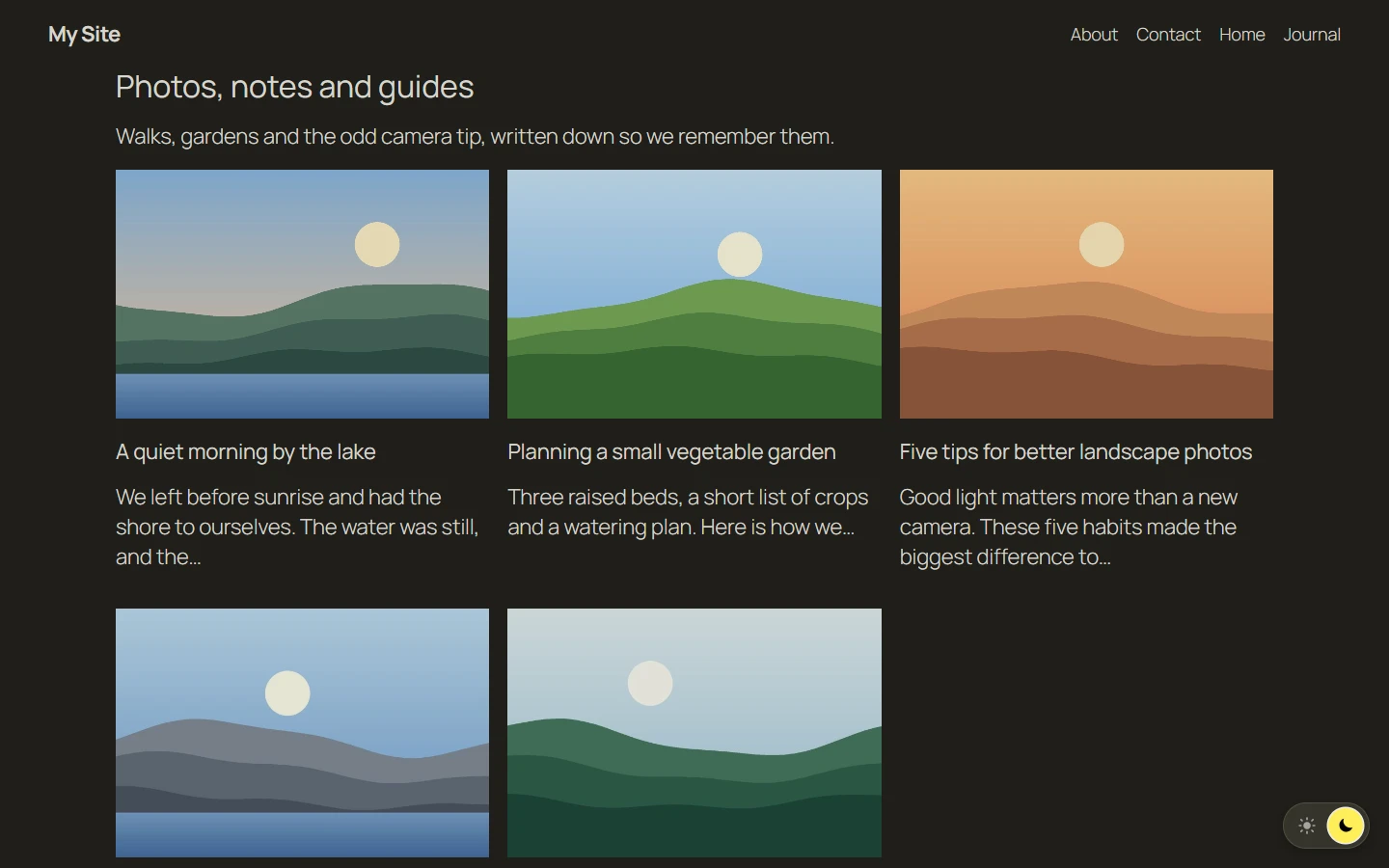
The line under it tells you how your site goes dark. For many popular themes and for block themes, Mawu uses the theme’s own colour settings. For other themes, it adjusts the page after it loads. Either way, on most themes a visitor who chose dark mode sees it from the first moment the page appears, with no white flash. On a few themes and plugins, part of the page can show light for a moment on the first load. See known gaps.
Theme for visitors
Pick the theme your visitors get. The first choice is Your site’s colours: dark colours worked out from your own theme’s colours, so the dark version still looks like your brand. It is the default. After it come all 26 Mawu themes, grouped by collection, and with Mawu Pro, your custom themes.
First visit
What a visitor sees before they use the switch:
- Follow the device (default): dark if their phone or computer is set to dark.
- Start light.
- Start dark.
Once a visitor uses the switch, their choice wins on every page and on later visits.
Dark mode button
This group sets the floating switch: the round button that sits in a corner of every page.
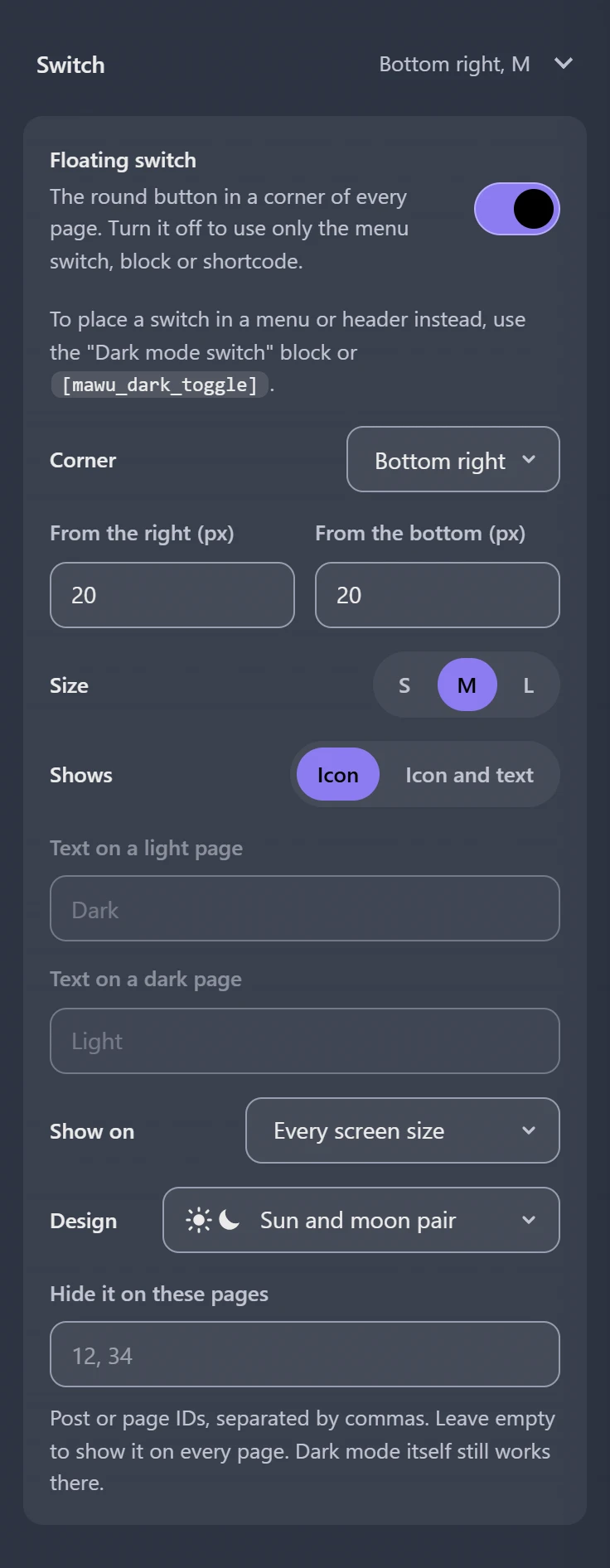
- Floating switch. On or off. Turn it off if you only want the menu switch, block or shortcode.
- Buttons visitors can pick. Light and dark (default), or Light, dark and auto. With Auto, the visitor’s phone or computer decides. Visitors can pick Auto again at any time.
- Corner. Bottom right (default), bottom left, top right or top left.
- From the right (px) and From the bottom (px). Two numbers in pixels, from 0 to 200. The labels follow the corner, for example “From the left (px)” and “From the top (px)”. The default is 20 for both.
- Position (Pro). Click Drag to position, then drag the switch in the preview to where you want it. The corner and distances update to match. The arrow keys work too. Click Done when it’s in place.
- Size. S, M (default) or L.
- Shows. Icon (default), or Icon and text. With text, you can set Button text while the page is light (default “Dark”) and Button text while the page is dark (default “Light”), up to 30 characters each. With Light, dark and auto, you set Text for Light, Text for Dark and Text for Auto instead.
- Show on. Every screen size (default), phones only, tablets and desktops only, or nowhere.
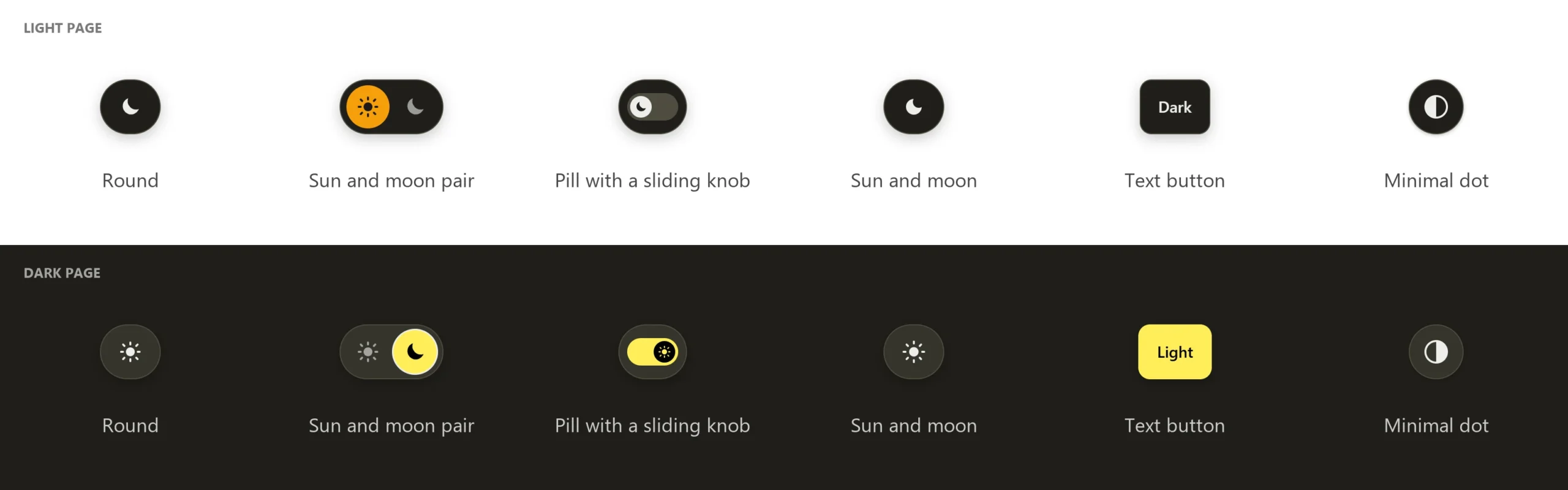
- Design. Free has Round (default) and Sun beside moon, where the sun and the moon sit side by side and the active one is lit. Mawu Pro adds Pill with a sliding knob, Sun to moon, Text button and Minimal dot.
- Switch colours (Pro). Background, icon and text, and the background while dark mode is on. Leave all three empty to use your visitor theme’s colours. Mawu won’t save colours that are hard to read.
- Hide it on these pages. Post or page IDs, separated by commas, for example
12, 34. The switch is hidden there, but dark mode itself still works. Mawu lists the titles of the pages it found.
The switch stays clear of cookie banners while they show, and of fixed bars at the bottom of the screen on phones.
Button in your menu
Put a switch in your site’s menu. It takes the menu’s own colours.
- Add a switch to: None (default), the first Navigation block on each page (block themes), or one of your theme’s menu locations.
You can also add it by hand: in Appearance → Menus, open the Dark mode switch box, tick it and click Add to Menu.
Never darken and photos
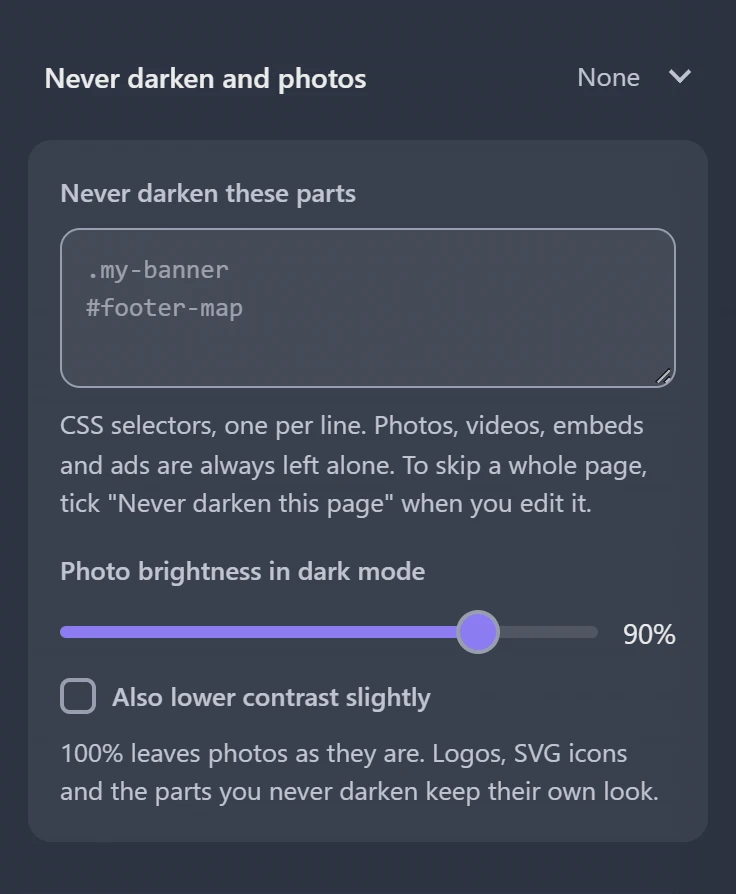
- Never darken these parts. CSS selectors, one per line, for example
.my-banneror#footer-map. Mawu tells you how many elements each list matches on the preview page, or warns you about a selector that isn’t valid. Photos, videos, embeds and ads are always left alone. - Never darken this page. For a whole page, open it in the editor and tick Never darken this page in the Dark mode for visitors box in the sidebar. The box shows while visitor dark mode is on.
- Photo brightness in dark mode. From 50% to 100%. The default is 90%. 100% leaves photos as they are. Tick Also soften photos a little for a softer look. Logos and SVG icons keep their own look.
Dark mode images (Pro)
These are in the Dark mode images group of the Frontend panel.
- Logo for dark mode. A different logo while a visitor has dark mode on.
- Site icon for dark mode. A different browser tab icon in dark mode. Use a square image of at least 512 by 512 pixels.
- Header image for dark mode. Shows when your theme has a header image.
- Background images. Click a banner or other part with a background image in the preview, then choose the dark image.
- For any other image or video, open it in the Media Library and pick its Dark mode version. Mawu shows it instead while a visitor has dark mode on.
Rules (Pro)
Change dark mode for some posts and pages. Add a rule, pick what it covers, then pick what happens.
- What: a Category, a Tag or a Type of content. With WooCommerce you can also pick a Product category, a Product or a Shop page.
- What happens: Never darken, Start dark or Hide the switch.
Rules for categories and tags also cover their list pages. Start dark only applies on the first visit. A page with Never darken this page ticked always wins.
Embeds, logos and printing (Pro)
These rows start off. Turn on the ones you want, then click Save changes.
- Dark look for embedded content. X and Reddit posts switch to their own dark theme. Videos and other embeds get a dark frame with no white flash.
- Dim Google Maps. Embedded Google Maps are shown a little darker, so they do not glare.
- Keep dark logos visible. A dark logo with no background can disappear on a dark page. Mawu adds a light background or makes it lighter.
- Print in light colours. Printed pages and PDFs always come out light, whatever the visitor chose.
- Tools for developers. Adds
window.mawuand themawu:modeevent for your own code.
Seasonal effects for visitors (Pro)
Off (default), When the visitor takes a break (the effect shows once a visitor stops moving, and fades as soon as they move), or The whole time (light effects) (a lighter effect that stays on the page). Effects only run in season: snow from 1 to 26 December, confetti from 27 December to 6 January, ghosts and bats in October. They load after the page, so they don’t slow it down. See seasonal effects.
Your own CSS
Mawu has no CSS box of its own. Use WordPress’s Additional CSS instead: Appearance → Customize → Additional CSS, or in a block theme the Site Editor’s Styles → Additional CSS. Start each rule with html[data-mawu-mode="dark"] so it applies only while a visitor has dark mode on:
html[data-mawu-mode="dark"] .site-footer { background: #000; }
The preview
The preview on the right shows your site with your unsaved changes. Only you see it, and it works even while visitor dark mode is off.
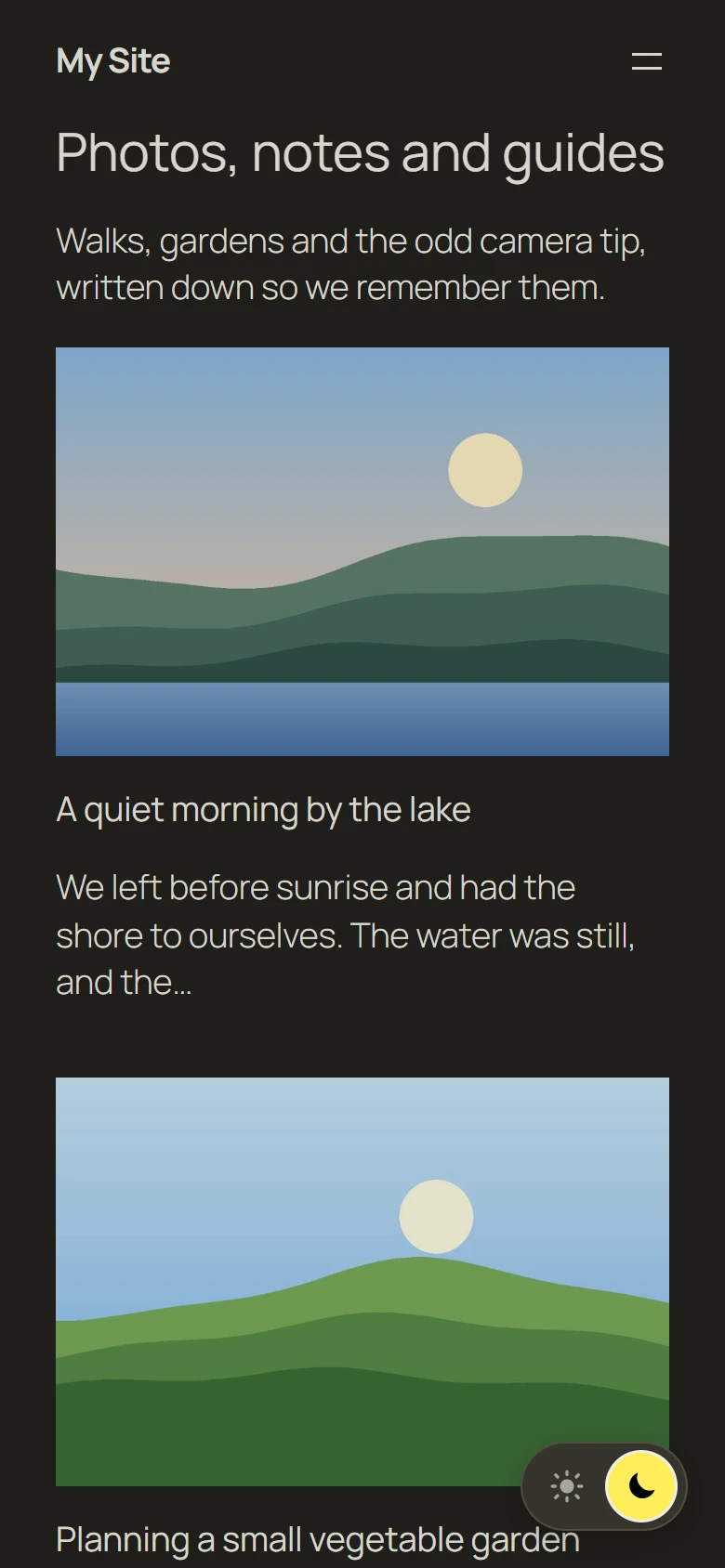
- Page to preview. Your home page, your latest post, a page, the shop (with WooCommerce), or any other address on your site.
- Light | Dark. See the page in either mode.
- Desktop | Phone. See it at desktop or phone width.
- Open in a new tab. Opens the preview at full size.
Other ways to add a switch
- Block. In the editor, add the Dark mode switch block (Widgets category). You can add optional text next to the icon.
- Shortcode.
[mawu_dark_toggle], or[mawu_dark_toggle label="Dark mode"]with text. - Elementor. The Dark mode switch widget, with text, size (small, medium, large) and alignment.
These switches only show on your site while dark mode for visitors is on.
Open a page in dark or light mode with a link
Add ?mawu=dark or ?mawu=light to any link to your site, for example https://example.com/?mawu=dark. The page opens in that mode, and the choice is remembered like a click on the switch. ?mawu=auto forgets the choice and follows the visitor’s device again. Mawu removes the parameter from the address bar. It works with page caching, and it only works while dark mode for visitors is on.
Tested themes and plugins
See compatibility for the themes, page builders and plugins we tested. If a part of your site looks wrong in dark mode, add it to Never darken these parts, and please tell us in the support forum.