Since version 0.11.0, every Mawu setting lives on one page. Open Mawu in the admin menu. Your own admin settings are at the top, and everything else opens in a panel from the side.
Where to find it
Mawu has its own item in the admin menu, called Mawu. Old links to Settings → Mawu Dark Mode still work. They open this page.
The page is for site administrators. Editors and authors don’t see it, but they still choose their own theme under Users → Profile → Admin Color Scheme, and set their own schedule on the same profile screen.
What’s on the page
The page has three parts, top to bottom.
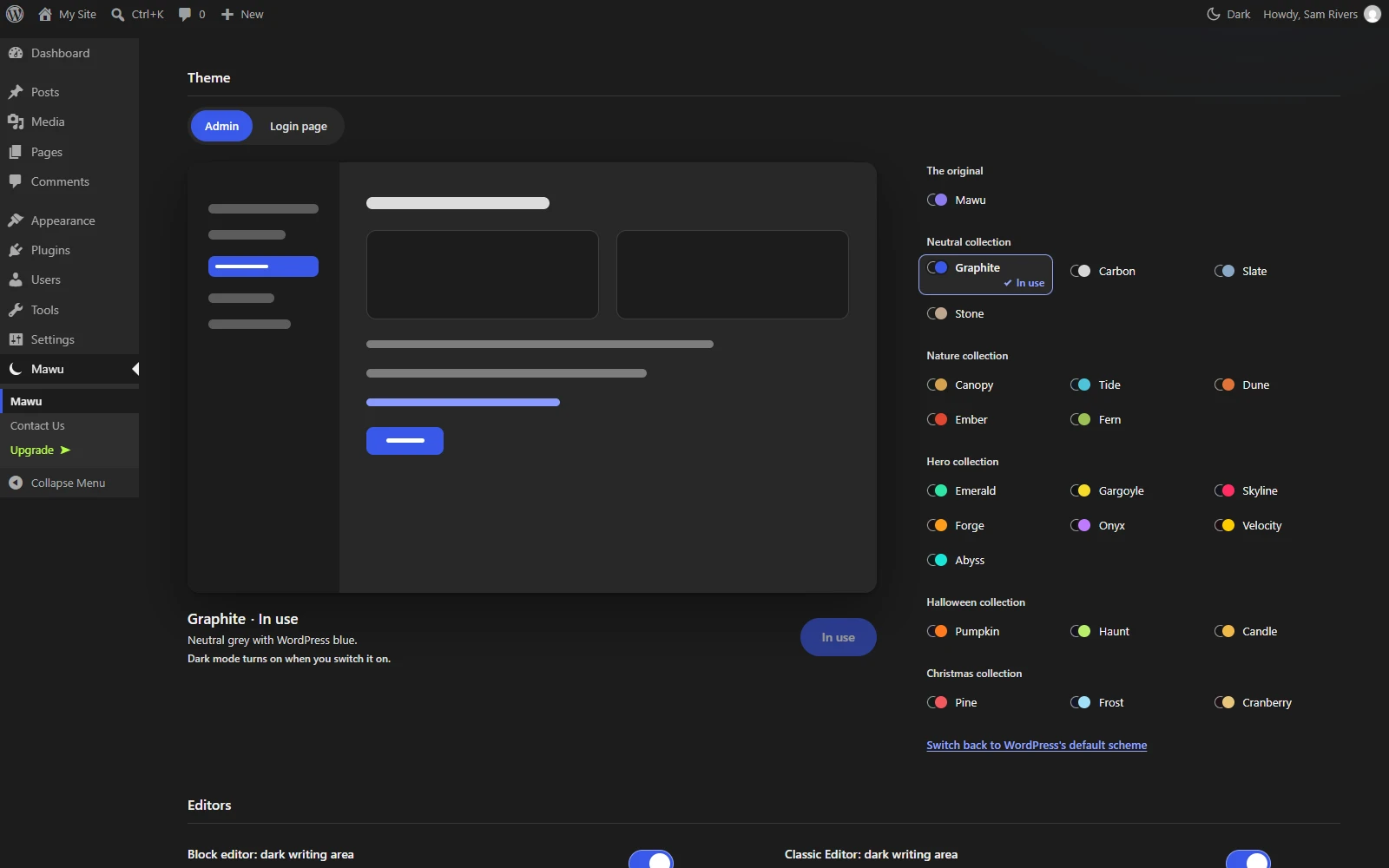
- Admin. Your own dark mode: on or off, when to use it, your theme with a drawn preview, then the settings for everyone: the editors, the login page and the quick switch. See the Admin section.
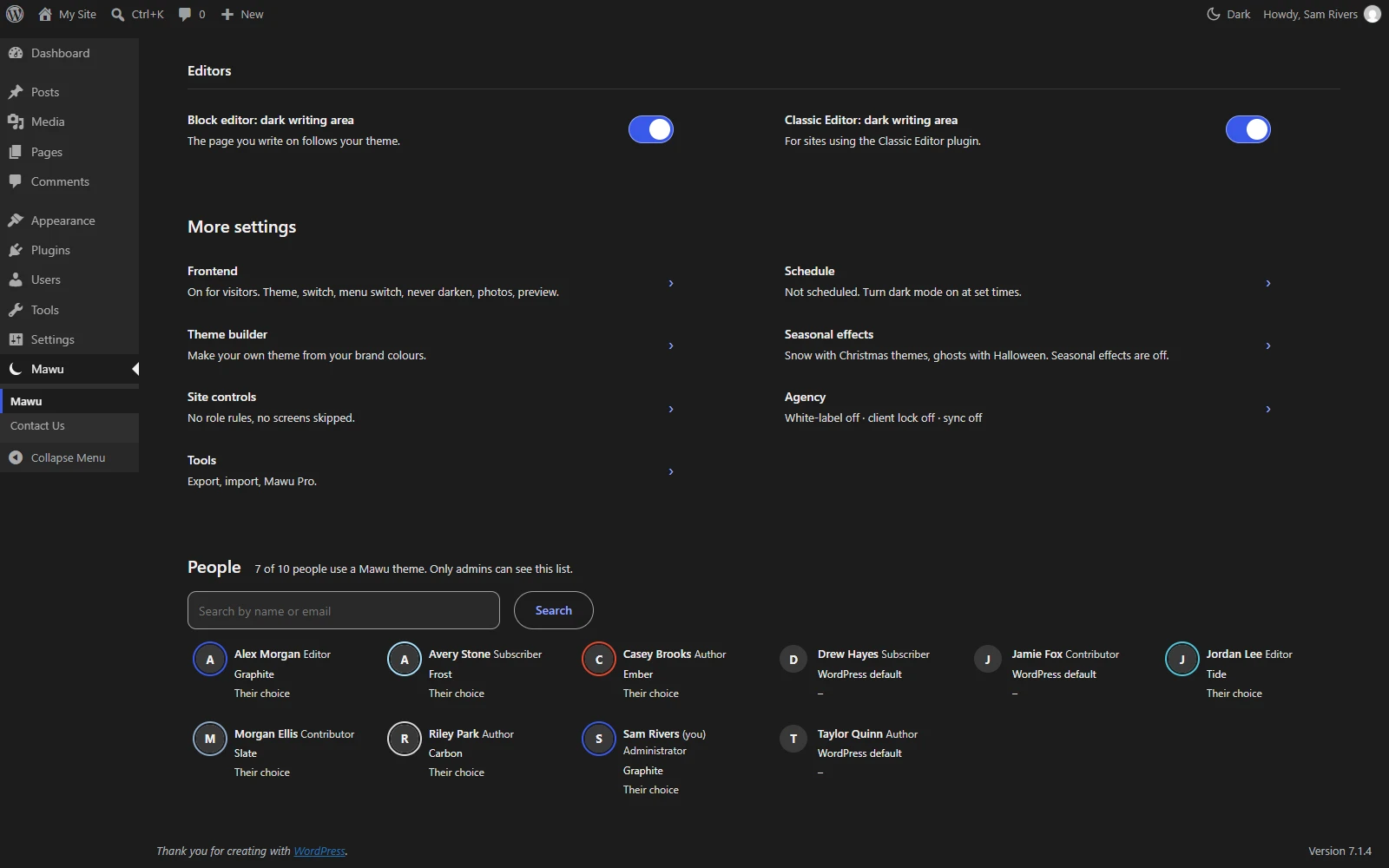
- More settings. One row per panel. Each row shows a short summary, such as “On for visitors.”, and opens a panel from the right side.
- People. Who on your site uses which theme, and how their dark mode turns on (their choice, a schedule or their device). It shows 20 people at a time, with a search box. Only admins see it.
The More settings panels
| Panel | What it holds | Plan |
|---|---|---|
| Frontend | Dark mode for your website’s visitors, with a live preview | Free (some options Pro) |
| Schedule | Your dark hours and the theme to use during them | Free (sunset and weekly Pro) |
| Theme builder | Your own themes from your brand colours | Pro |
| Seasonal effects | Snow and Halloween effects | Pro |
| Site controls | Rules by role, screens to skip, a default theme | Pro |
| Agency | White-label, client lock, settings sync | Agency |
| Tools | Export and import, and your Mawu Pro licence | Free |
On the free plugin you see Frontend, Schedule and Tools. The other rows appear with Mawu Pro.
A panel slides over the page. The page behind it stays where it was. Close a panel with the ✕ button, the Esc key, or a click on the page behind it.
When settings save
Most settings save the moment you change them. A small “Saving…” and then “Saved” appears next to the Admin heading. There is no Save button to look for.
A few places use a button instead, because a half-finished change could affect other people:
- Frontend waits for Save changes in the bar at the bottom of the panel. Until then, your changes only show in the preview. The one exception is the “Dark mode for visitors” switch at the top, which applies as soon as you flip it.
- Theme builder, Site controls, each section of Agency, and the sunset Location have their own Save buttons.
If you close the Frontend panel with unsaved changes, Mawu asks whether to leave without saving.
The page follows your own theme
The settings page uses your own color scheme. On a Mawu theme it is painted in that theme’s colours. On WordPress’s own schemes, such as Default or Modern, it is light with that scheme’s accent colour. When you switch themes, the page changes with you, with no reload.
Without JavaScript
The settings still save with JavaScript turned off. Each form then shows a normal Save button.