Move from YARPP, Contextual Related Posts, Related Posts for WP, Jetpack Related Posts or Inline Related Posts to Ariadne. Your old posts keep working, and you can undo it. Free on every plan.
Where to find it
Go to Ariadne Related Posts → Settings → Switch plugins. The tab shows only when one of these plugins is active, or left its data on your site:
- YARPP (Yet Another Related Posts Plugin)
- Contextual Related Posts
- Related Posts for WP
- Jetpack Related Posts
- Inline Related Posts
Ariadne only reads the old plugin’s data. It never changes or deletes it.
How to switch
- Pick the plugin. Choose the plugin you are leaving and click Preview. The preview shows what will come over and what will change.
- Import. Click the button. The import runs in small batches. Keep the page open until it finishes. If it stops, come back and press Continue.
- Deactivate the old plugin. Then each post shows one list, not two.
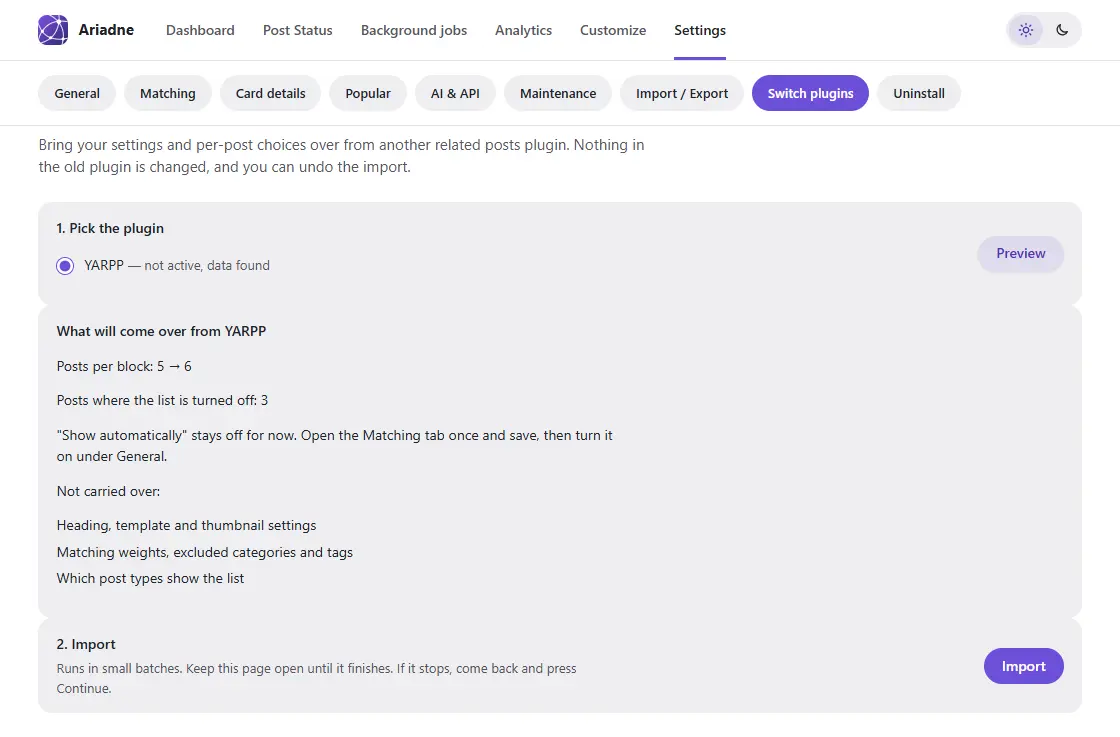
What comes over
- Show related posts automatically, if the old plugin added its list to posts.
- How many posts to show.
- Posts where the list was turned off. Ariadne turns its list off on them too.
- Hand-picked and excluded posts, from plugins that have them.
- Cornerstone posts, from Contextual Related Posts.
Hand-picked, excluded and cornerstone posts are saved on each post. Ariadne Pro uses them. Ariadne Free picks related posts on its own, so it keeps them but does not use them. The preview tells you this.
Your own Ariadne picks stay first. Imported picks are added after them, with no repeats.
What does not come over
Headings, styles, templates, thumbnails, post types, positions, category exclusions, weights and keywords. Inline Related Posts’ automatic boxes and Related Posts for WP’s automatic links don’t come over either. Ariadne finds related posts on its own, so you don’t need them. Sidebar widgets don’t come over either. The preview tells you how many there are, so you can swap them for the Ariadne widget.
Old shortcodes and blocks keep working
Old posts may still hold the old plugin’s shortcode or block. The import makes them show Ariadne’s list, even after you deactivate the old plugin. Nothing breaks, and you don’t have to edit old posts. In the Earlier imports list, the box Keep its old shortcodes and blocks working turns this on or off.
Show automatically stays off at first
If you have not saved the Matching tab yet, “Show automatically” stays off. The preview says so. Open the Matching tab once and save. Then turn it on under General.
Undo
The Earlier imports list shows each import. Click Undo to put every Ariadne value back to how it was before. Undo the latest import first, then older ones, one at a time. Per-post values always go back. The two settings (show automatically and how many posts) go back too, unless you changed them yourself after the import.