Dark mode is easier on your readers’ eyes at night. But some parts of a page were made for a light background: a price card people print, a brand banner, a chart or a form. In WordPress dark mode, those parts can look wrong or get hard to read. Mawu Dark Mode lets you keep any of them light. You can also keep a whole page light.
What Mawu already leaves alone
You don’t need to do anything for these. Mawu never turns them dark:
- photos
- videos
- embeds, such as YouTube videos and maps
- ads
- SVG icons and logos
Mawu does dim photos a little in dark mode, so they don’t glare. You can change that with Photo brightness in dark mode. Set it to 100% and photos stay exactly as they are.
Everything else follows your dark theme. Usually that’s what you want, but not always.
Step 1: Give the section a name
Mawu needs a way to find the part you want to keep light. The easiest way is a CSS class, which is just a short name you give to a block.
- Open the page in the editor.
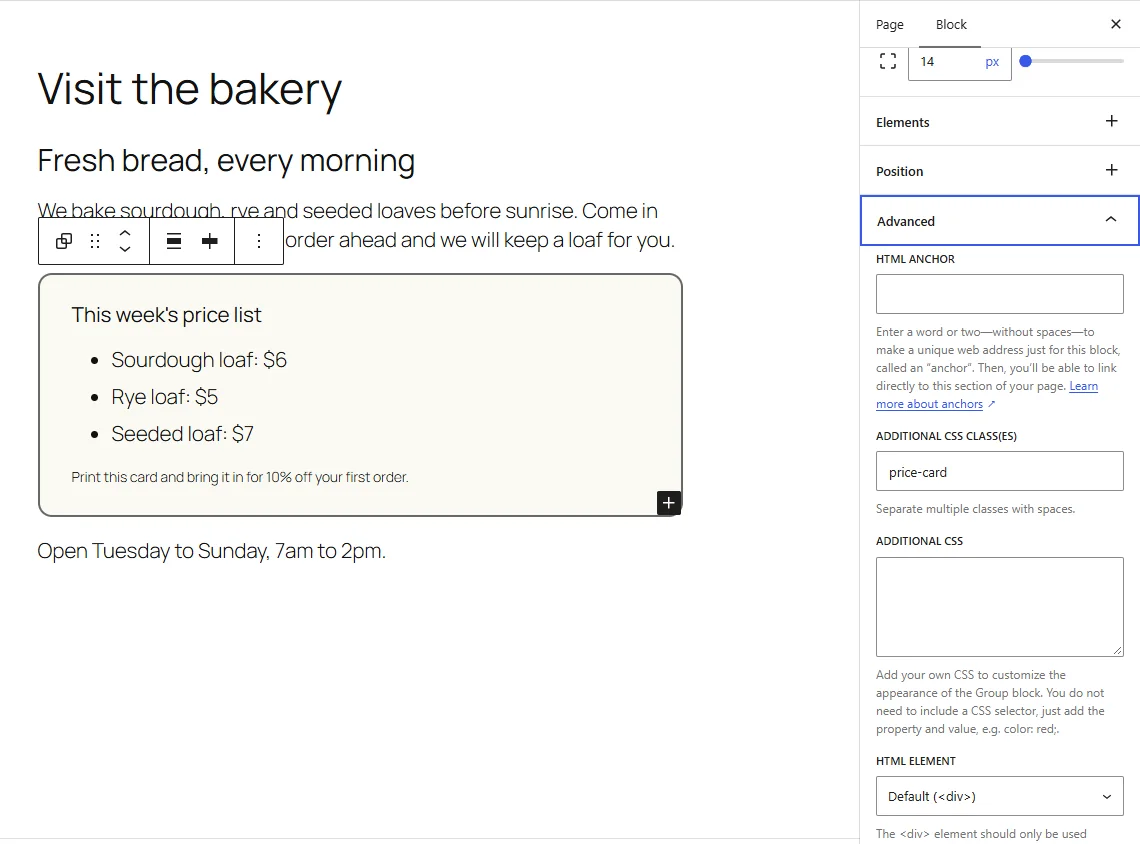
- Click the block you want to keep light. If it’s a box with several blocks inside, pick the outer Group block.
- In the sidebar, open the Block tab, then Advanced.
- Type a name in Additional CSS class(es), for example
price-card. Use letters, numbers and dashes, with no spaces. - Save the page.
If the part already has a class or an ID from your theme or page builder, you can use that instead. Right-click it in your browser and choose Inspect to see it.
Step 2: Add it to “Never darken these parts”
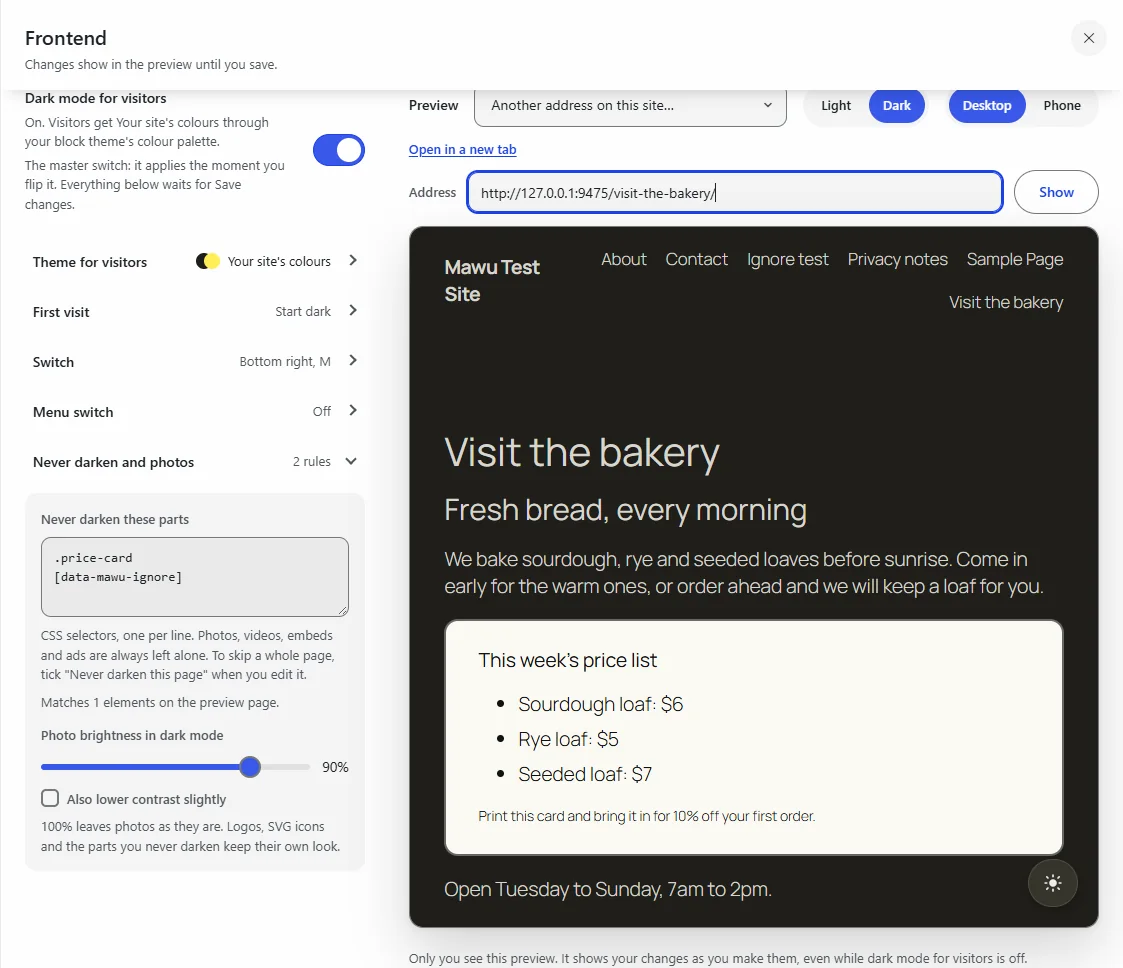
- Go to Mawu in the admin menu, then More settings → Frontend.
- Open the Never darken and photos group.
- In Never darken these parts, type the class with a dot in front:
.price-card. For an ID, use a hash instead:#footer-map. - Click Save changes.
Put each one on its own line. You can add up to 50.
The preview on the right helps here. Pick the page you’re working on under Preview and switch it to Dark. Mawu tells you how many parts your list matches on that page. It also warns you if a line isn’t valid. Your visitors see nothing until you save.
The result
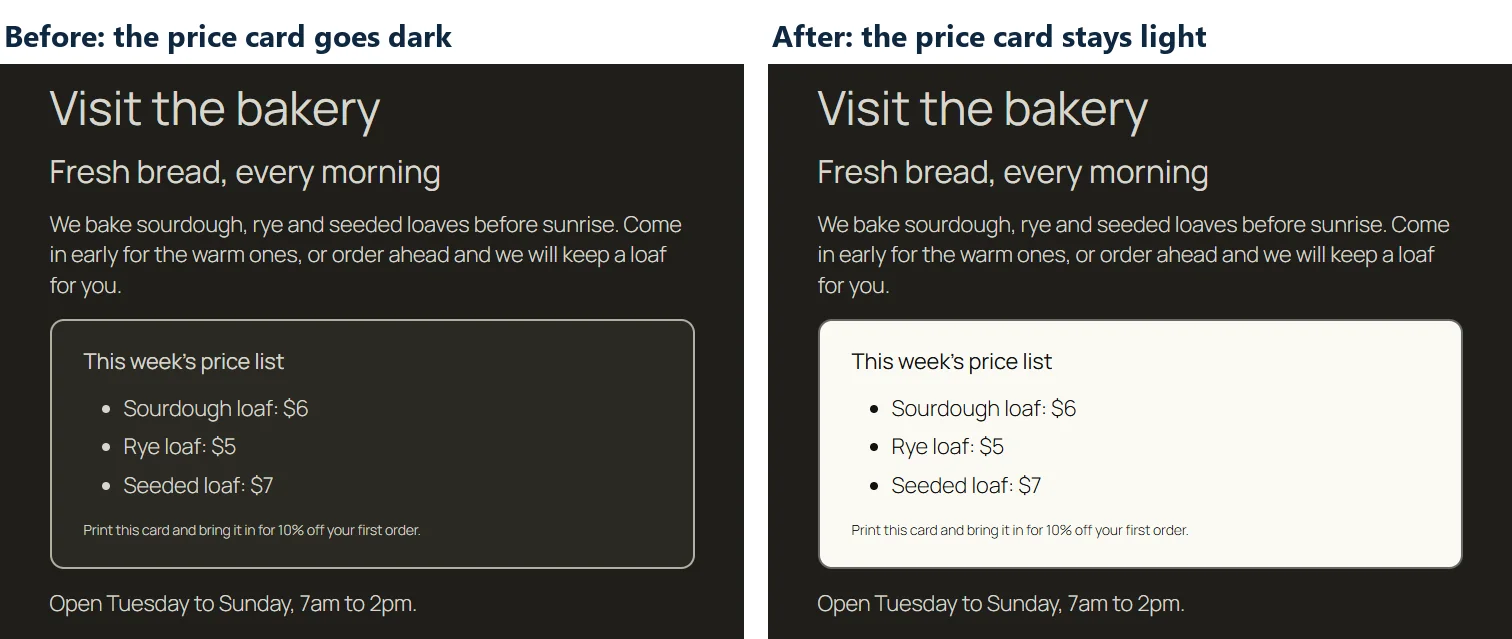
Here is the same page in dark mode, before and after. The rest of the page is still dark. The price card stays light, and the text inside it stays dark and easy to read.
Keep a whole page light
Sometimes the whole page should stay light. Maybe it’s a printable form, or a landing page you designed for a white background.
- Open the page in the editor.
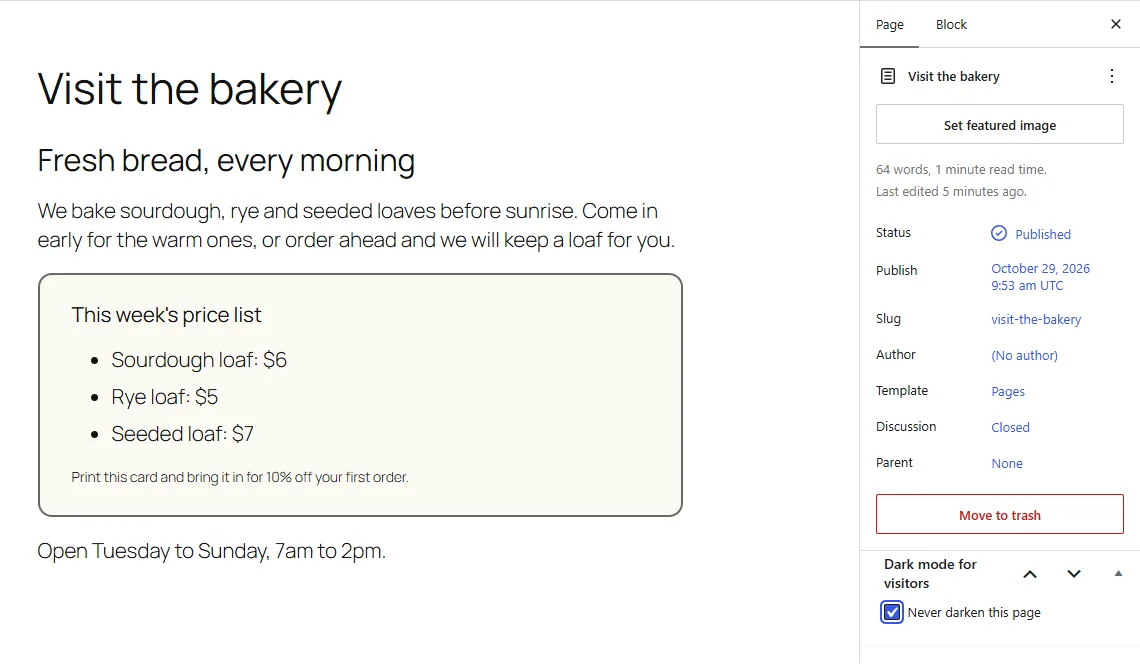
- Find the Dark mode for visitors box in the sidebar, under the Page tab.
- Tick Never darken this page and save.
That page now gets no dark mode at all. The rest of your site works as before. The box only shows while dark mode for visitors is turned on.
If you write your own HTML
If you add HTML by hand, in a Custom HTML block or a template, you can mark a part right in the code:
<div class="newsletter-box" data-mawu-ignore>...</div>Also add this one line to Never darken these parts:
[data-mawu-ignore]That line makes the attribute work on every theme, including block themes. After that, anything you mark this way stays light, with no new line in the list for each one.
Keep whole sections of your site light (Pro)
Mawu Pro adds two more choices to the same group:
- Never darken these post types, for example the products in a WooCommerce shop.
- Never darken posts in these categories and tags. Their archive pages stay light too.
These save you from ticking the box on every page one by one. See the Mawu plans.
When you want it dark, just different
Sometimes a part looks fine in dark mode but needs a small change, like a darker footer. You don’t have to keep it light for that. Use WordPress’s own Additional CSS, and start each rule with html[data-mawu-mode="dark"]. Then it only applies while a visitor has dark mode on:
html[data-mawu-mode="dark"] .site-footer { background: #000; }In a classic theme, find Additional CSS under Appearance → Customize. In a block theme, it’s in the Site Editor under Styles.
Something still looks wrong?
Add that part to Never darken these parts for now. Then please tell us in the support forum, so we can fix it for everyone. The known gaps page lists the issues we already know about. For every setting in the Frontend panel, see dark mode for your website’s visitors.
Dark mode for visitors and everything in this guide, apart from the Pro section, is in the free version of Mawu Dark Mode, our WordPress dark mode plugin.